Authentication Settings
For anyone who signs in to the Tarot Routing platform: planners, dispatchers and administrators. How sign-in works, and how to add, change or remove the ways you sign in.
Drivers loading a run sheet in the Driver App don't sign in, so nothing on this page changes how they start a run. See Load a Run.
How sign-in works
Tarot Routing has four sign-in methods. Some prove who you are on their own (a first factor), some are an extra check after that (a second factor), and a passkey does both at once.
| Method | First factor | Second factor | What it is |
|---|---|---|---|
| Passkeys | Yes | Yes, in the same step | Your fingerprint, face or device PIN, on a computer, phone or security key you've registered. |
| Password | Yes | No | Your Tarot Routing password. |
| Email (link or code) | Yes | Yes | A sign-in email with a 6-digit code and a link to approve the sign-in. |
| Authenticator app | No | Yes | A 6-digit code from an app such as Google Authenticator, Microsoft Authenticator or 1Password. |
When Multi-Factor Authentication (MFA) is off, a password alone or an email alone is enough. When MFA is on, you sign in with one of these combinations:
- a passkey on its own
- password, then authenticator app
- password, then email link or code
- login email, then authenticator app
The same email can't count twice, so login email followed by login email is never accepted.
Note
A passkey is the quickest way to sign in and the hardest to steal: there's no password to type, phish or reuse, and it satisfies MFA in one step. If you only set up one thing, make it a passkey.
Open Authentication settings
- Navigate to the Admin panel in Tarot Routing and select Account.
- Select the Authentication settings tab.
The tab has four parts: the Use Multi-Factor Authentication (MFA) switch at the top, Authentication methods (your passkeys, password, email and authenticator apps), Default second factor, and the Allowed sign-in pathways panel, which shows the ways you can sign in right now.
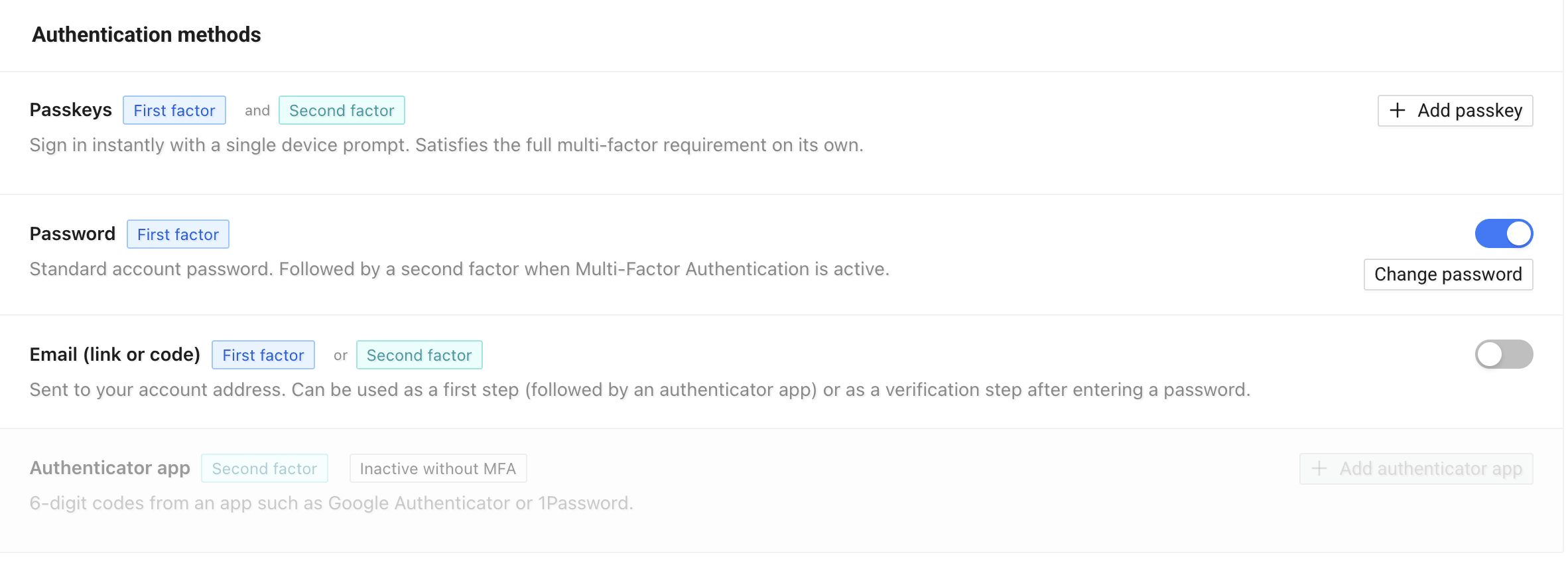
Confirm it's you
Before showing your settings, Tarot asks you to confirm who you are, so that someone who finds your computer unlocked can't quietly add their own passkey. Use whichever of these you have:
- type your password and click Continue
- click Sign in with passkey
- click Send Login Email and use the code or link
If MFA is on and you confirmed with a password or email, Tarot then asks for your second factor as well. One confirmation covers changes for the next five minutes.
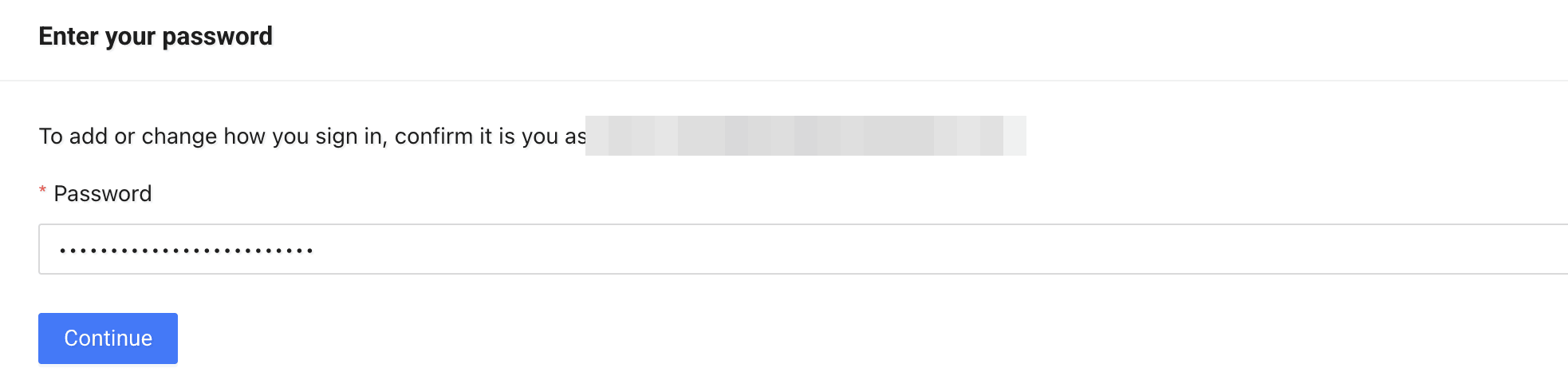
Tarot emails you whenever a sign-in method is added or removed, so you'll know if a change wasn't yours.
Add a passkey
A passkey is stored by your device or password manager (for example iCloud Keychain, Google Password Manager, Windows Hello or 1Password) and unlocked with your fingerprint, face or device PIN. You need a device with a screen lock, a password manager that saves passkeys, or a hardware security key.
- Open Authentication settings and confirm it's you.
- Under Passkeys, click Add passkey.
- Enter a name you'll recognise later, such as Work computer or Office PC, and click Save passkey.
- Your browser or operating system asks where to save the passkey. Choose this device, your password manager, your phone or a security key, and confirm with your fingerprint, face or PIN.
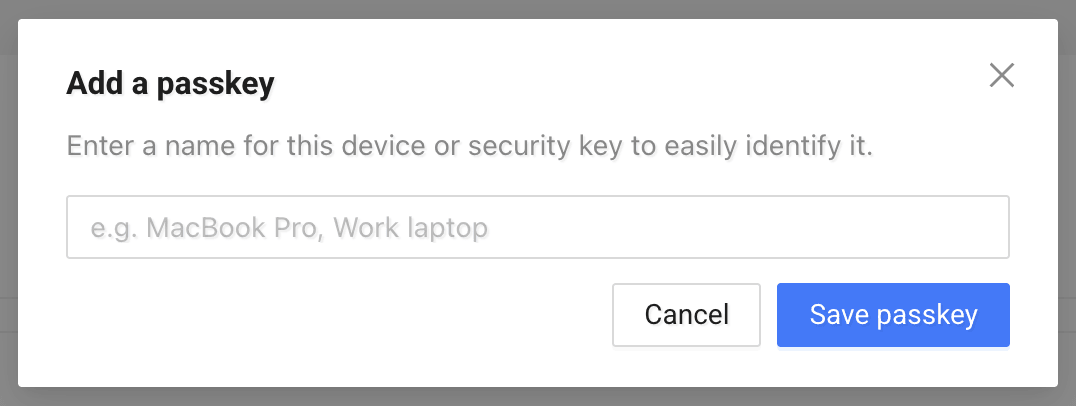
The passkey appears under Passkeys with the name you gave it, and Passkey alone turns green under Allowed sign-in pathways.
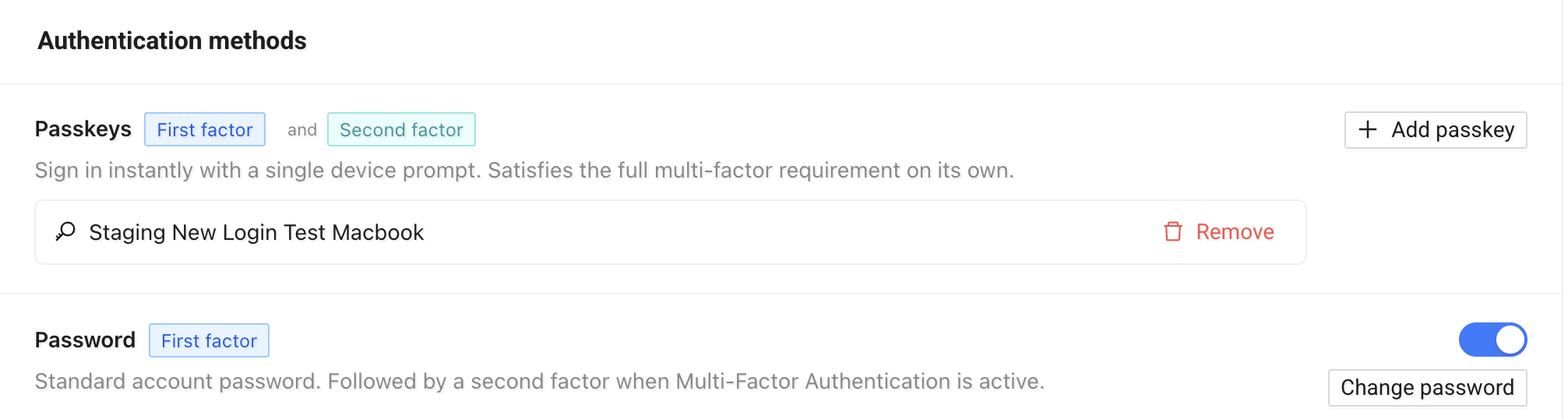
A passkey synced through your password manager follows you to your other devices. One saved only on a single computer works only there, so add a passkey on each computer you use, or keep one on your phone as well.
Your browser only lets you save a passkey on a device that can check it's you. If the prompt doesn't appear, or offers only a QR code, the device has no screen lock or passkey support. Use your phone or a password manager instead.
Don't save a passkey on a shared computer. If several people share one login on a computer, such as a desktop in the warehouse, anyone who can unlock it could use a passkey saved there. Use a hardware security key, or your password with an authenticator app, instead.
Sign in with a passkey
On the login page, either:
- click in the Email field and choose your passkey from the browser's suggestions, or
- click Sign in with passkey.
Confirm with your fingerprint, face or PIN, and you're in. You don't need to type your email address: the passkey tells Tarot who you are, and no second step follows.
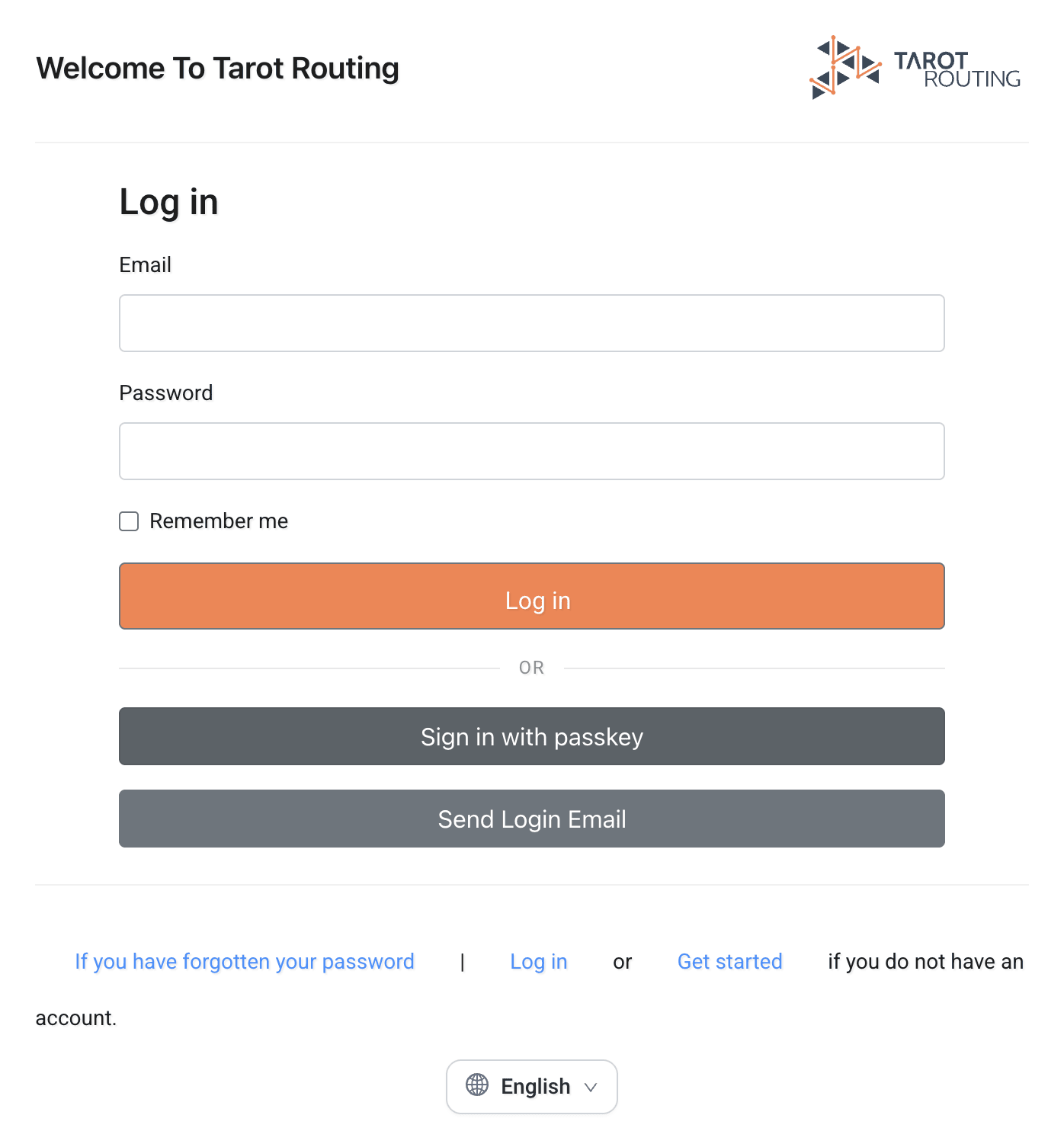
If you see This passkey is not set up for Tarot Routing., your device offered a passkey that has been removed from your Tarot account, or was never added to it. Sign in another way and delete the old passkey from your password manager.
Turn Multi-Factor Authentication on or off
MFA means a stolen password isn't enough to get into your account. Your organisation may already require it, in which case the switch shows Required by organisation and can't be turned off.
- Open Authentication settings and confirm it's you.
- Check Allowed sign-in pathways first. At least one pathway other than Password alone and Email link or code alone must be ready, or you'll be asked to set one up the next time you sign in.
- Turn on Use Multi-Factor Authentication (MFA).

The change applies the next time you sign in. Anyone already signed in stays signed in.
To turn MFA off, turn the same switch off. Your passkeys and authenticator apps stay set up, and password alone or email alone works again.
Warning
If you turn MFA on before setting up a second factor or a passkey, the page shows No valid login flow available. Add a passkey or an authenticator app, or turn on Email (link or code), before you sign out.
Info
Planner Login in the Driver App signs in with an email and password only, for now. While MFA is on, or if your account has no password, Planner Login won't sign you in. If you rely on it, wait for the Driver App update that adds MFA and passkeys before turning MFA on.
Add an authenticator app
An authenticator app is a second factor only, so it's available once MFA is on. Until then it shows Inactive without MFA.
- Open Authentication settings, confirm it's you, and make sure MFA is on.
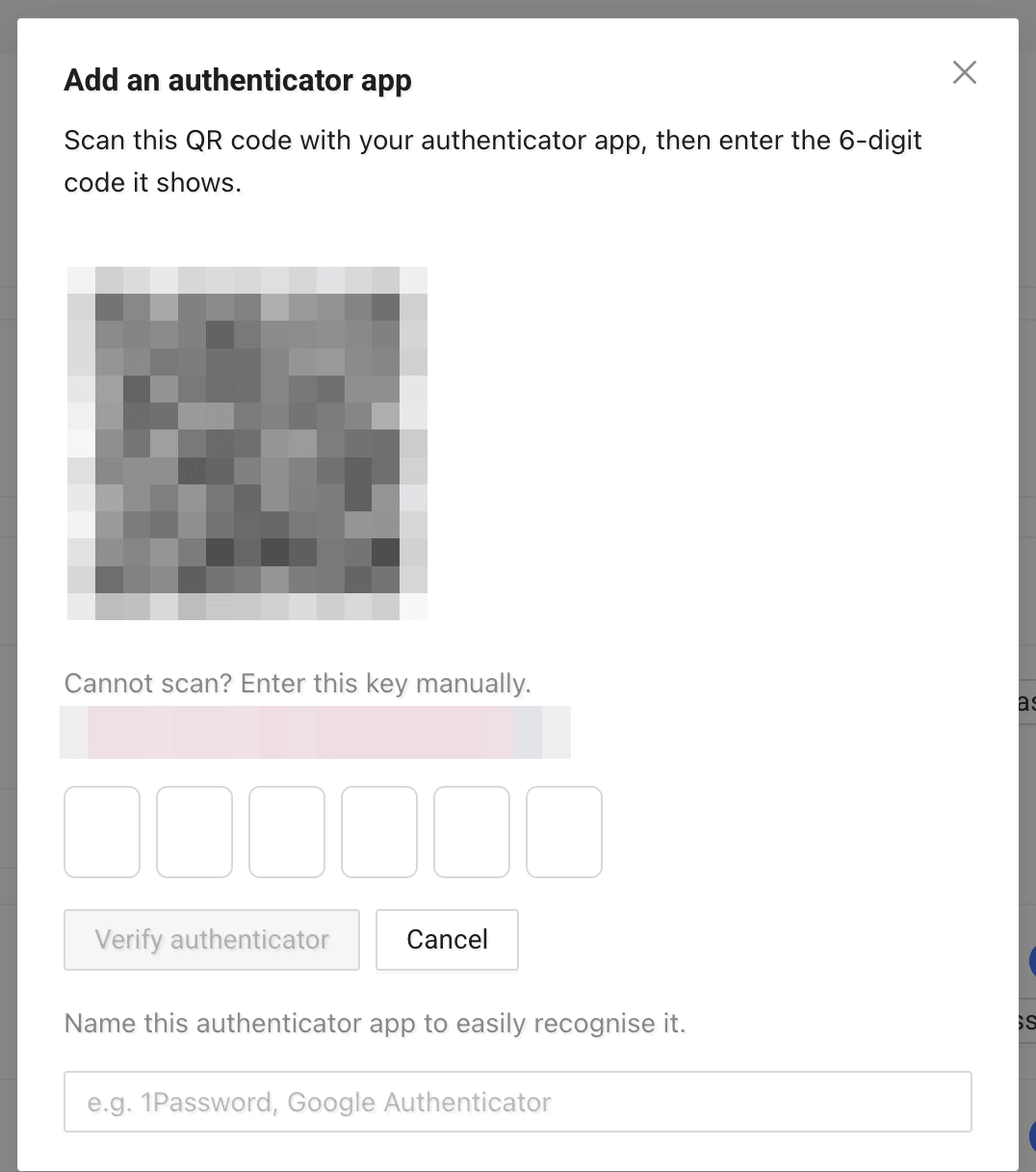
- Under Authenticator app, click Add authenticator app.
- Open your authenticator app and scan the QR code. If you can't scan it, copy the key shown under Cannot scan? Enter this key manually. into the app.
- Optionally, enter a name for this authenticator, such as 1Password or Google Authenticator.
- Enter the 6-digit code the app shows and click Verify authenticator.
Tarot appears in your app as Tarot Routing. You can add more than one authenticator app, for example one on your phone and one in your password manager, and any of them will work.
Set, change or remove your password
A password is optional if you have a passkey or email sign-in.
- Set a password: turn on the Password switch, enter a new password and click Set password. The strength meter shows how strong it is, and your organisation's Password Policy applies.
- Change your password: click Change password, enter the new one and click Change password.
- Remove your password: turn off the Password switch. Tarot only allows this if you can still sign in another way, such as with a passkey or by email.
If you've forgotten your password, use the forgotten-password link on the login page. Tarot emails you a reset link, and if MFA is on you still complete your second factor after choosing a new password. If your account has no password, the email explains that and suggests signing in with a passkey or Send Login Email instead.
Use email to sign in
Email (link or code) sends a sign-in email to your account address. It contains a 6-digit code and an approve this sign-in link. Type the code into the login page, or open the link, including on another device such as your phone, then return to the original window.
-
Turn the Email (link or code) switch on or off to allow or stop email sign-in.

-
With MFA off, Send Login Email on the login page signs you in on its own.
- With MFA on, email works either as the second step after your password, or as the first step followed by an authenticator app code.
Each sign-in email is valid for five minutes. Resend email sends a new one and cancels the previous code and link.
Note
Opening the approve link doesn't sign anyone in by itself. You still click Approve sign-in on the page it opens. Only do that if you started the sign-in yourself.
Choose your default second factor
If you have both an authenticator app and email sign-in, Default second factor decides which one Tarot asks for straight after your password:
- Authenticator app asks for your 6-digit code immediately.
- Email (link or code) sends a sign-in email automatically.
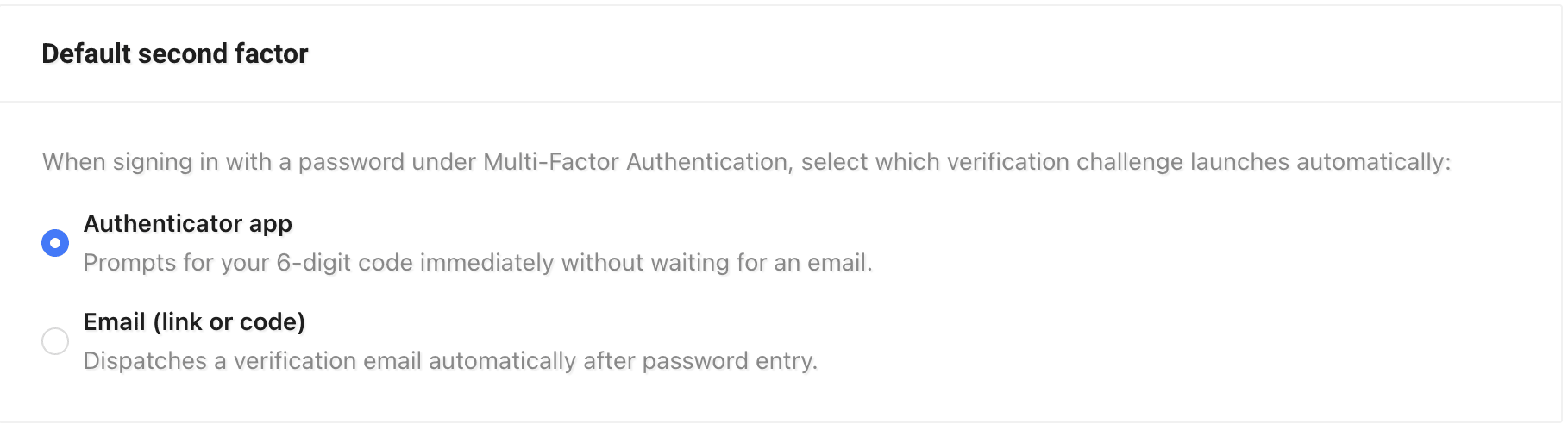
Either way, Verify another way on the sign-in screen switches to the other one. Passkeys aren't listed because they're already a complete sign-in.
Read the Allowed sign-in pathways panel
Allowed sign-in pathways lists every way you could sign in and shows which ones work for you right now. A green tick means the pathway is ready. A grey one shows To enable: and the one step that would turn it on, such as Add a passkey or Turn on MFA.
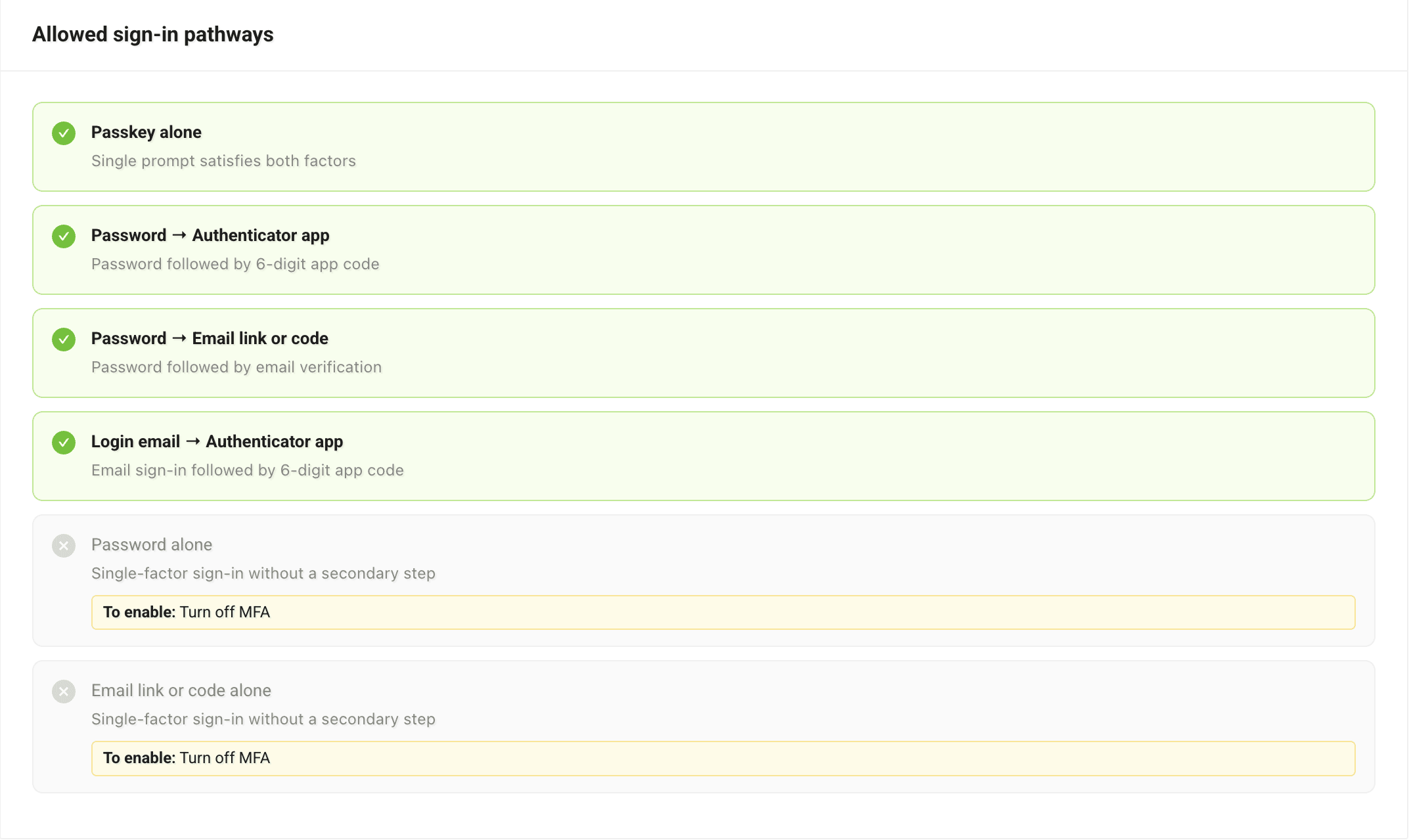
| Pathway | Needs |
|---|---|
| Passkey alone | At least one passkey |
| Password → Authenticator app | MFA on, a password and an authenticator app |
| Password → Email link or code | MFA on, a password and email sign-in |
| Login email → Authenticator app | MFA on, email sign-in and an authenticator app |
| Password alone | MFA off and a password |
| Email link or code alone | MFA off and email sign-in |
Keep at least two pathways green, so losing one device doesn't lock you out.
Remove a passkey or authenticator app
Click Remove next to it. Tarot won't remove the last method that lets you sign in, and if your organisation requires MFA it won't remove your last second factor either. Add the replacement first, then remove the old one.
Remove a passkey or authenticator app straight away if the computer or phone it was on is replaced, lost or handed to someone else.
If you can't sign in
Tarot Routing has no recovery codes or security questions, by design: they're easier to steal than the methods they'd replace.
- You still have another method. Sign in with it, open Authentication settings and replace the method you lost.
- None of your methods work. Ask an administrator in your organisation to reset your sign-in methods, or contact Tarot support. You'll get an email with a link to set up new ones. You can't reset your own.
Five wrong codes in one sign-in attempt end that attempt. Start again from the login page.