Delivery Checklist
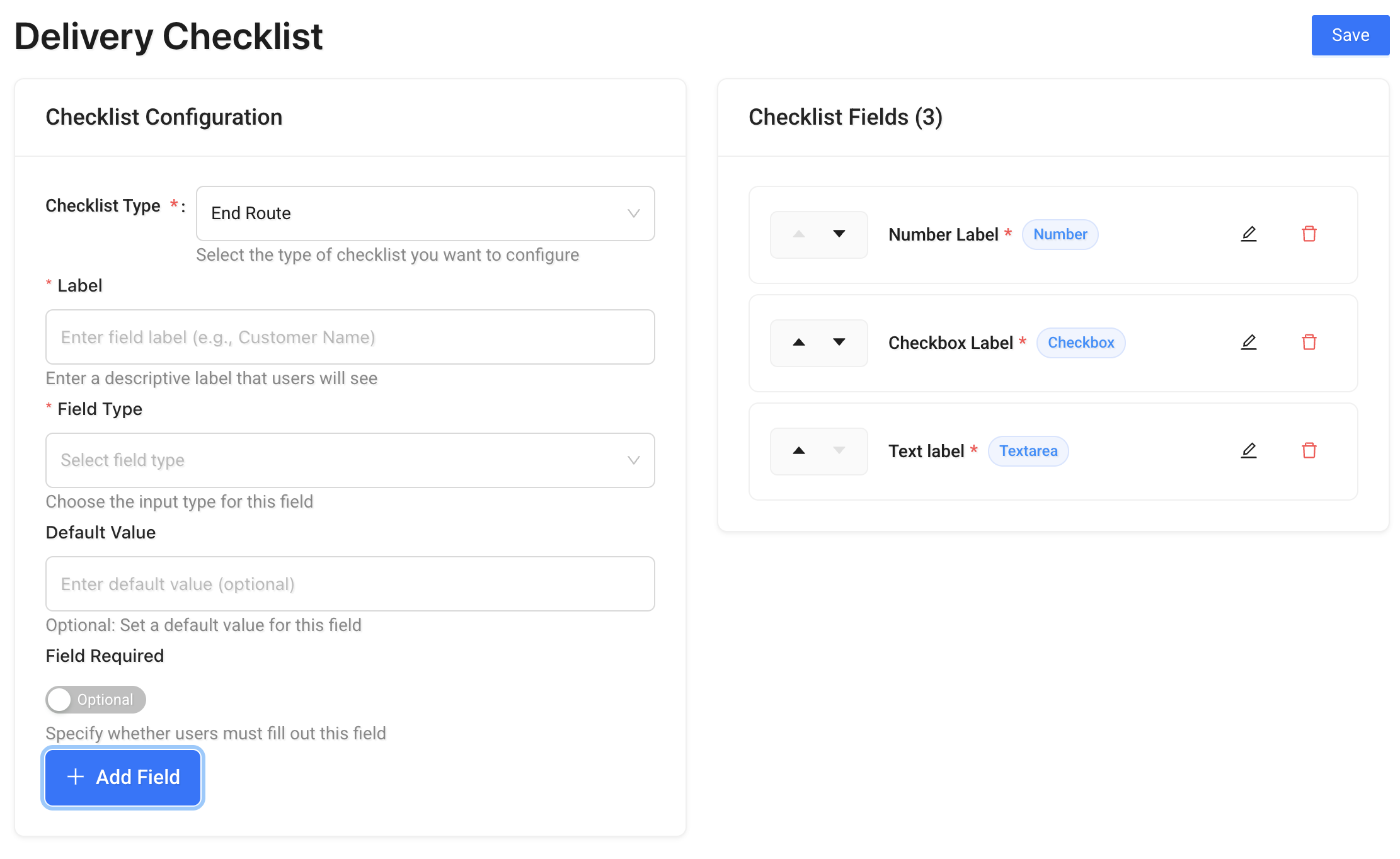
Delivery Checklists allow you to configure mandatory checks that drivers must complete in the mobile app.
There are two checklist types:
- Start Route – completed before a driver begins a route
- End Route – completed after a driver finishes a route
These checklists appear in the mobile application as part of Start Run Proofs and End Run Proofs.
Once completed, checklist data is stored with the run proofs and can be viewed in the Tracking Panel.
To access it: Right-click a completed run → open Run Details → go to the Proofs tab.
See also: Driver Mobile App Quickstart
Checklist Configuration
Select the Checklist Type:
- Start Route
- End Route
Each checklist type can have its own custom fields.
Adding Custom Fields
You can build fully custom forms by adding fields of different types.
Supported field types include:
- Text
- Number
- Textarea
- Select
- Checkbox
- Date
- Time
- Images
- Signature
- Todo
Click Add Field to create a new field.
Field Settings
For each field you can configure:
- Label – The name shown to drivers
- Field Type – The input type
- Default Value – Optional pre-filled value
- Field Required – Make the field mandatory
- Field Constraints – Set validation rules (e.g. minimum and maximum length for text/number fields)
You can also reorder fields using the arrow controls in the field list.
How It Works in the Mobile App
When a checklist is configured:
- Drivers must complete all required fields before starting or ending a route
- Validation rules are enforced
- Submitted checklist data is saved with the run
This ensures operational compliance, safety checks, and structured data collection directly from the field.