Starting a Route
For a driver ready to leave the depot, once loading is done — or done enough.
Starting the route
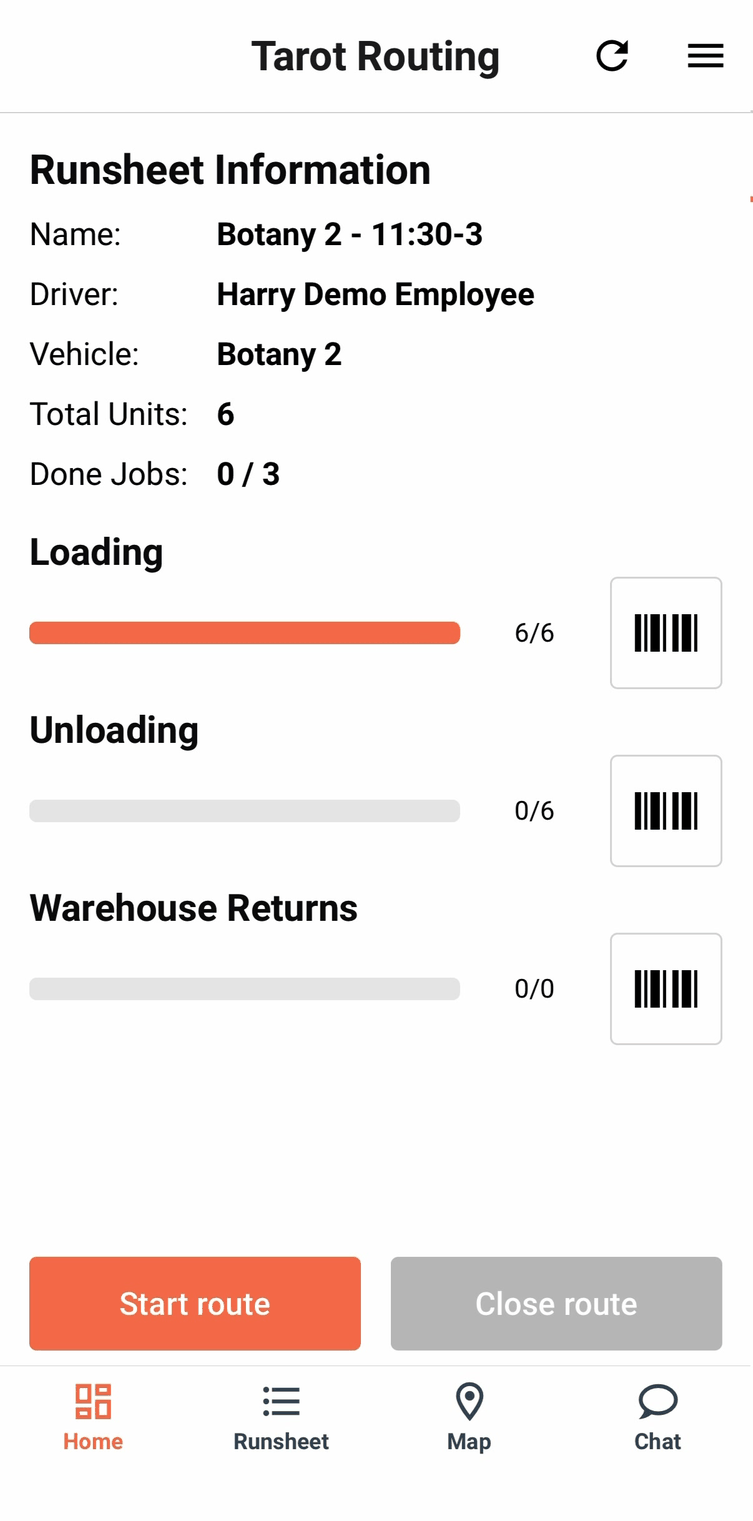
Once all Units have loading Proofs the Start Route button will turn orange and clickable. The Driver is now ready to submit a Run Proof and depart.
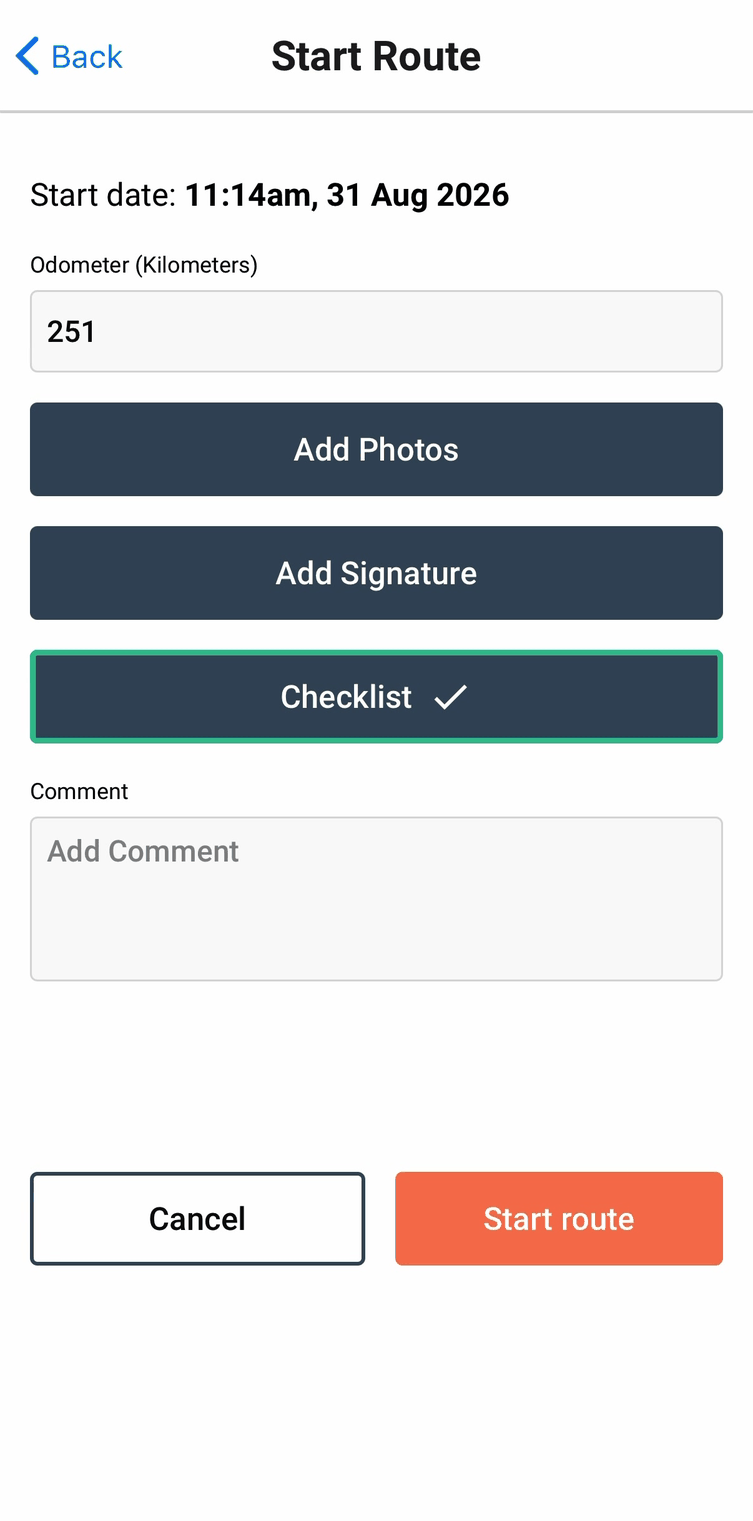
Start route asks for the date, a starting Odometer reading, and optionally photos and a signature.
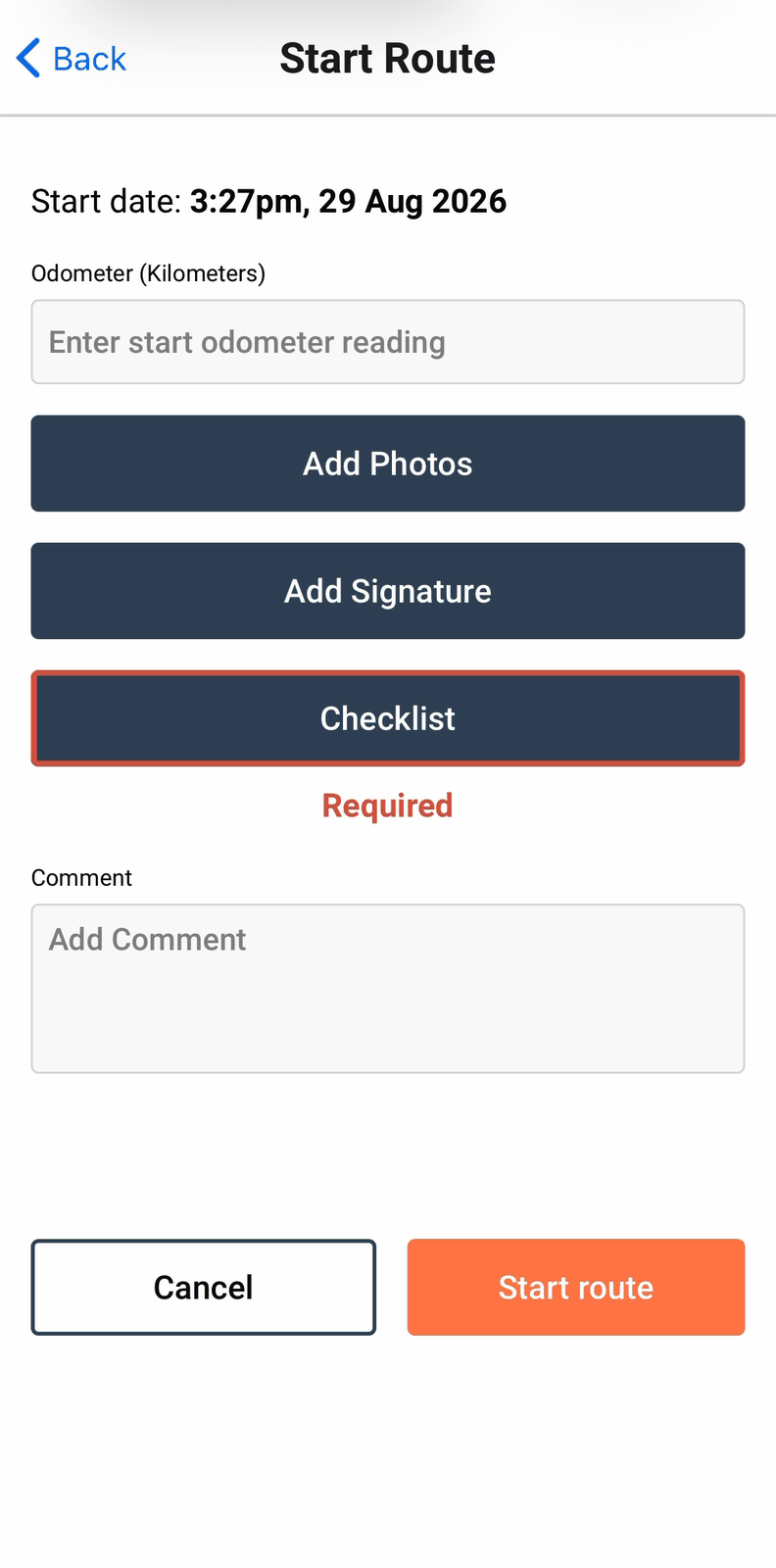
Where your organisation has one configured, a Checklist button also appears — outlined in red with Required beneath it if it's mandatory. Plenty of organisations don't use a start-route checklist at all, so don't expect to see this on every run.
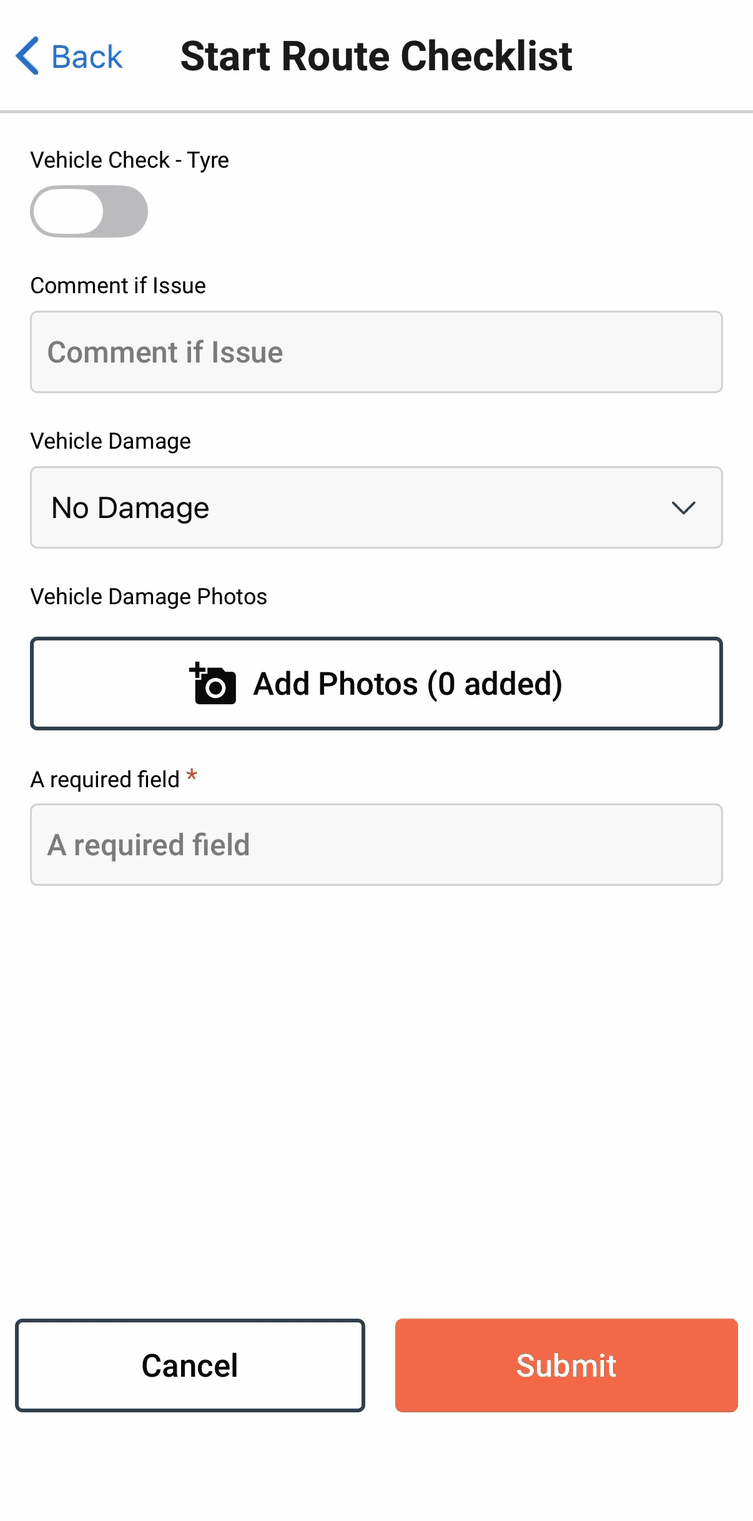
Fields your organisation has marked required carry an asterisk, and the checklist won't submit until they're filled in.
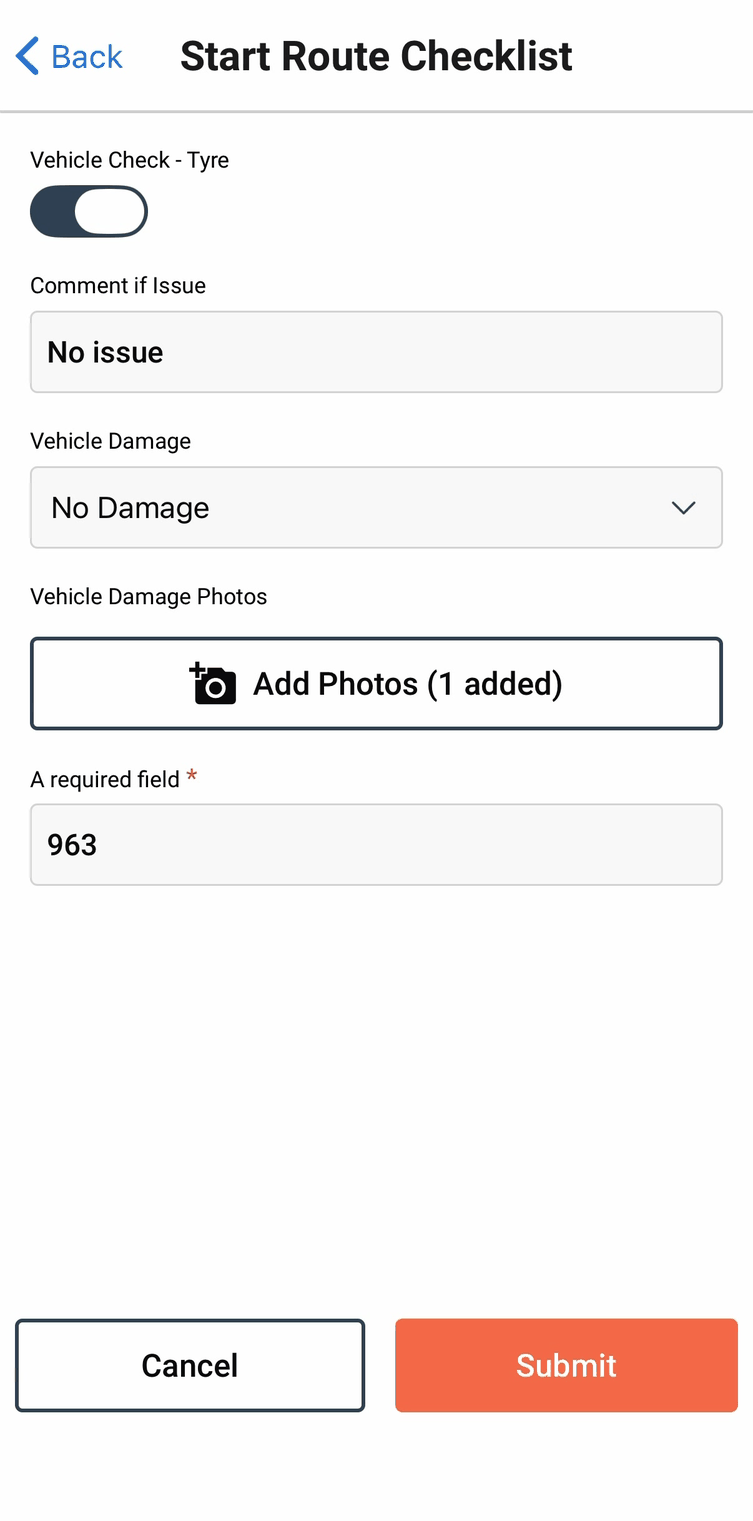
Once it's done, the Checklist button turns from Required to a green tick, and Start route becomes available.
Starting the route with units still unloaded doesn't block you outright — it warns you and lets you continue anyway, in case a parcel genuinely didn't make it onto the van.
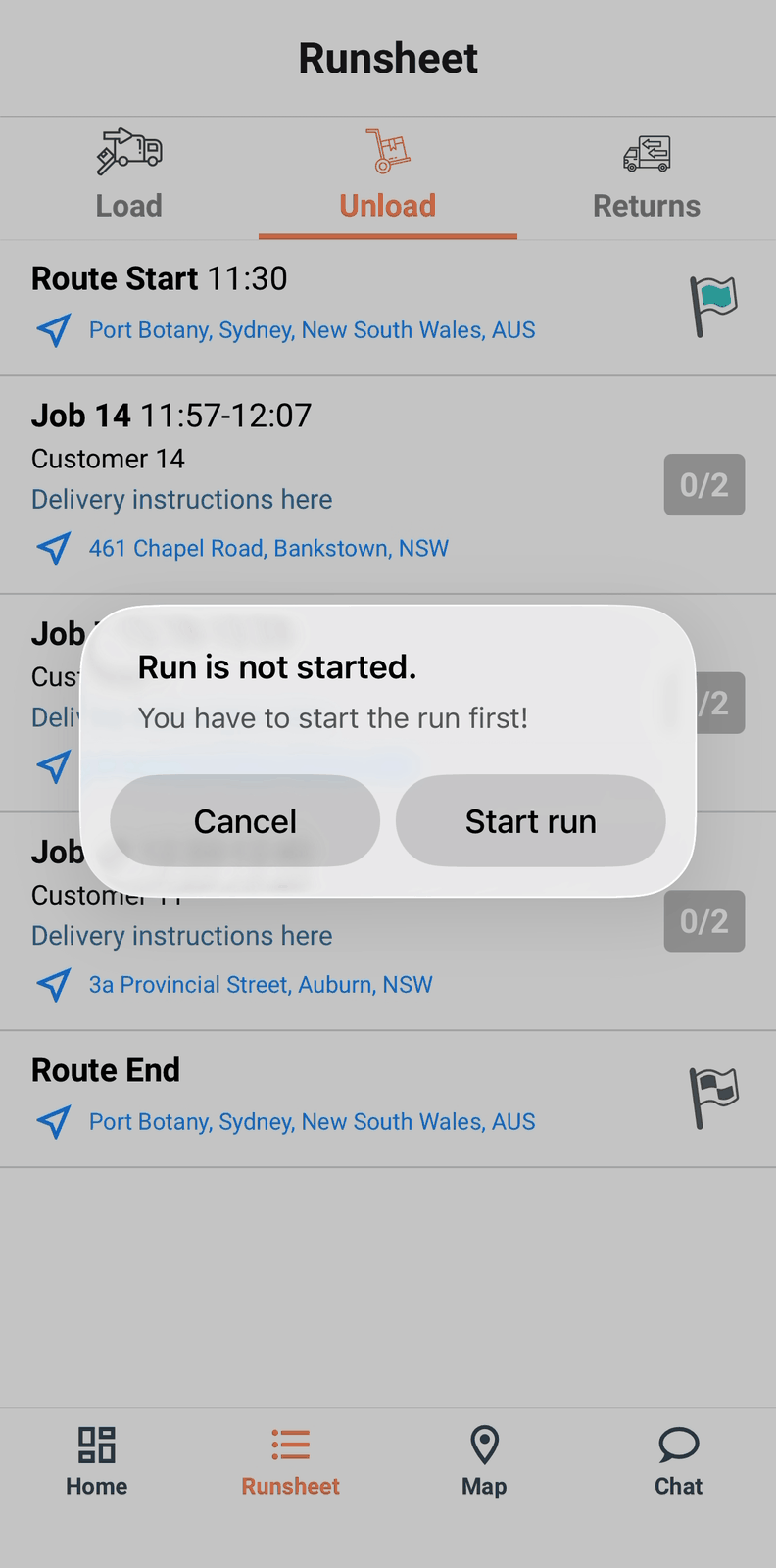
Tap a job on the Unload tab before the route has started, and rather than a flat refusal, the app offers to start the route for you on the spot.