Pre-Scanning
For a driver scanning parcels before the Runsheet has arrived — a small subset of runs, only where the last few orders are still being finalised in the warehouse when it's time to leave.
Pre-scanning
Pre-scanning exists to get you moving before the last few orders are finished being prepared in the warehouse. Rather than stand around waiting for a Runsheet that isn't ready yet, you scan what's physically in front of you now, and Tarot reconciles it against the Runsheet once it arrives. The payoff is concrete: a Runsheet can open already at Loading 6/6 with Start route live, seconds after it loads — nothing left to scan, because it was all done before the run even existed on the phone.
From the neutral home screen — no Runsheet, no login — tap Pre-Scan.
There's no progress bar while pre-scanning, because there's nothing yet to make progress against. The bottom bar just shows Last Scanned: with the most recent barcode, and the chevron expands into a running list of everything you've scanned so far.
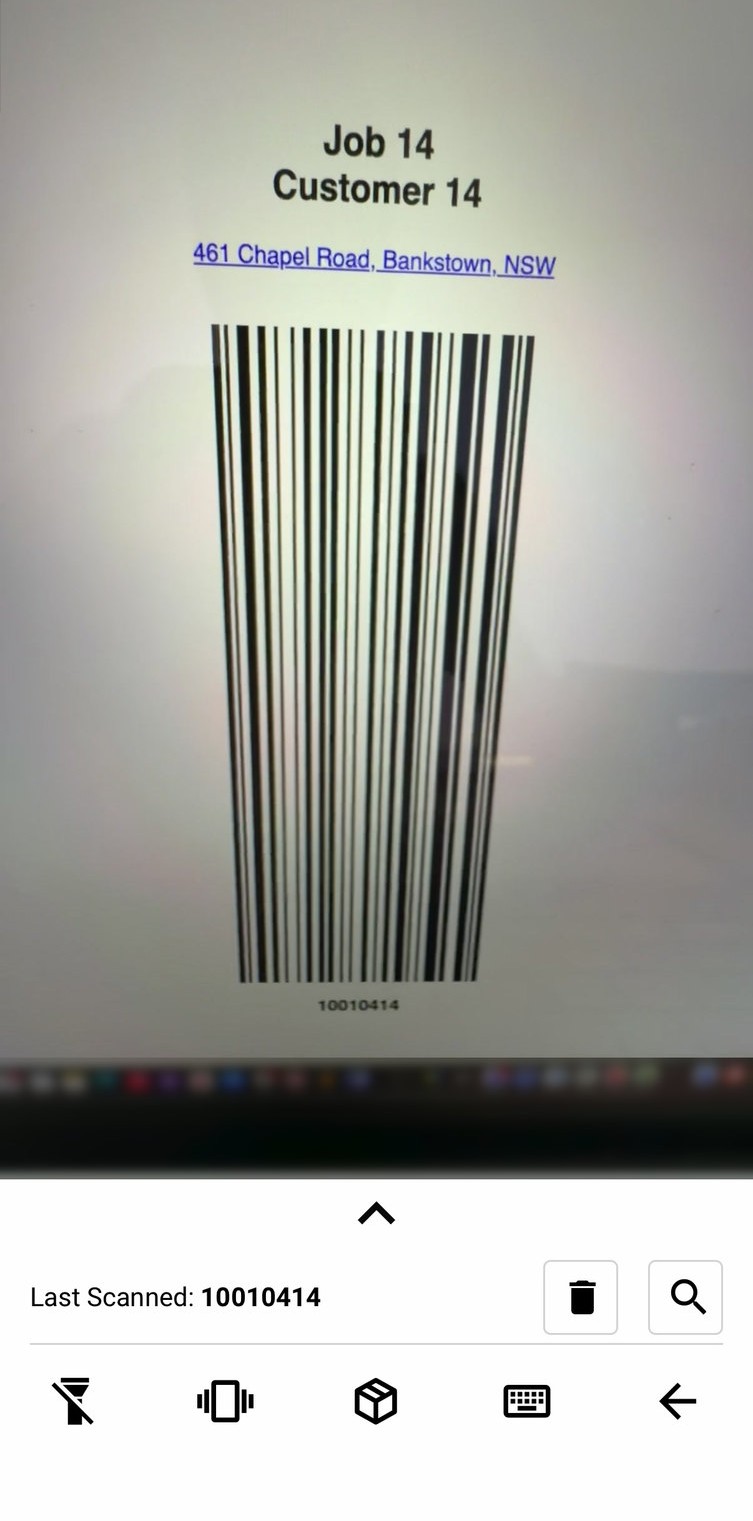
Container mode works here too, with the same Is {barcode} container? prompt as loading — just worded slightly differently on screen. See Loading for the rest of the camera controls, which behave identically here.
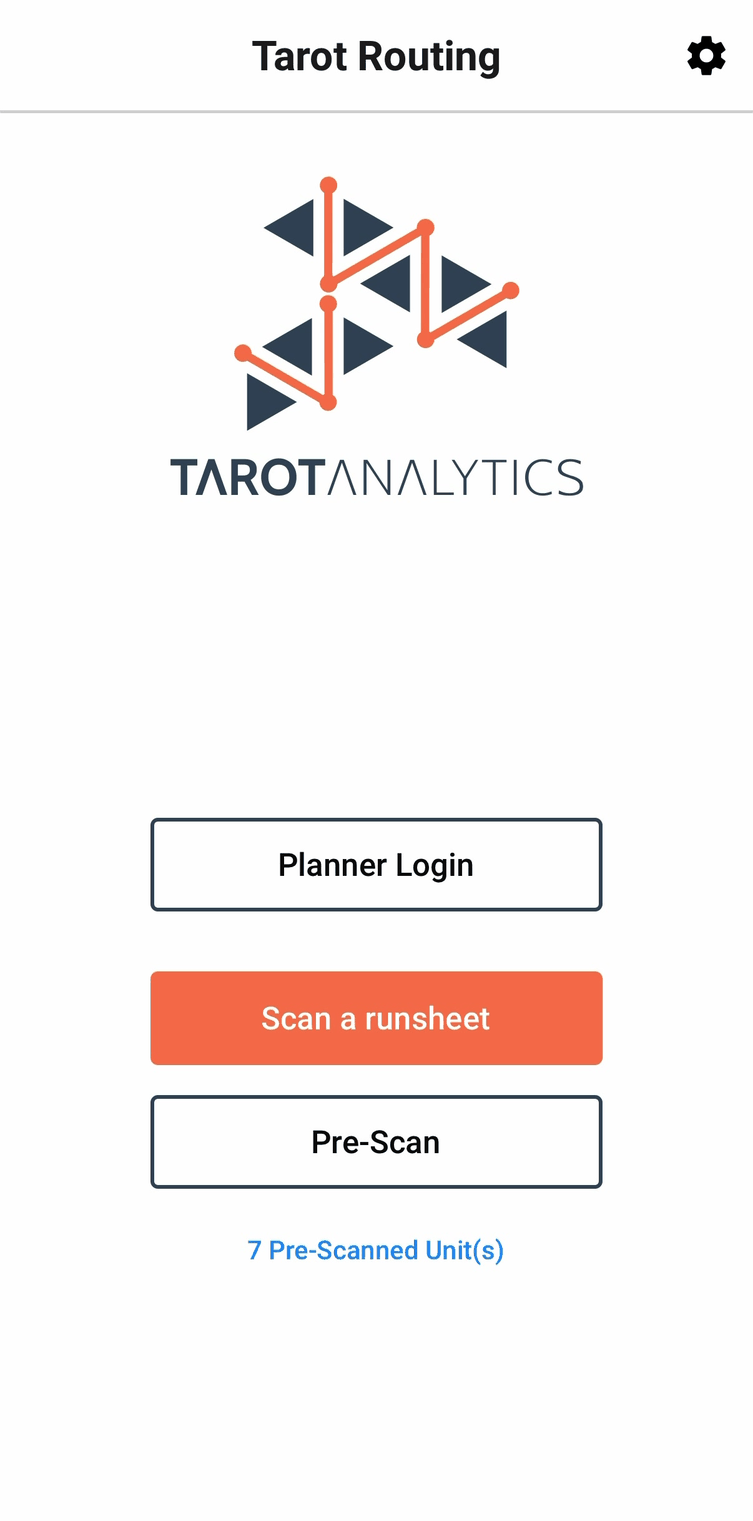
The home screen keeps a running tally underneath the Pre-Scan button:
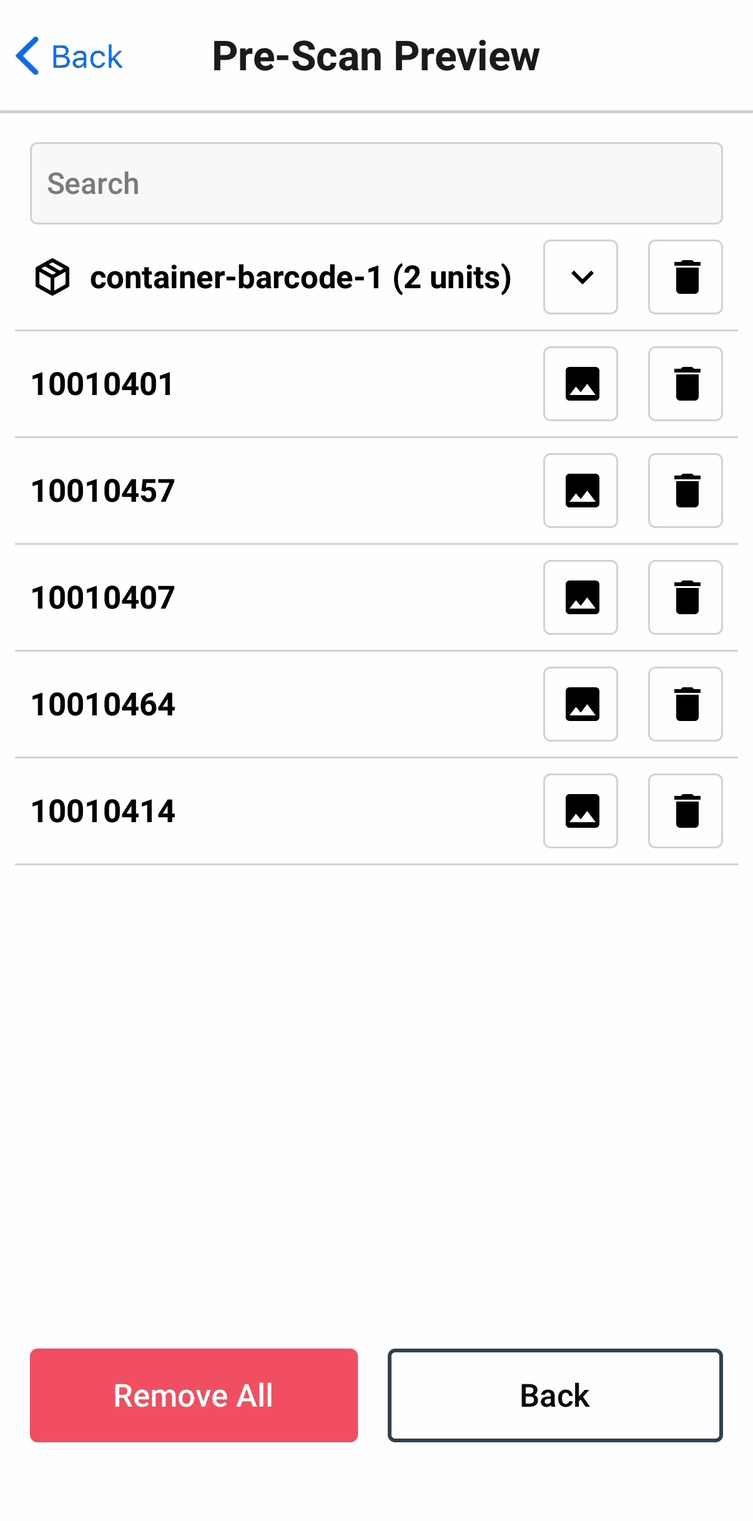
Pre-Scan Preview lists everything you've scanned — containers as collapsible rows, a photo thumbnail against each barcode, and a bin icon to remove one, or Remove All to clear the lot.
Nothing is validated at scan time. With no Runsheet loaded there's nothing to check a barcode against, so pre-scanning accepts whatever you show it — including a barcode from a completely different run. Only the barcode filter still applies, since that just checks the shape of a barcode rather than whether it belongs to you. Any mismatch surfaces later, once the Runsheet arrives — that's the design, not a gap: scan everything now, sort out what doesn't belong once there's something to sort it against.
Load the Runsheet as normal — QR code, then the privacy consent — and the Pre-Scan Report opens on its own.
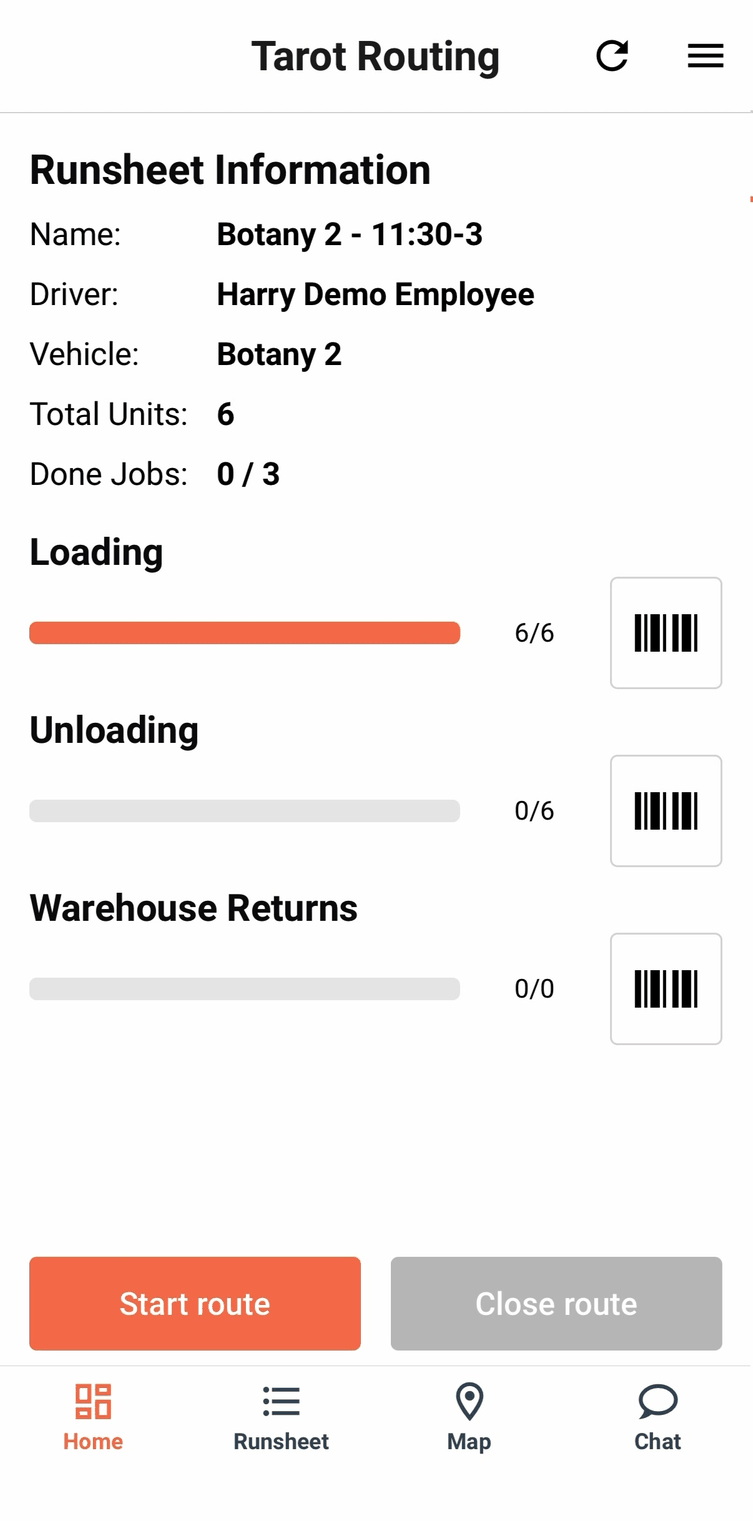
The Pre-Scan Report
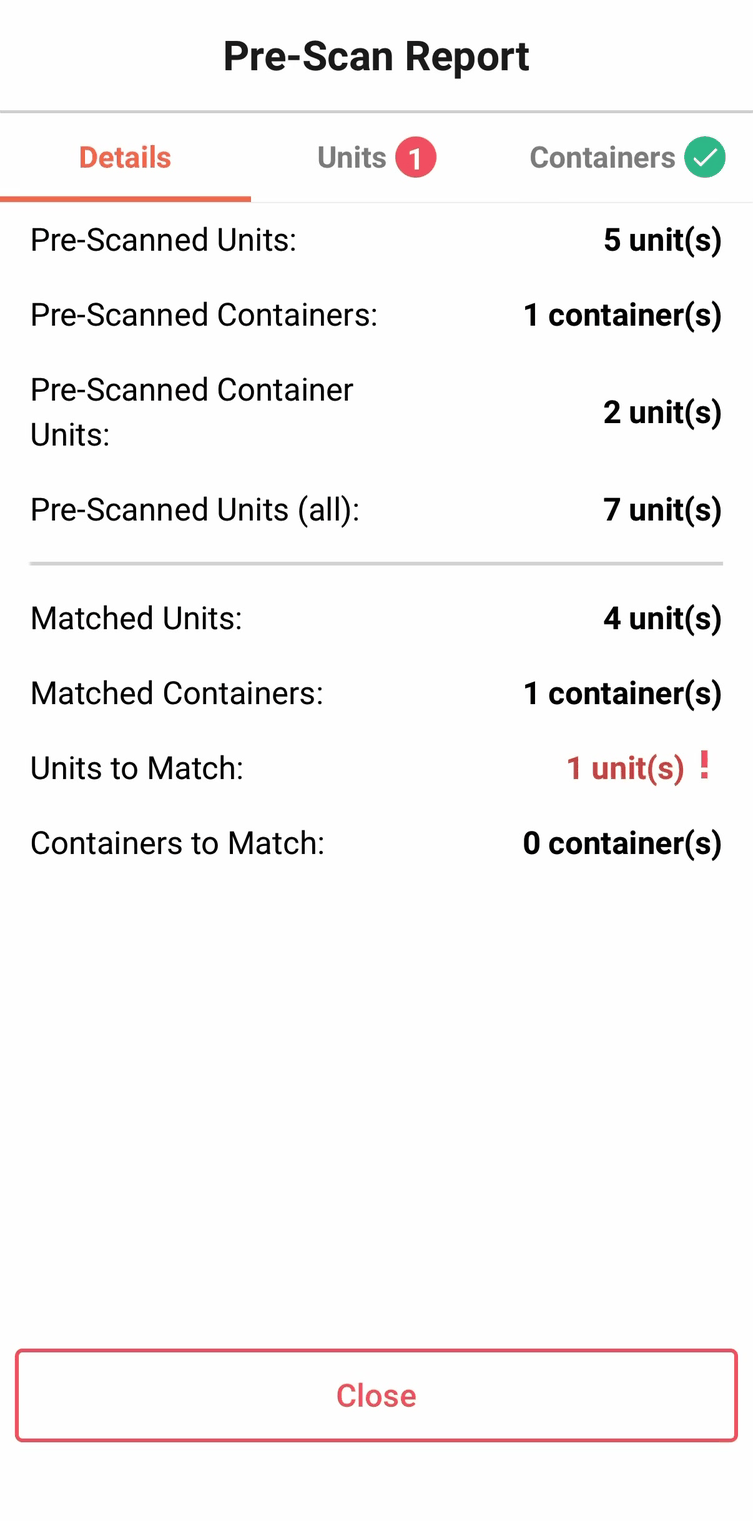
Three tabs — Details, Units, Containers — each carrying a red count while something needs attention, and a green tick once it's clear.
Details holds the numbers, and they look wrong until you know what each one means: Pre-Scanned Units counts loose units only, Pre-Scanned Container Units counts what's inside containers, and Pre-Scanned Units (all) is the two added together.
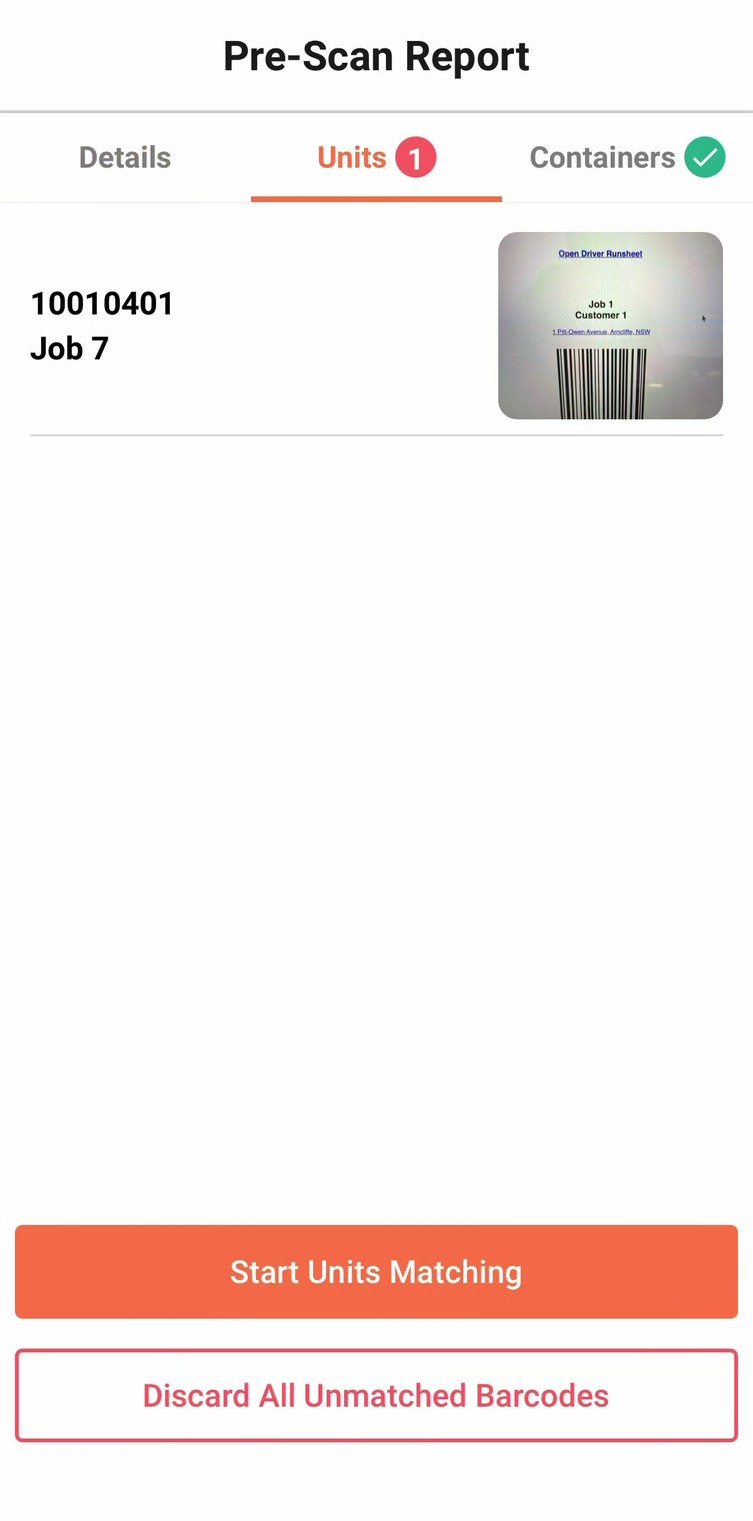
The Units tab lists whatever didn't match a unit on the Runsheet, each with the photo taken at the moment you scanned it — the photo is what makes the next decision possible.
Start Units Matching steps through the unmatched barcodes one at a time, with a job dropdown pre-filled with the app's best guess and Previous / Next to move on. Trust the photo over the guess — it's shown for exactly the moment the guess is wrong.
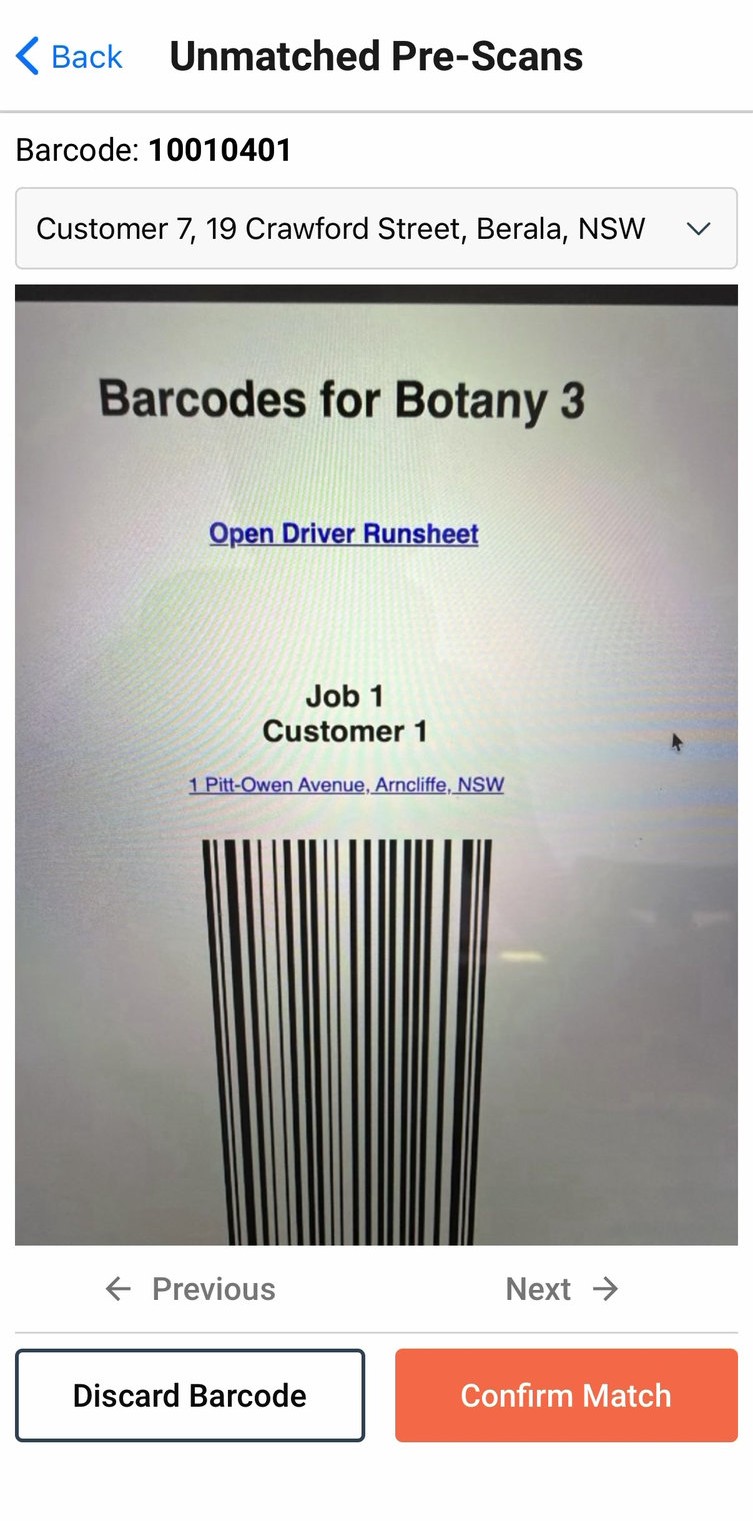
Discard All Unmatched Barcodes clears the lot in one go, if a batch of scans clearly doesn't belong to this run. Discarding, like confirming a match, can't be undone.
The report won't let you close it with units or containers still outstanding — everything has to be matched or discarded first.