Delivering & Proof of Delivery
For a driver at the customer's door, recording what happened at each stop.
After you tap Start Route and submit your Run Proof, you're ready to start delivering. The app takes you straight to the Runsheet tab's Unload view, where your route's stops live and you can open the Delivery Checklist for each of the Jobs on your Run.
Finding your stops
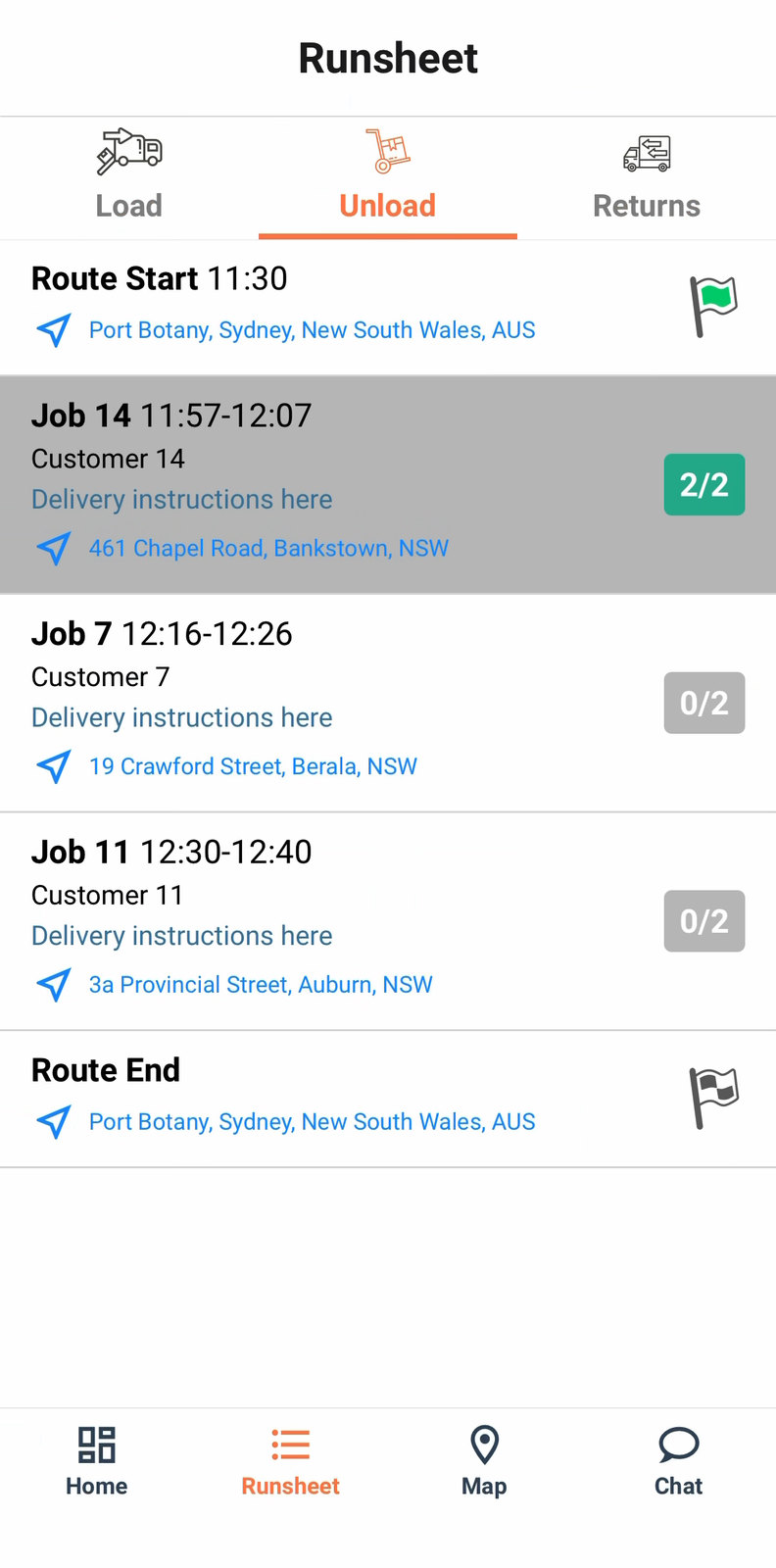
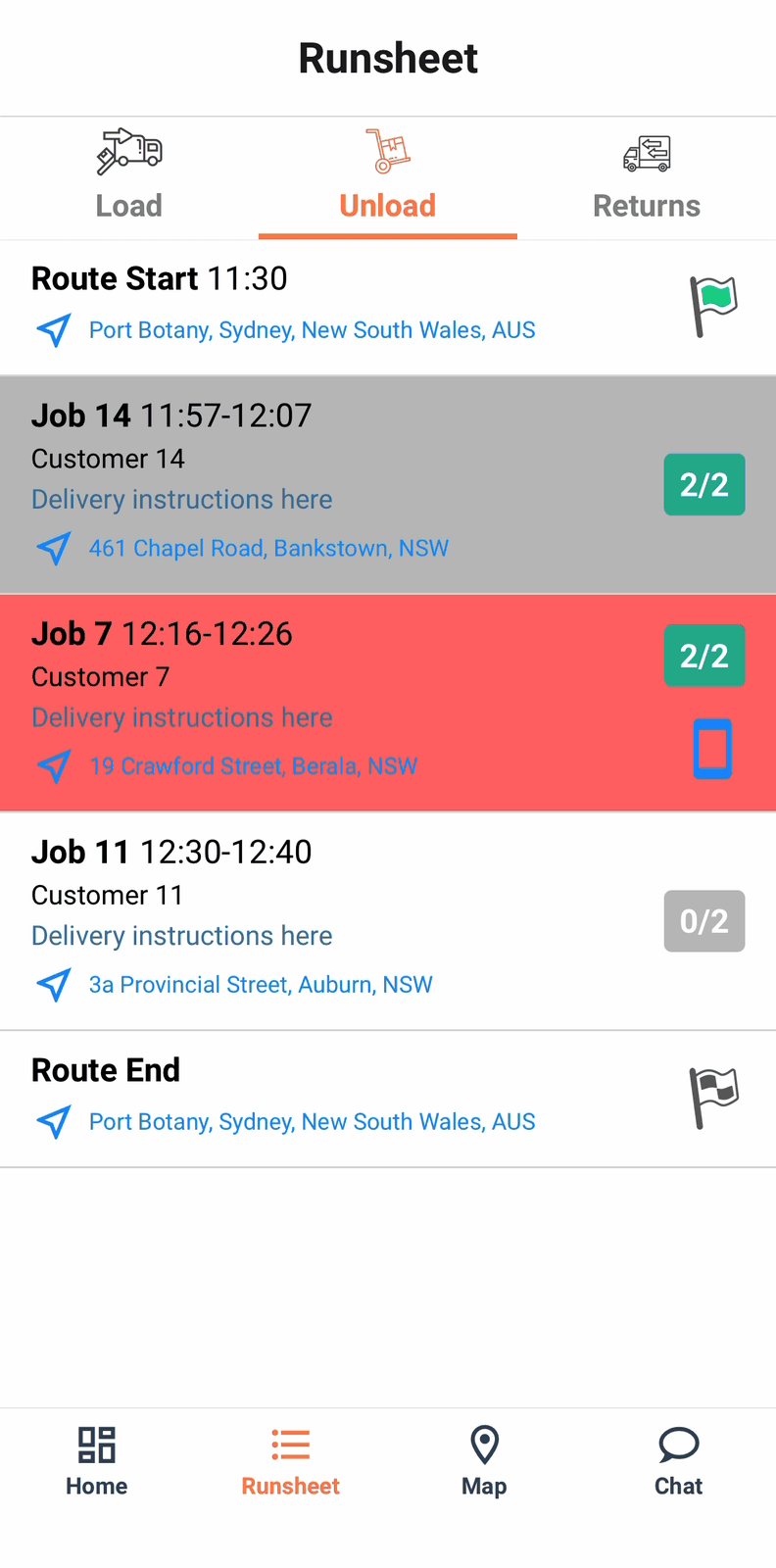
Runsheet tab → Unload lists Route Start, every stop in delivery sequence with its time window and delivery instructions, then Route End.
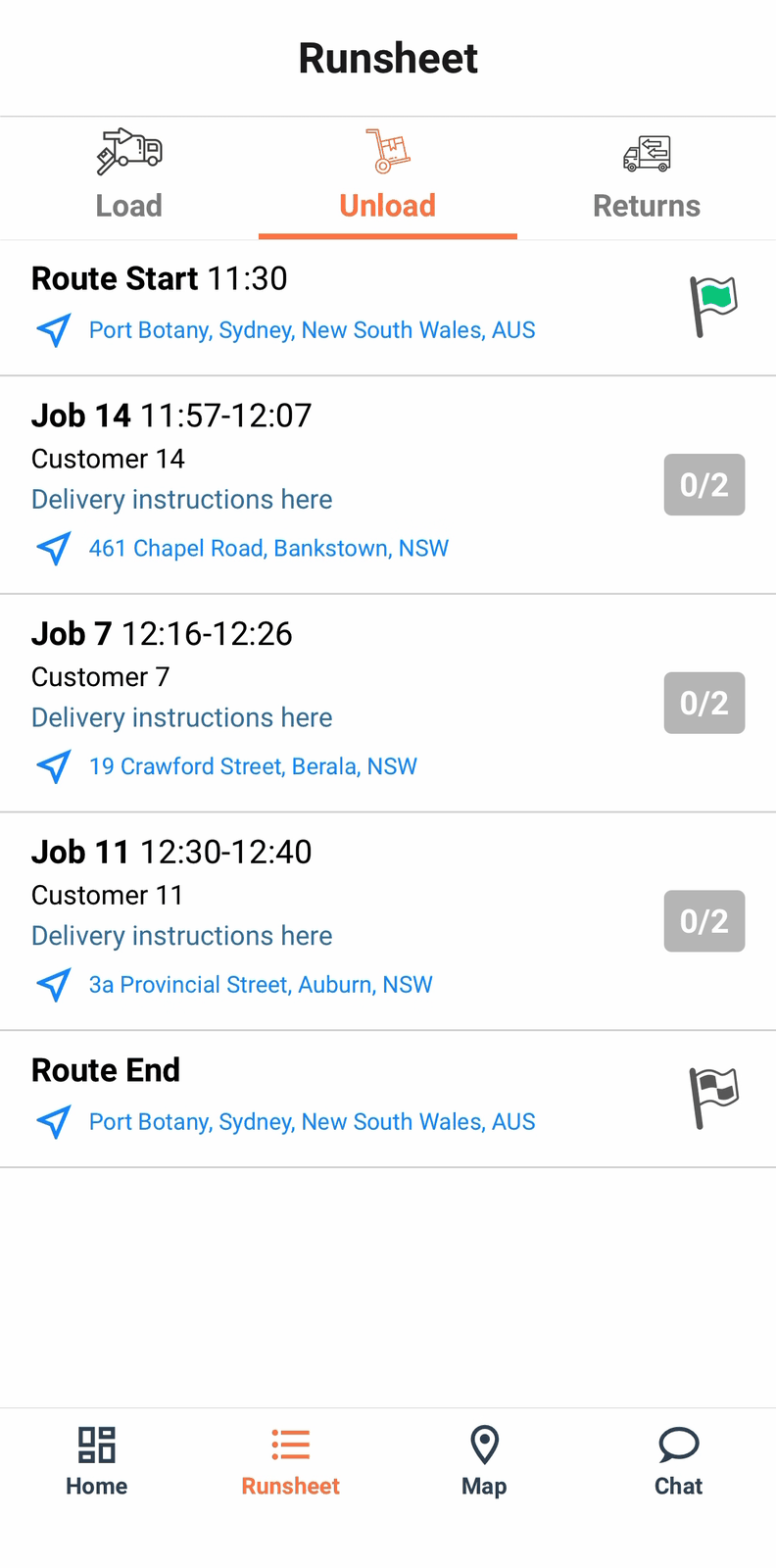
Addresses are tappable navigation links — tapping one opens Google Maps, Apple Maps, Waze or whichever app you've picked in Settings (see Load a run).
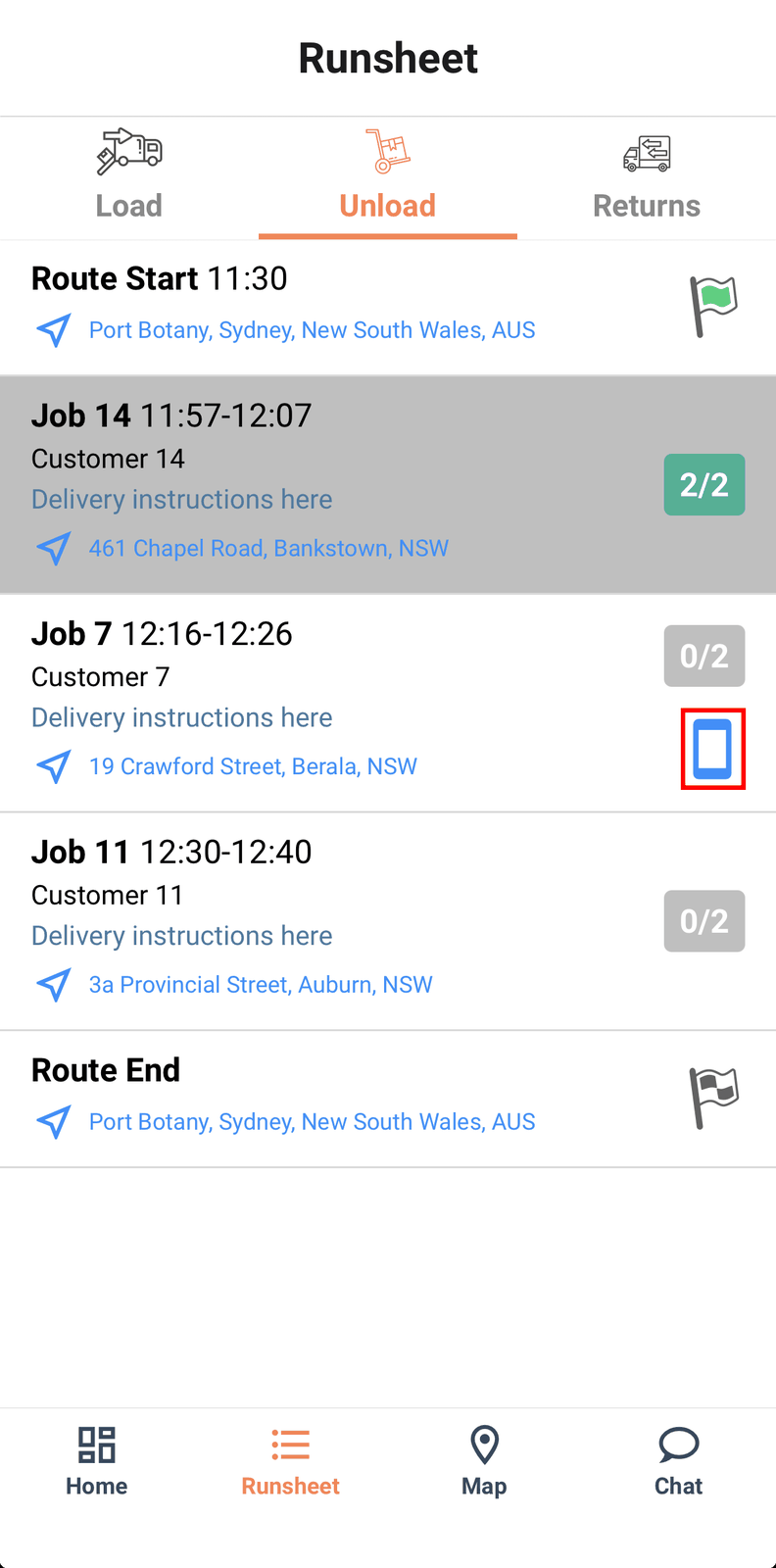
A phone icon appears on a stop only where that customer has contact details on file. Tapping it shows those details, or opens customer communications where your organisation has that module.
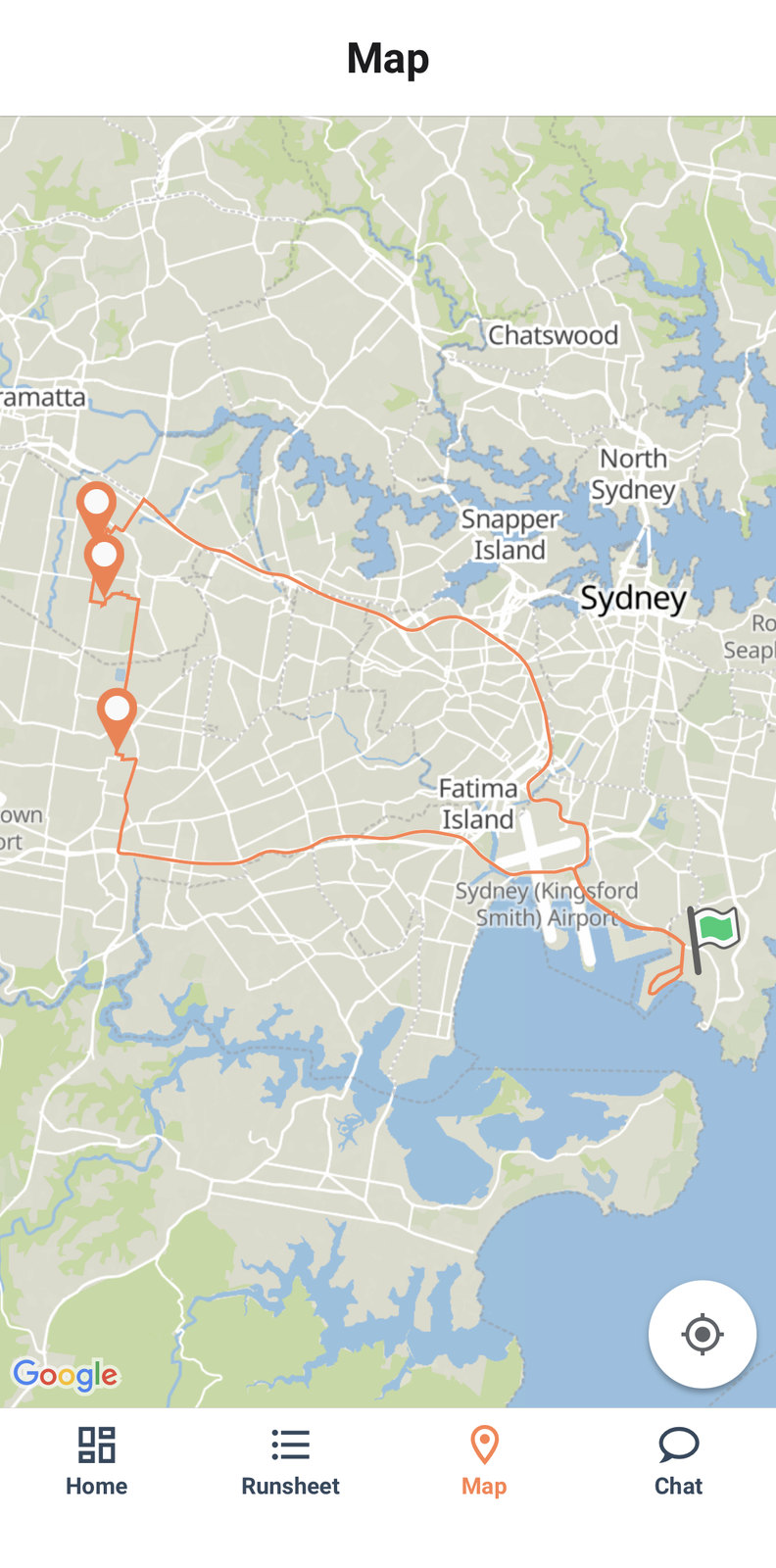
The Map tab shows the same route drawn out, with a pin for every stop.
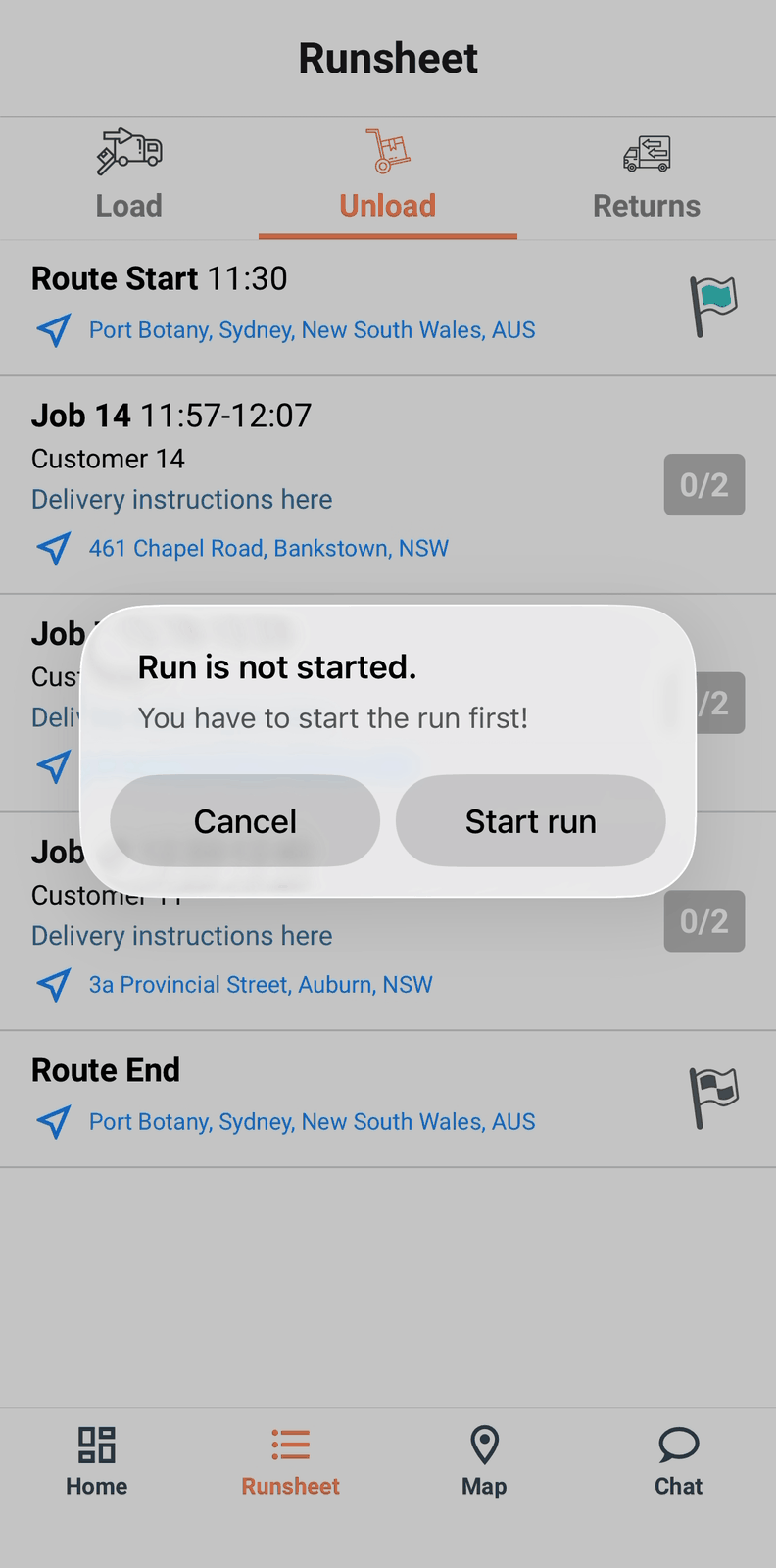
Tap a job before the route has started, and rather than a flat refusal, the app offers to start the route for you on the spot.
The Delivery Checklist
The Delivery Checklist is one scrolling screen, sections appear as you make progress, and some depend on your organisation's settings. A customer with Returns switched off, for instance, only ever sees three sections. That's expected, not a sign something's broken.
It opens on Checklist and Attachments tabs, the job uid and address, and delivery instructions in a blue box.
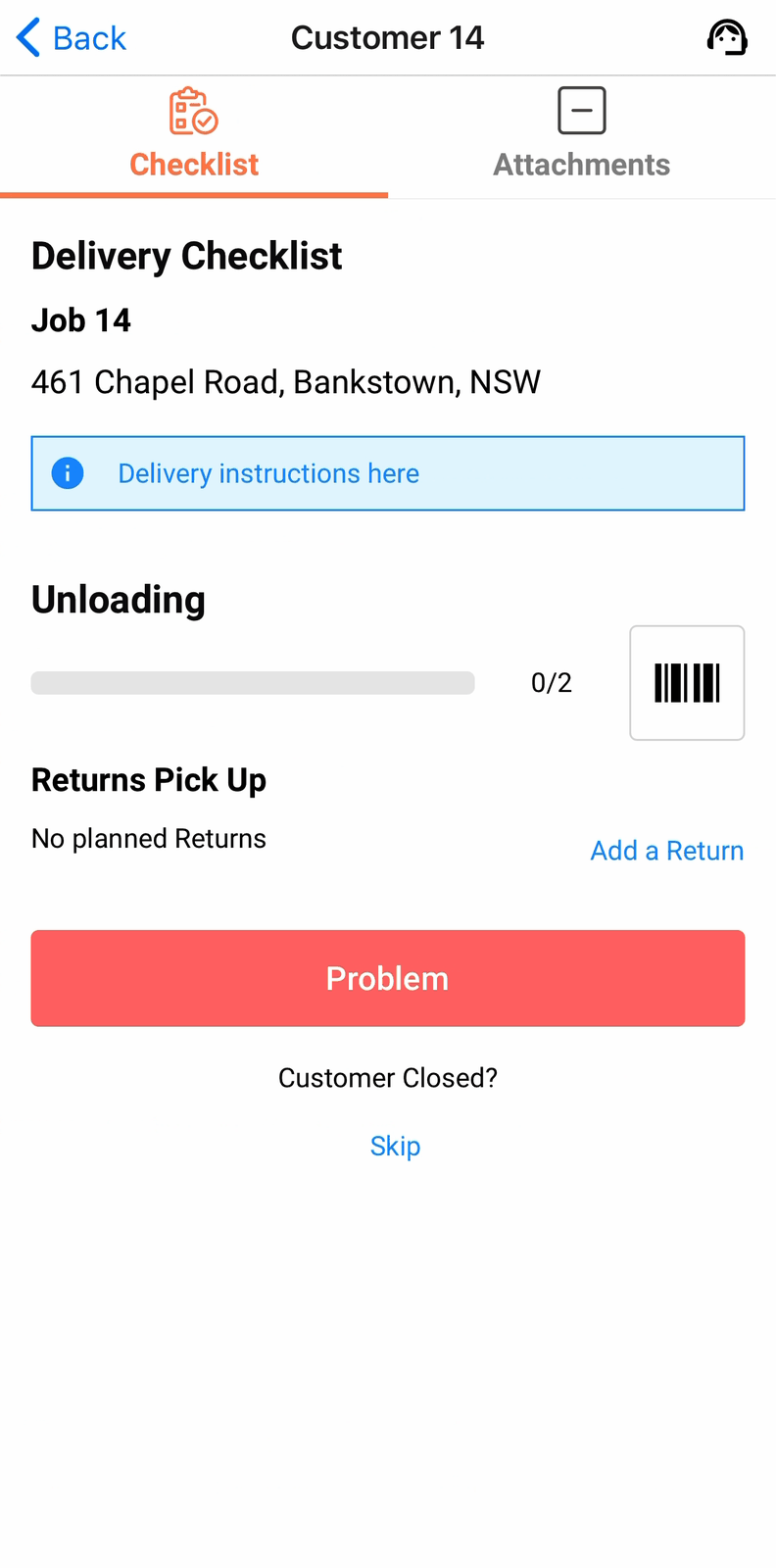
The Unloading counter and its barcode button track how many units on this job you've scanned. Where the job has planned Returns, Returns - Pick up and Add a Return sit below it — covered in full on Returns.
The red Problem button is the entry point to exceptions — not a section that appears on its own, but something you press. Beneath it, Customer Closed? and Skip are always available, for a stop nobody answers: tapping Skip marks the whole job Client Closed and every unit Not Delivered - Client Closed, after one confirmation.
A headset icon in the header, Contact Client, lets you call or message the customer without leaving the job.
Scanning at the customer
The Unload scanner uses the same camera controls as loading — see Loading for the toolbar, sound cycle and manual entry.
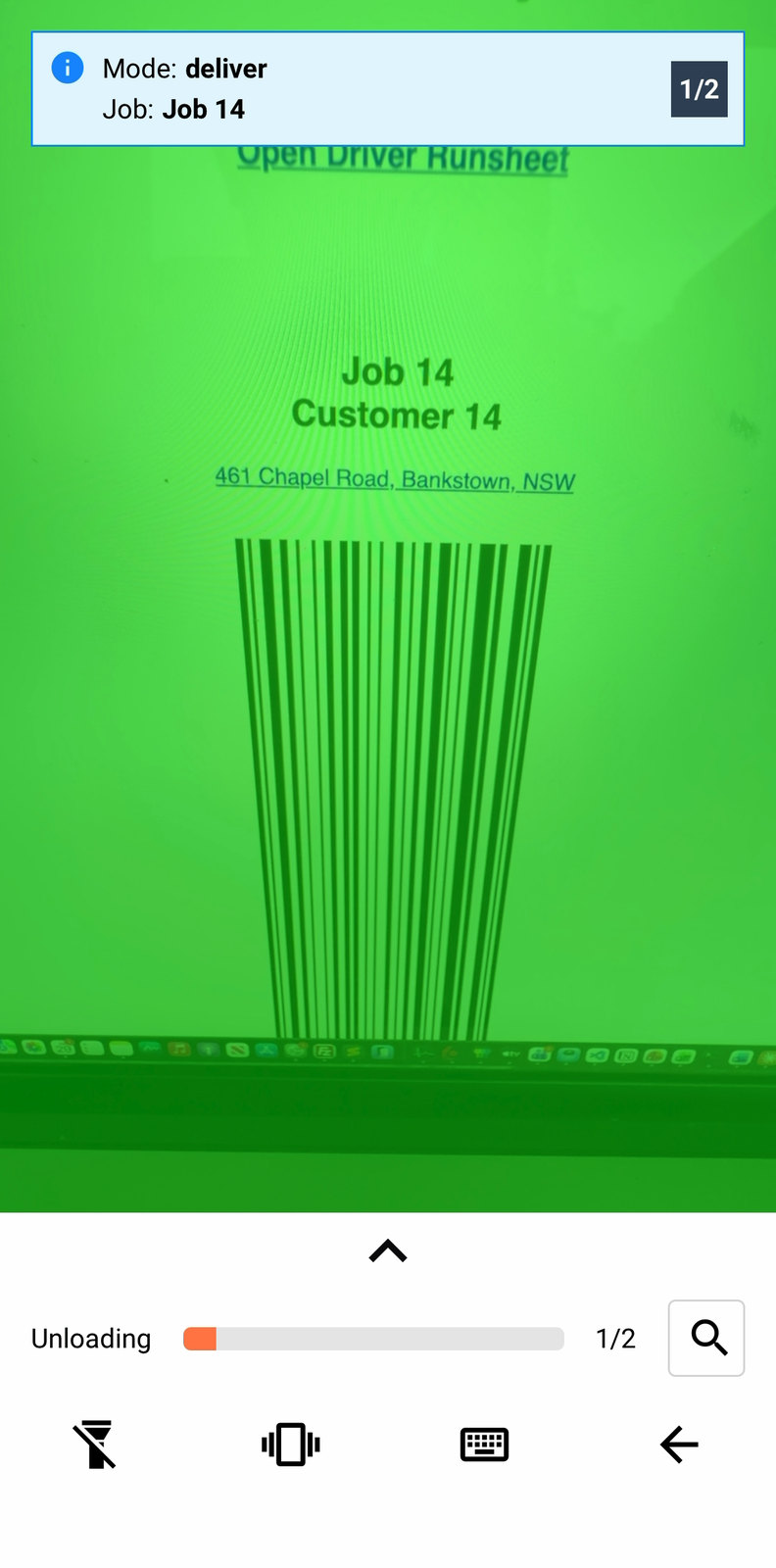
Customer Acceptance only appears once every unit on the job has scanned successfully — a part-scanned job never reaches it, and neither does a fully-scanned one if any unit picked up an exception along the way. Until then, Problem and Customer Closed? → Skip are your only two ways forward.
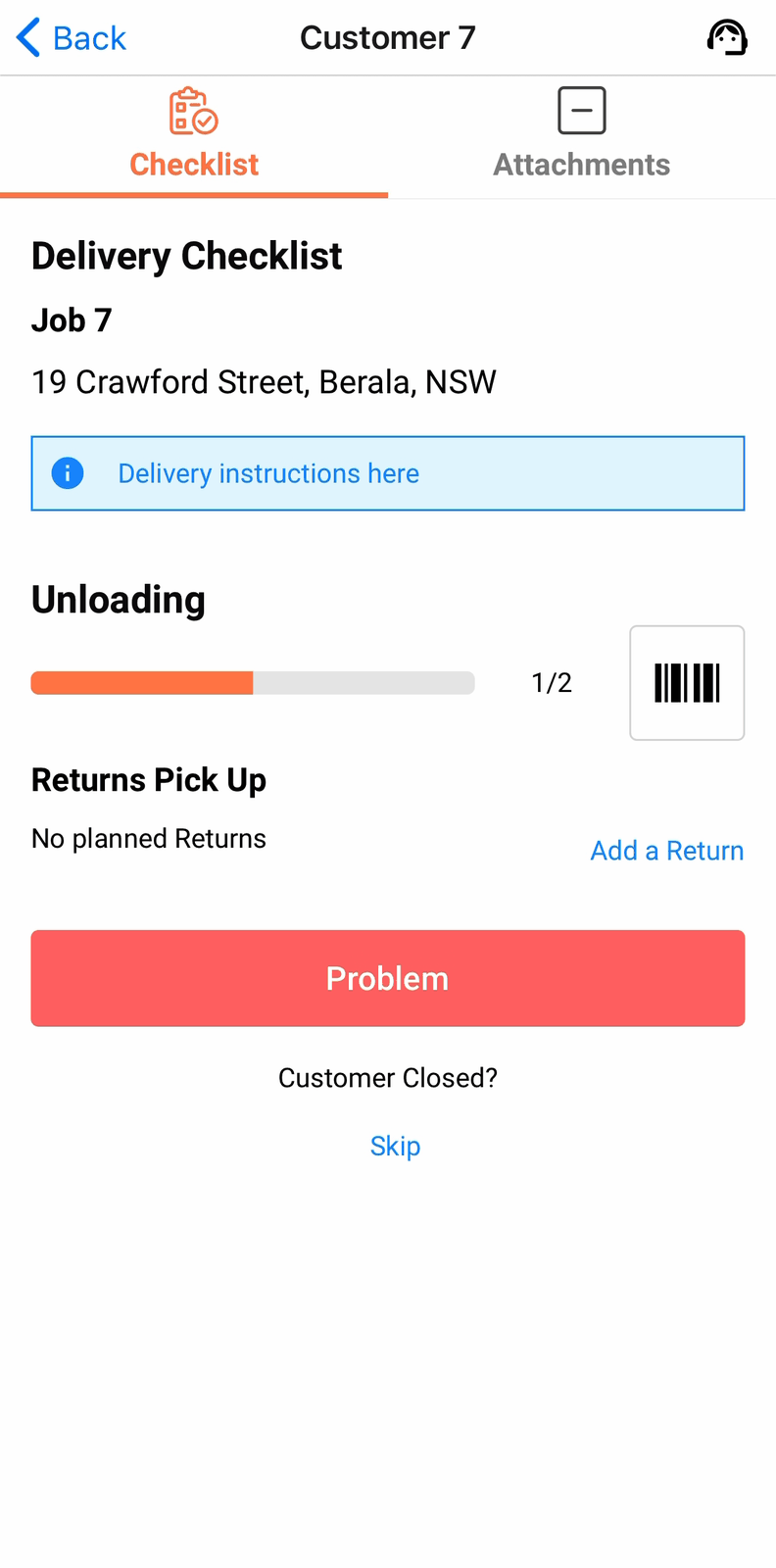
Delivering a container needs no container mode — the scanner recognises the barcode on its own. Covered in full on Containers.
Customer Acceptance and Job Proof
The Delivery Checklist advances to Customer Acceptance once the last unit is scanned successfully. Two buttons: Problem (red) and Accepted (green).
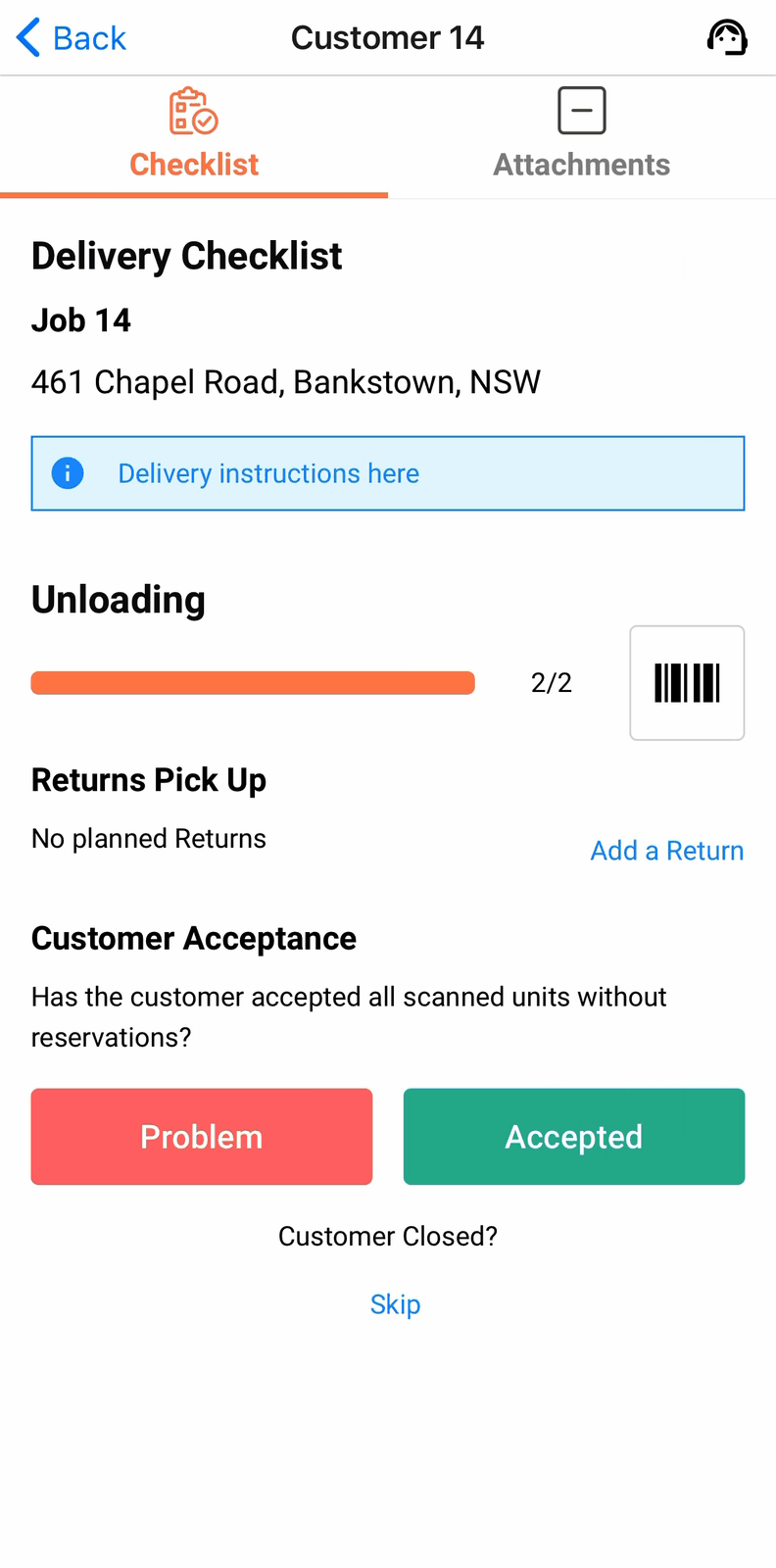
Job Proof appears once you press Accepted, or automatically, after a delivery exception has been created
At the Job Proof stage of the Delivery Checklist you can add photos, signature, select a Proof Reason, Comments, and Unsuccessful / Successful.
What's required (Photo, Signature, Comment) in a Job Proof and which outcome buttons (Successful, Unsuccessful) are even pressable come from your Organisation's settings and the Proof Reason you've selected.
Default Proof Reasons can also be set by Scenario name. For example, deliveries during an early morning Scenario might default to a reason needing only requiring a photo, while your organisation's normal default Proof Reason requires both a photo and a signature.
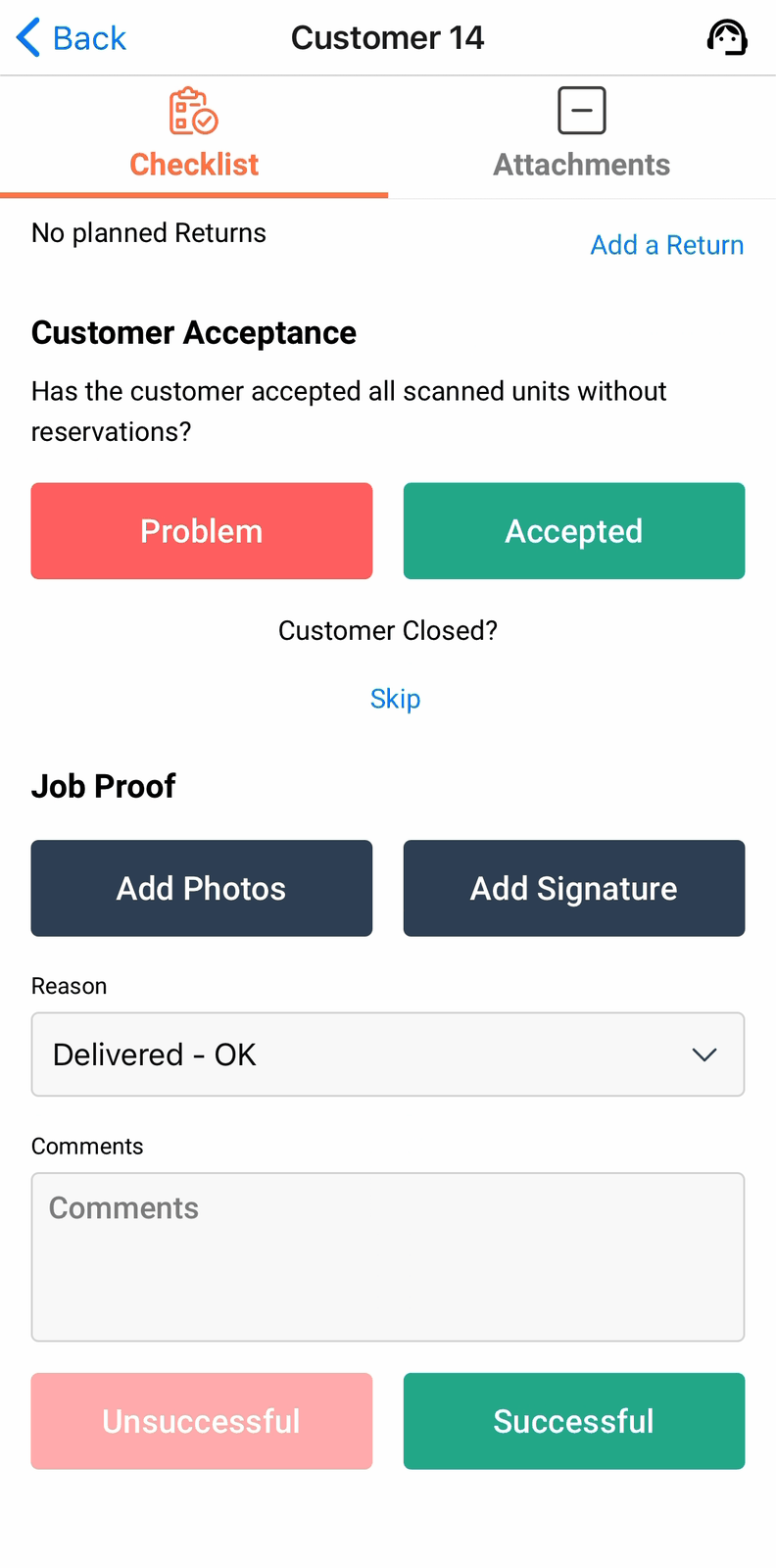
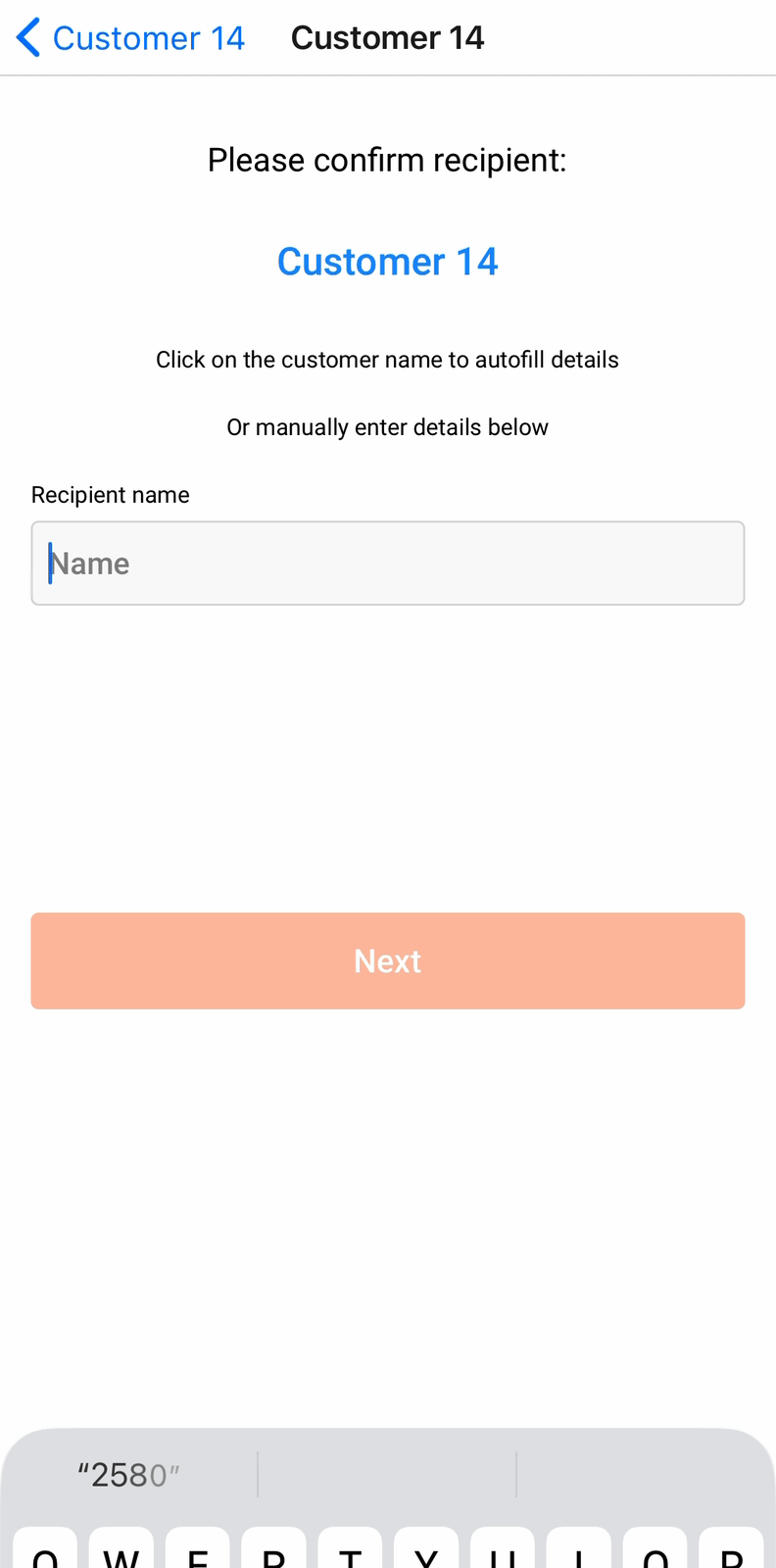
Before capturing a Signature make sure you correctly record the name of the person accepting delivery. If your Organisation settings allow, the customer's name will be in blue ready to click and autofill, or you can type a name in free text.
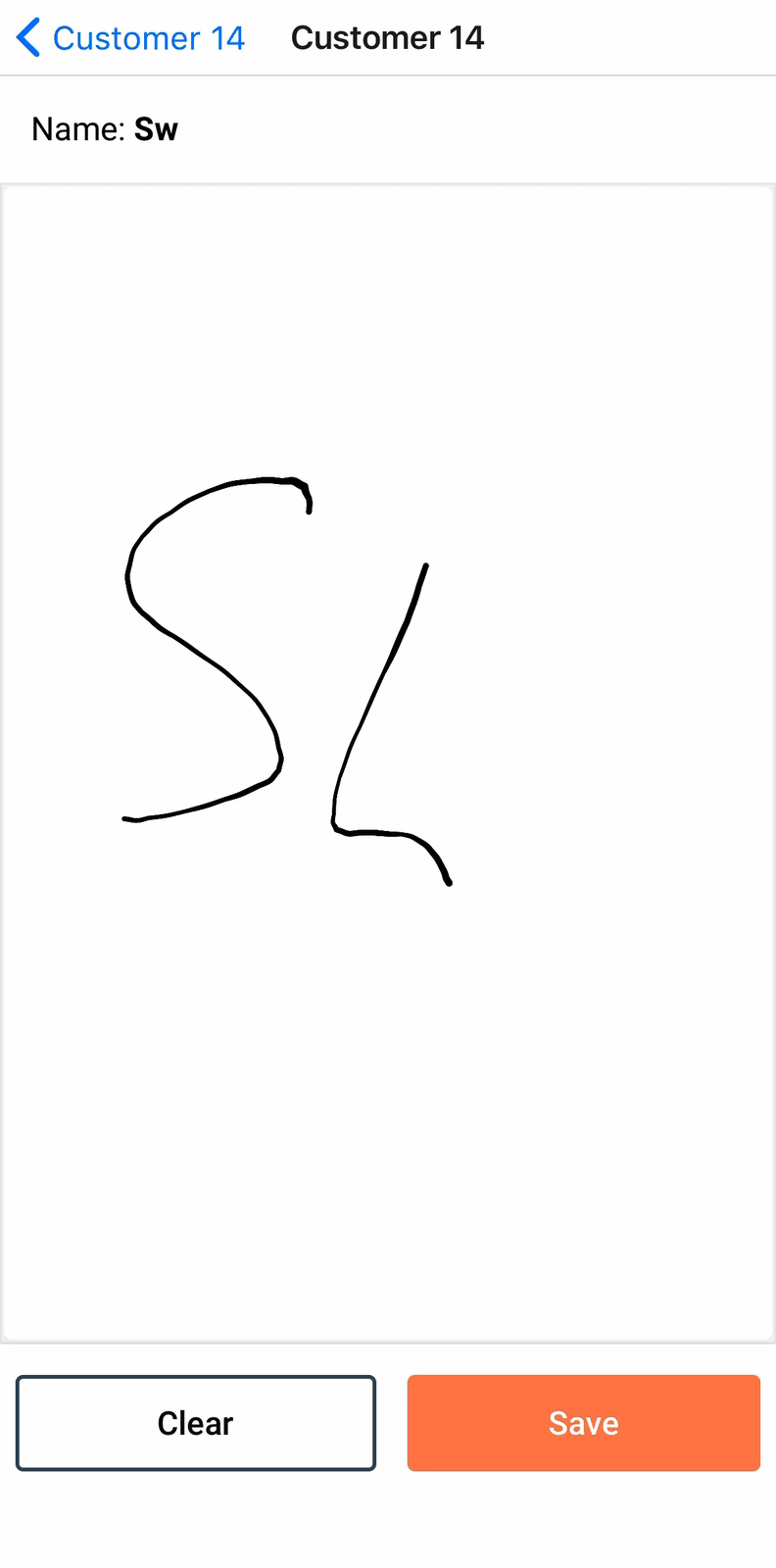
The signature canvas offers Clear and Save.
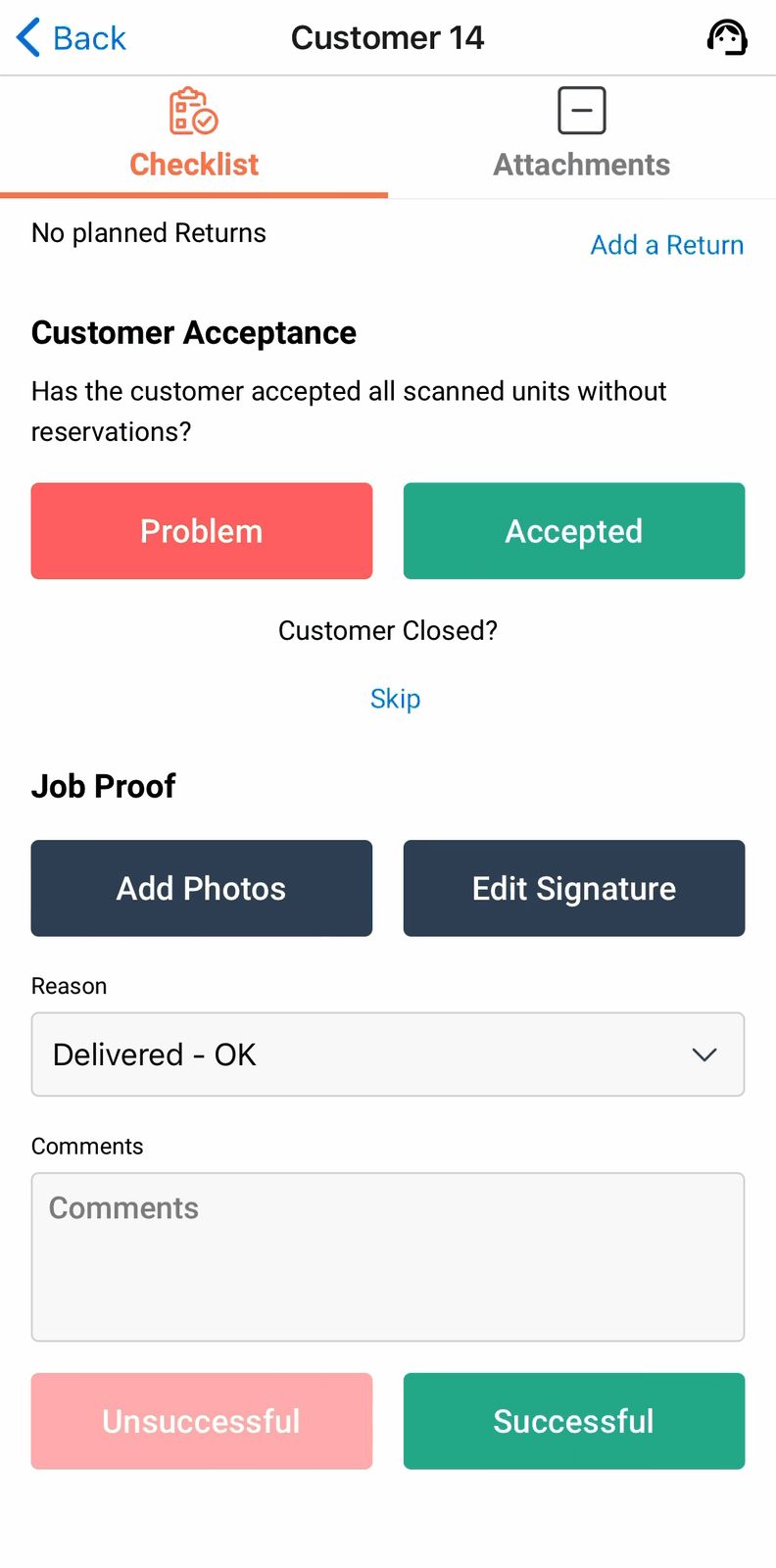
Once saved, the button becomes Edit Signature.
Adding photos shows a running count as you go. You can add up to 10 photos per Proof. Click the box with the camera icon to open your camera and capture a photo. Photos can also be added from your phone's photo gallery by clicking the icon to the left of Save.
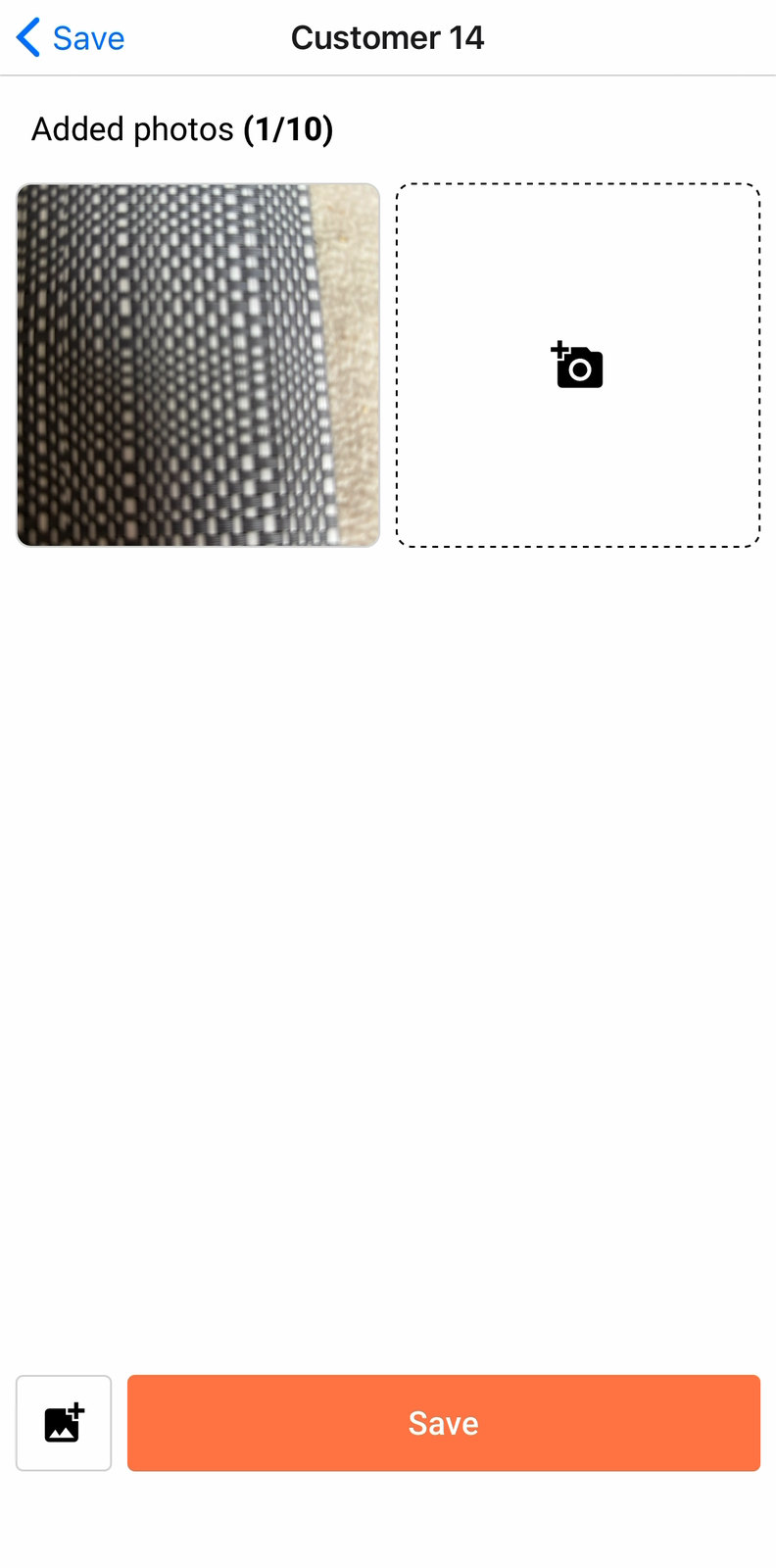
Once you've captured Photos, Signature and Comments as required, press Successful to submit the Job Proof and mark the Job as closed.
Dispatchers and Planners in the Tarot Routing platform can see immediately when a Job Proof is received, and, depending on your Organisation Settings, a Job Proof may trigger customer notifications or other system updates to be sent.
Backing out of Job Proof with photos or a signature not yet saved warns you first, rather than silently discarding them.
A successfully closed job greys out on the Runsheet.
When delivery doesn't go to plan
When something goes wrong during delivery, the Delivery Checklist has a built in Problem workflow
What Problem does depends on whether the job is fully scanned yet.
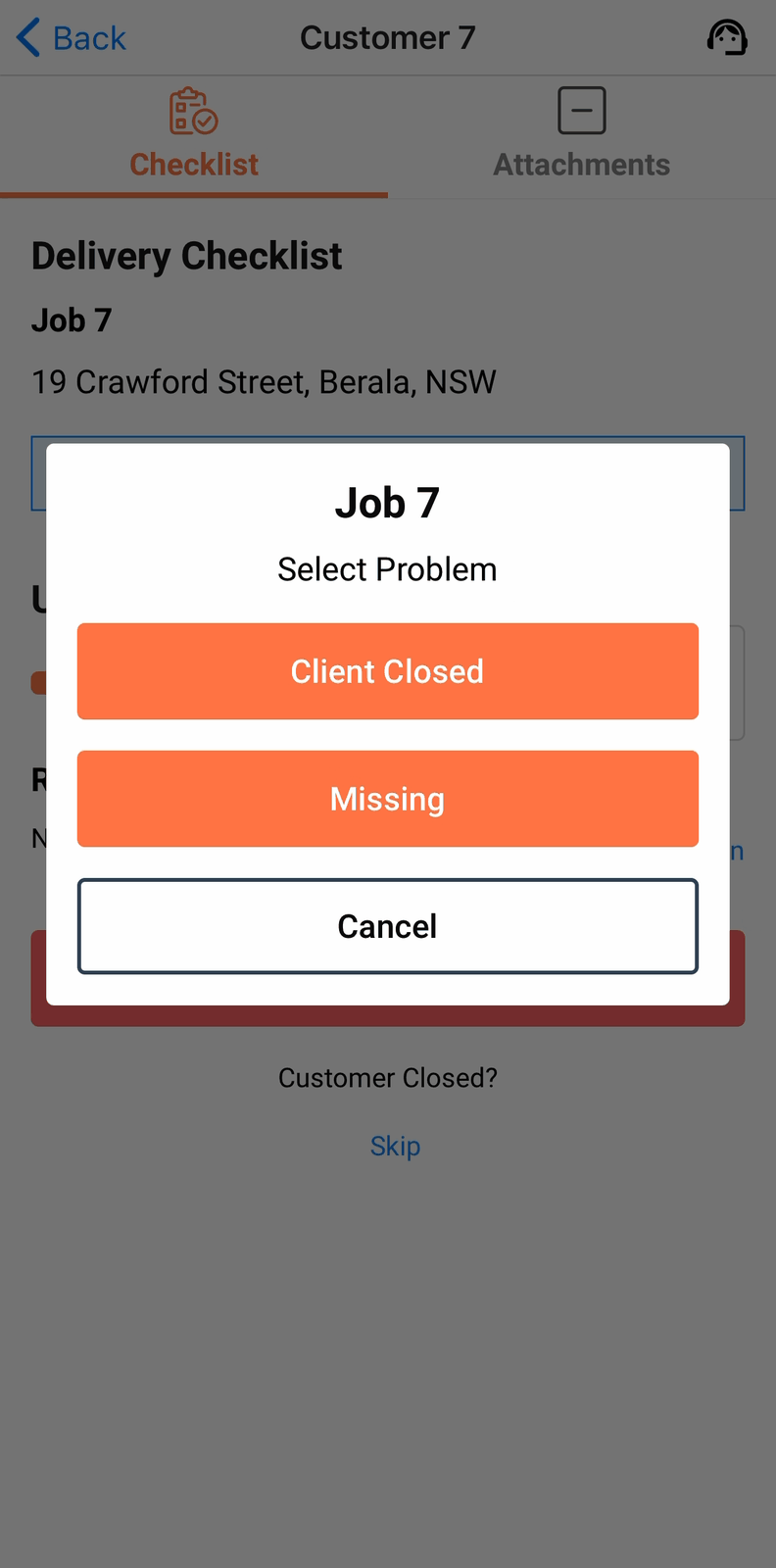
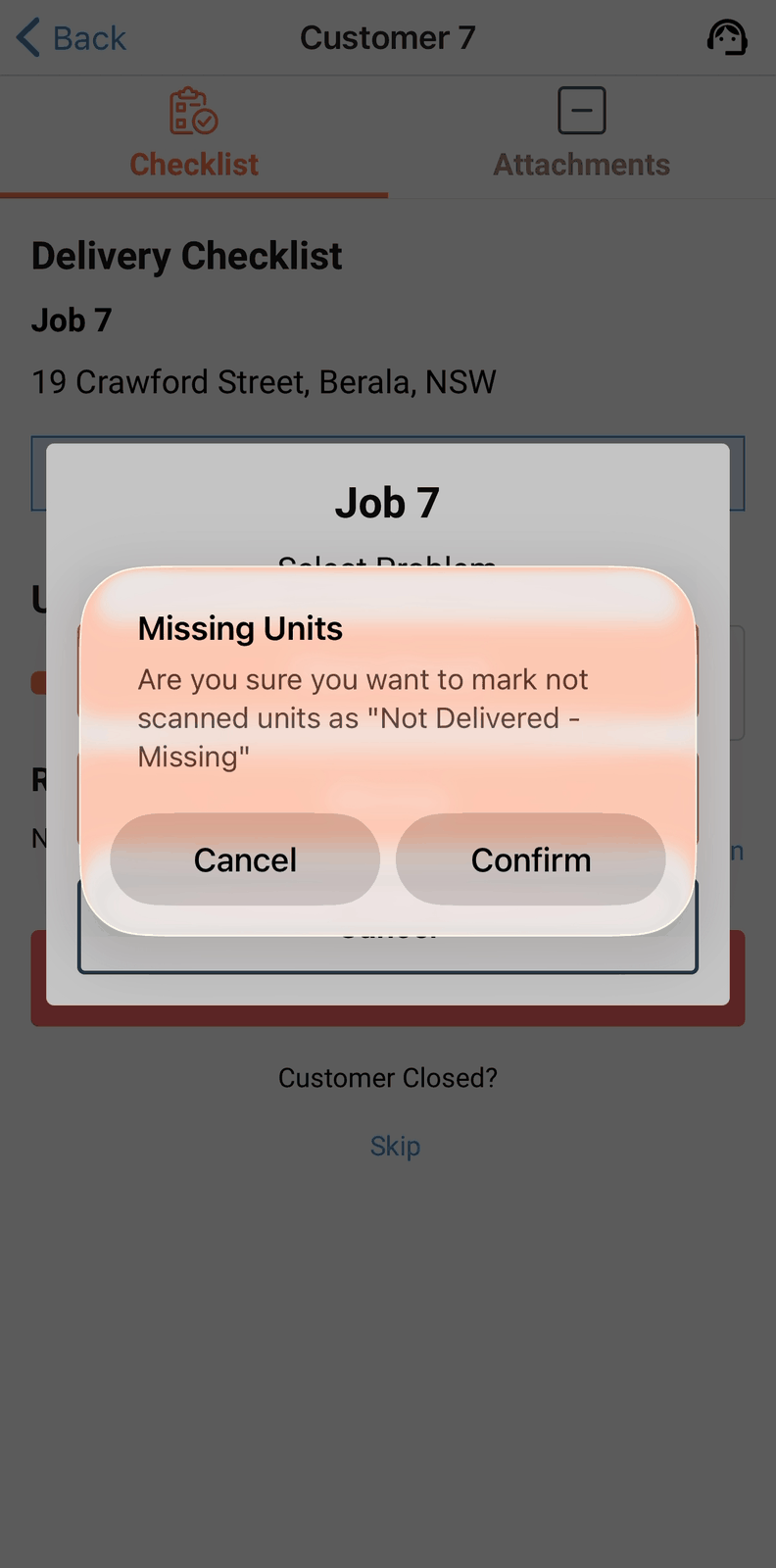
Before every unit is scanned, pressing Problem instead offers Client Closed or Missing. Client Closed marks every unit on the job the same way Customer Closed? → Skip does. Missing marks every not-yet-scanned unit as missing, in one confirmation, rather than making you find each one individually.
Once every unit is scanned, and the Delivery Checklist has advanced to Customer Acceptance, Problem asks the first real question: is this with Unit(s), All units, or Returns? That three-way split is the first thing to work out, so it's the first thing to ask here too.
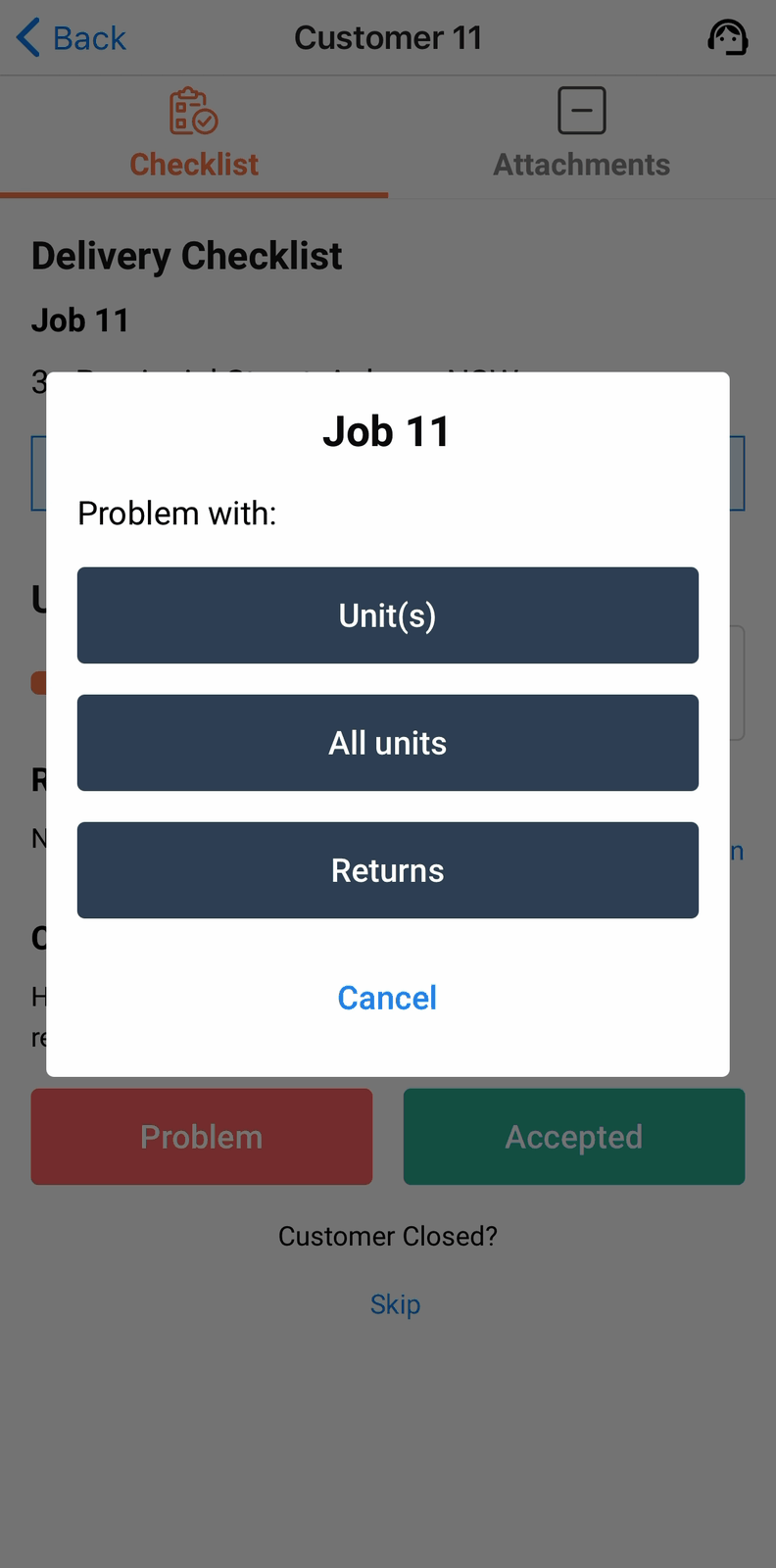
Unit(s) takes you to the Units tab to pick the specific unit and its reason. For example, packaging is damaged and the customer wants this noted incase a claim needs to be raised.
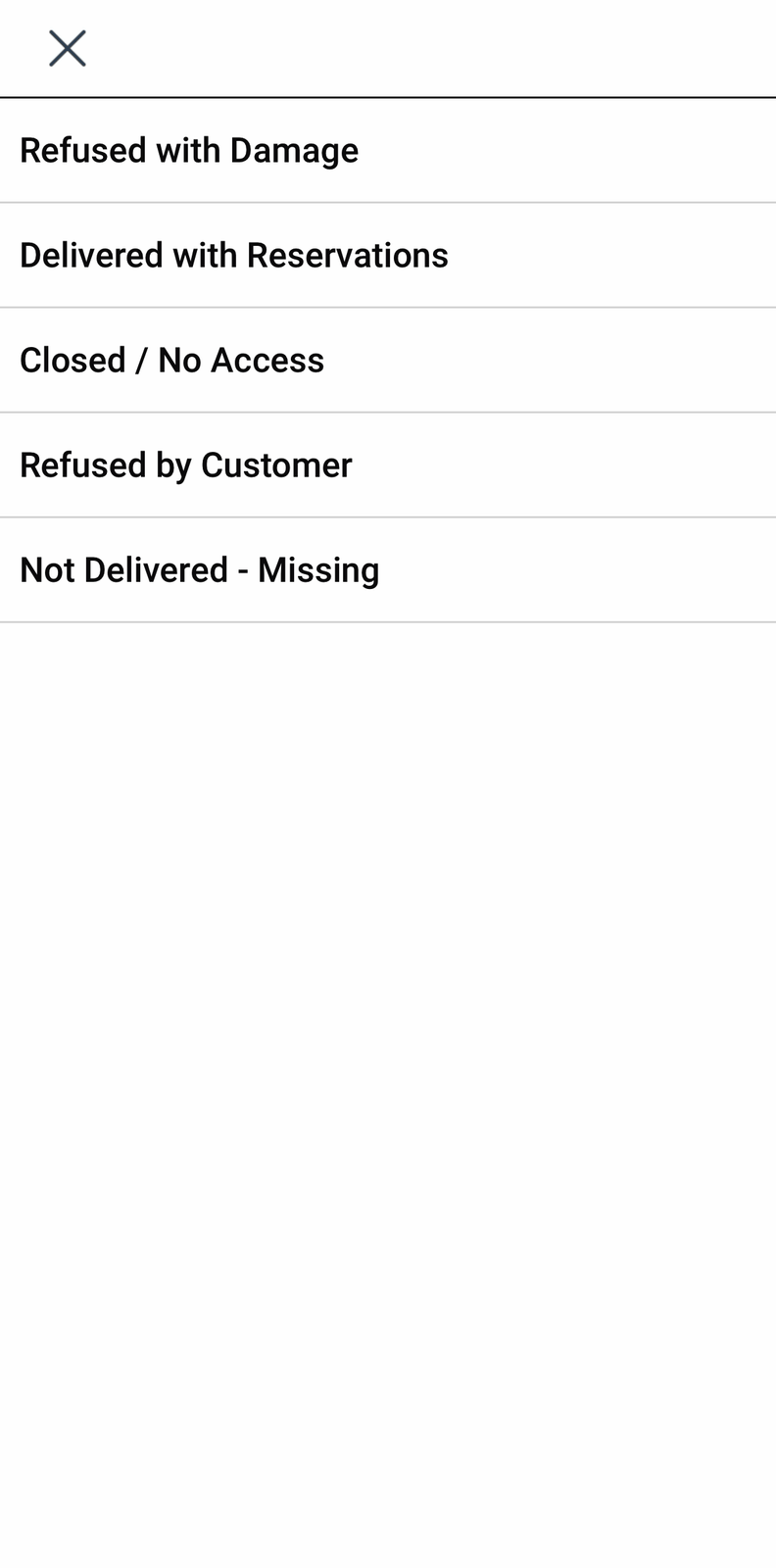
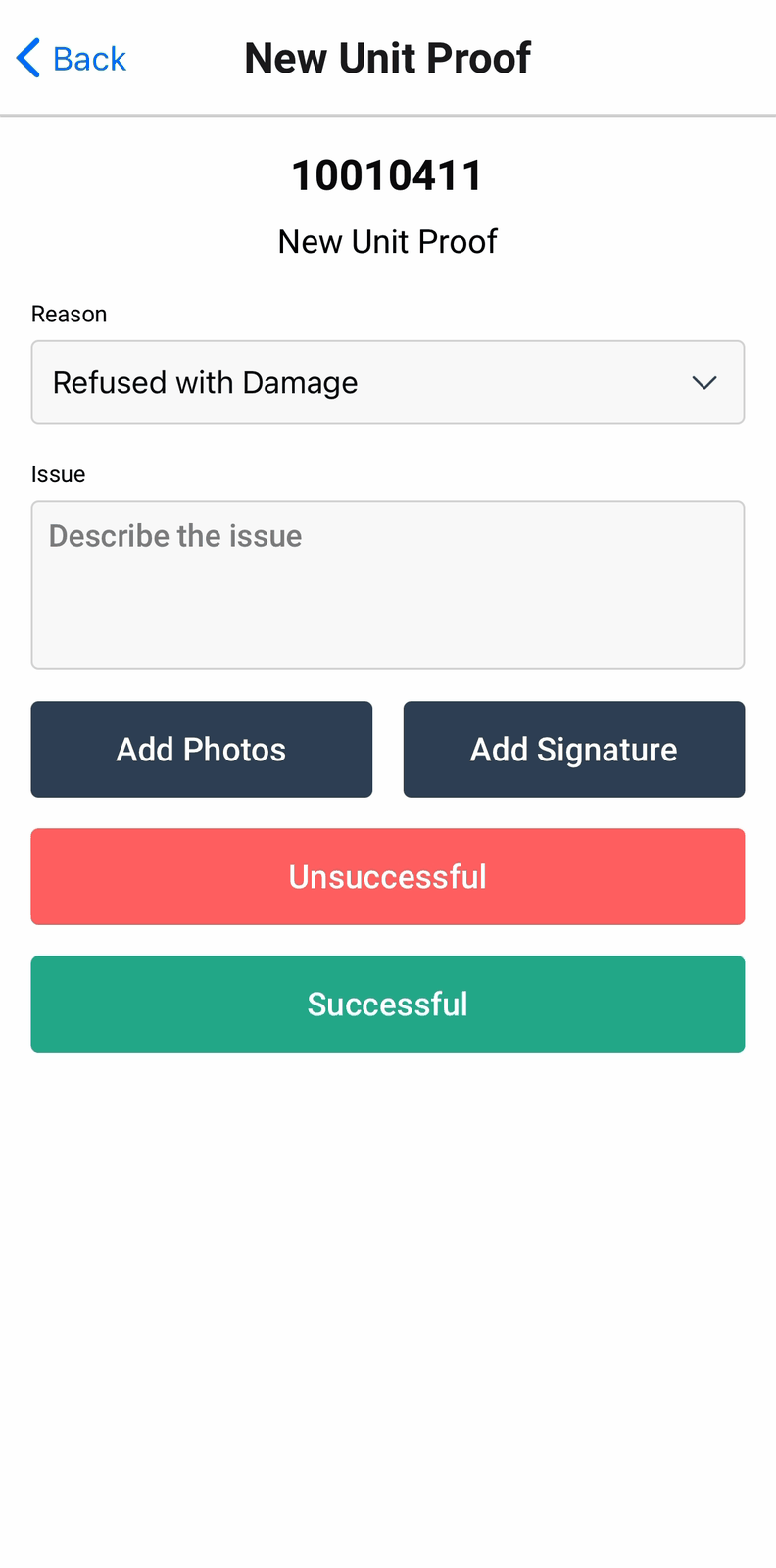
All units applies one reason to every unit on the job at once. For example, the entire order is incorrect or late.
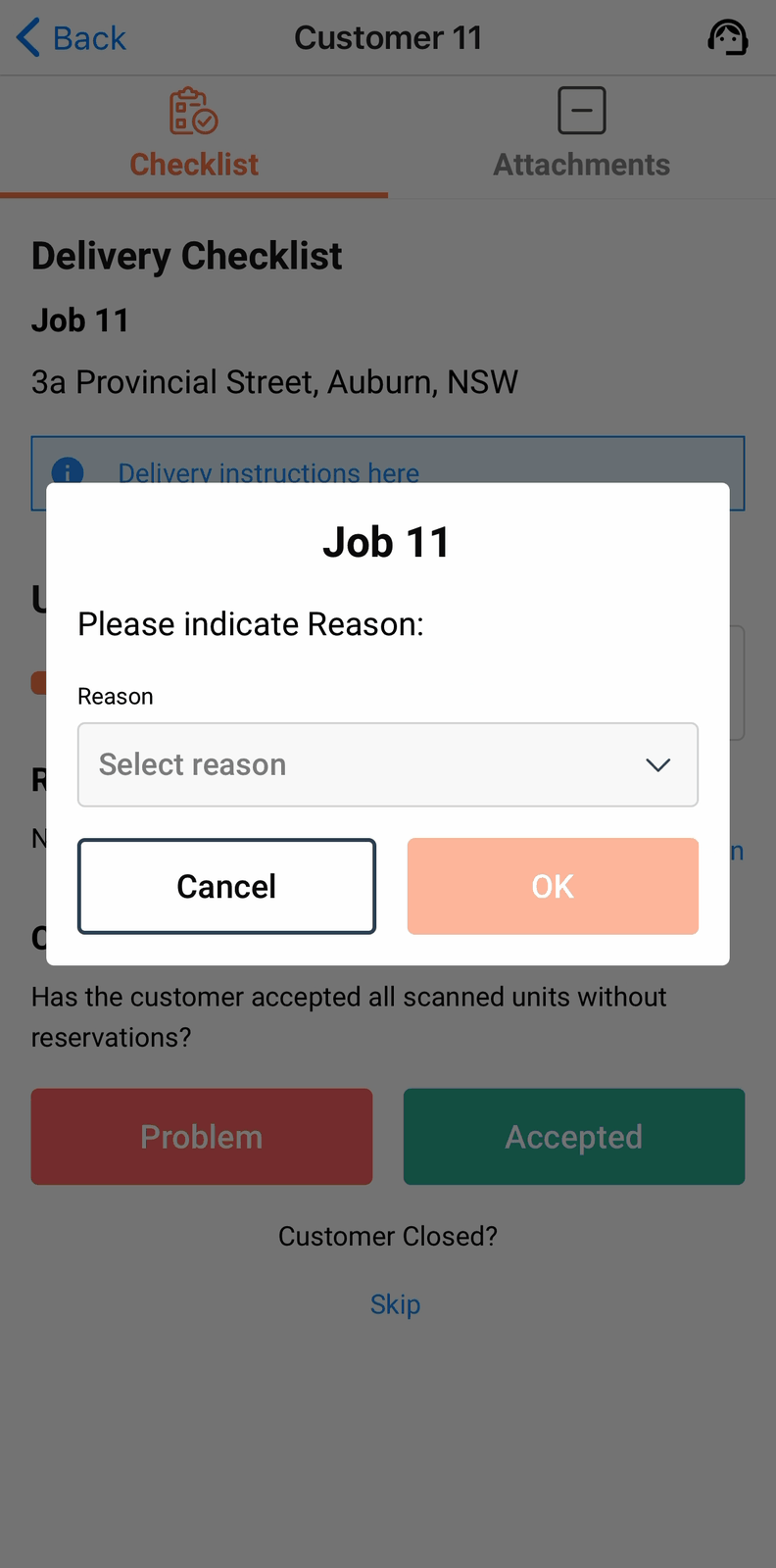
Returns jumps straight to the Returns tab for the job — covered on Returns.
Once a job has any exception, an Exceptions summary lists each affected unit with its reason, with an Edit Exceptions link straight back to the Units tab if you need to change one.
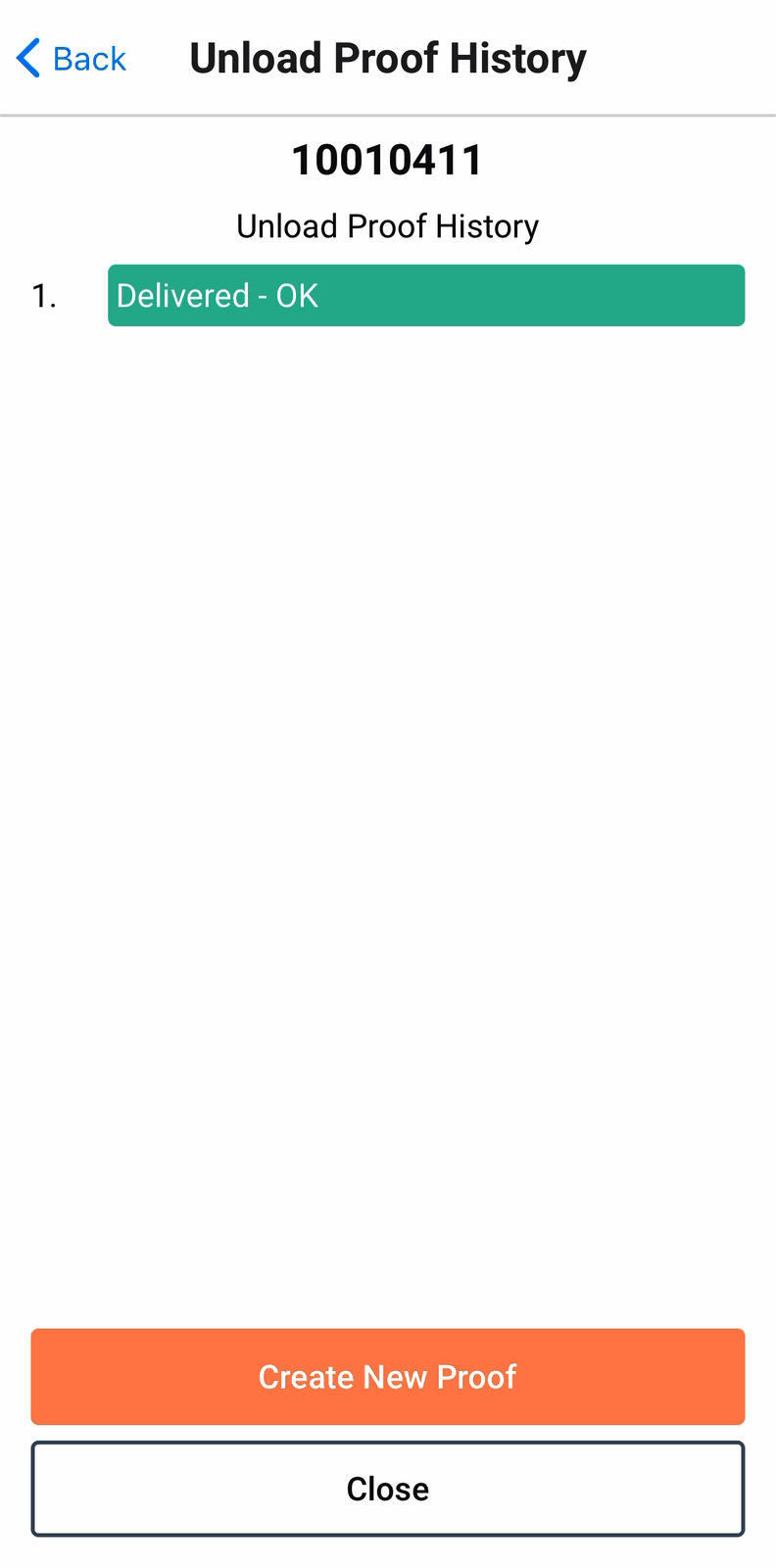
Unload Proof History shows what's already recorded against a unit, with Create New Proof rather than an edit — a wrong call at the door gets corrected without losing the original record.
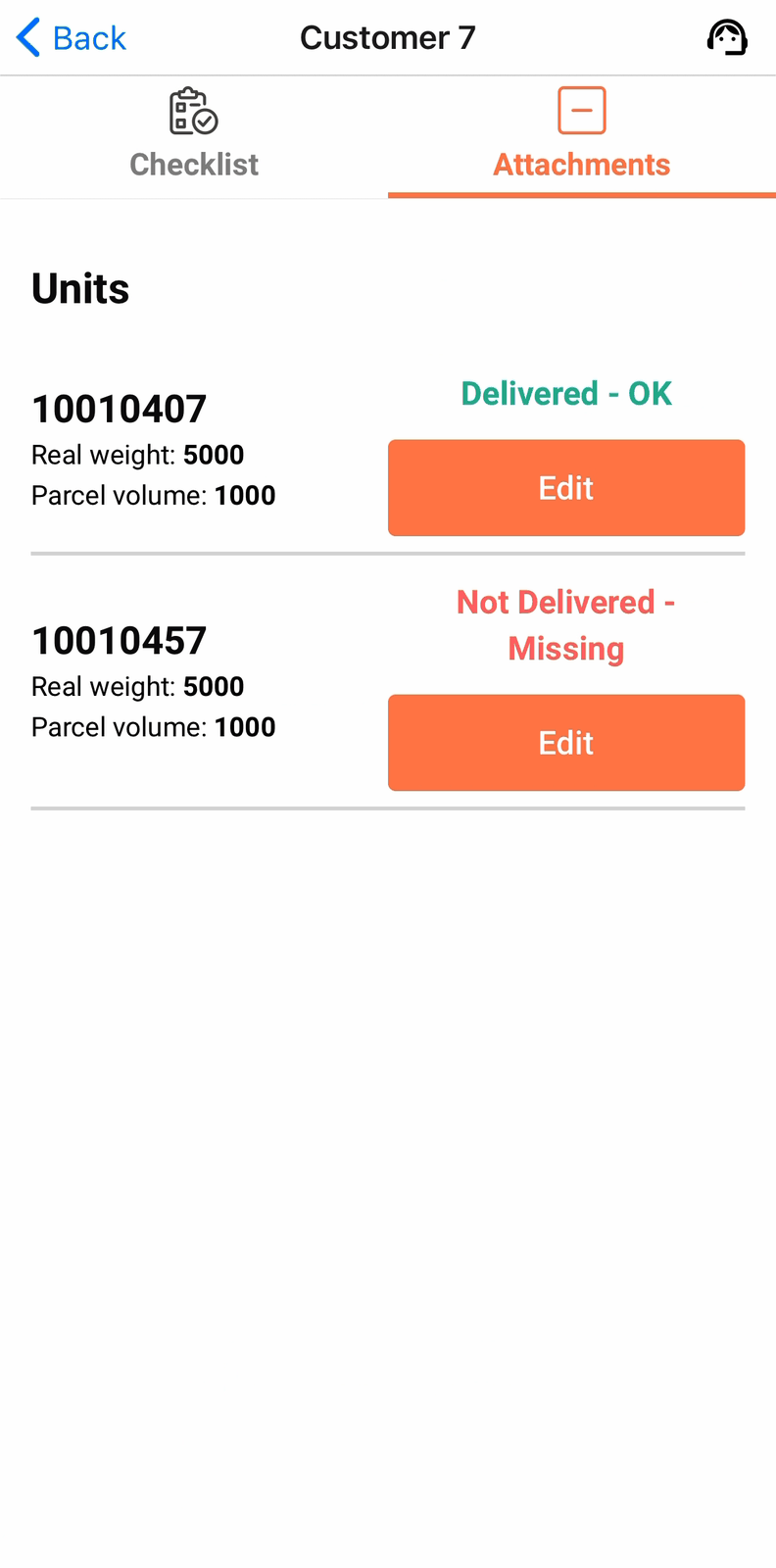
Attachments → Units shows each unit with its own recorded outcome.
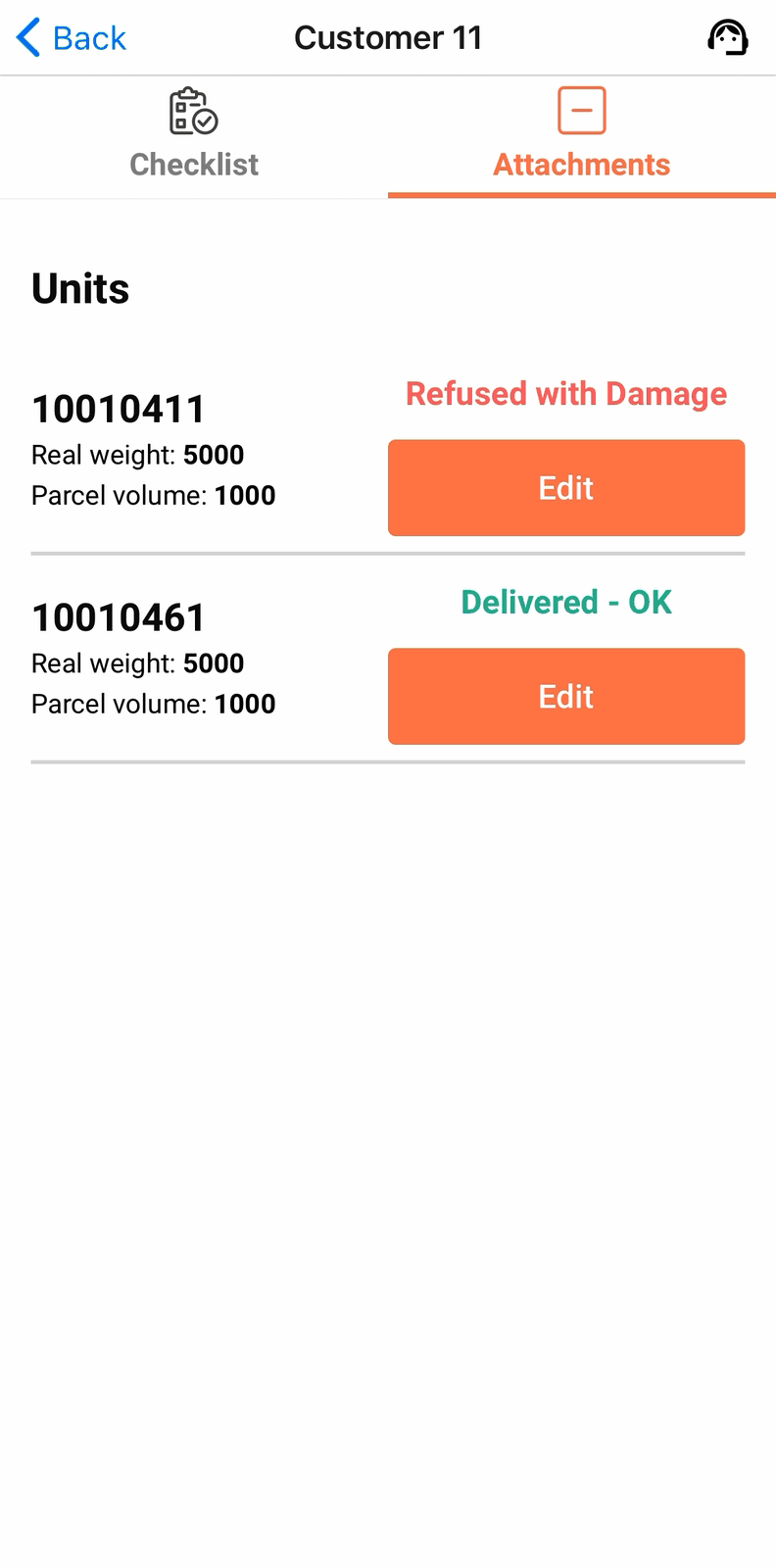
A unit-level refusal carries onto the Job Proof.
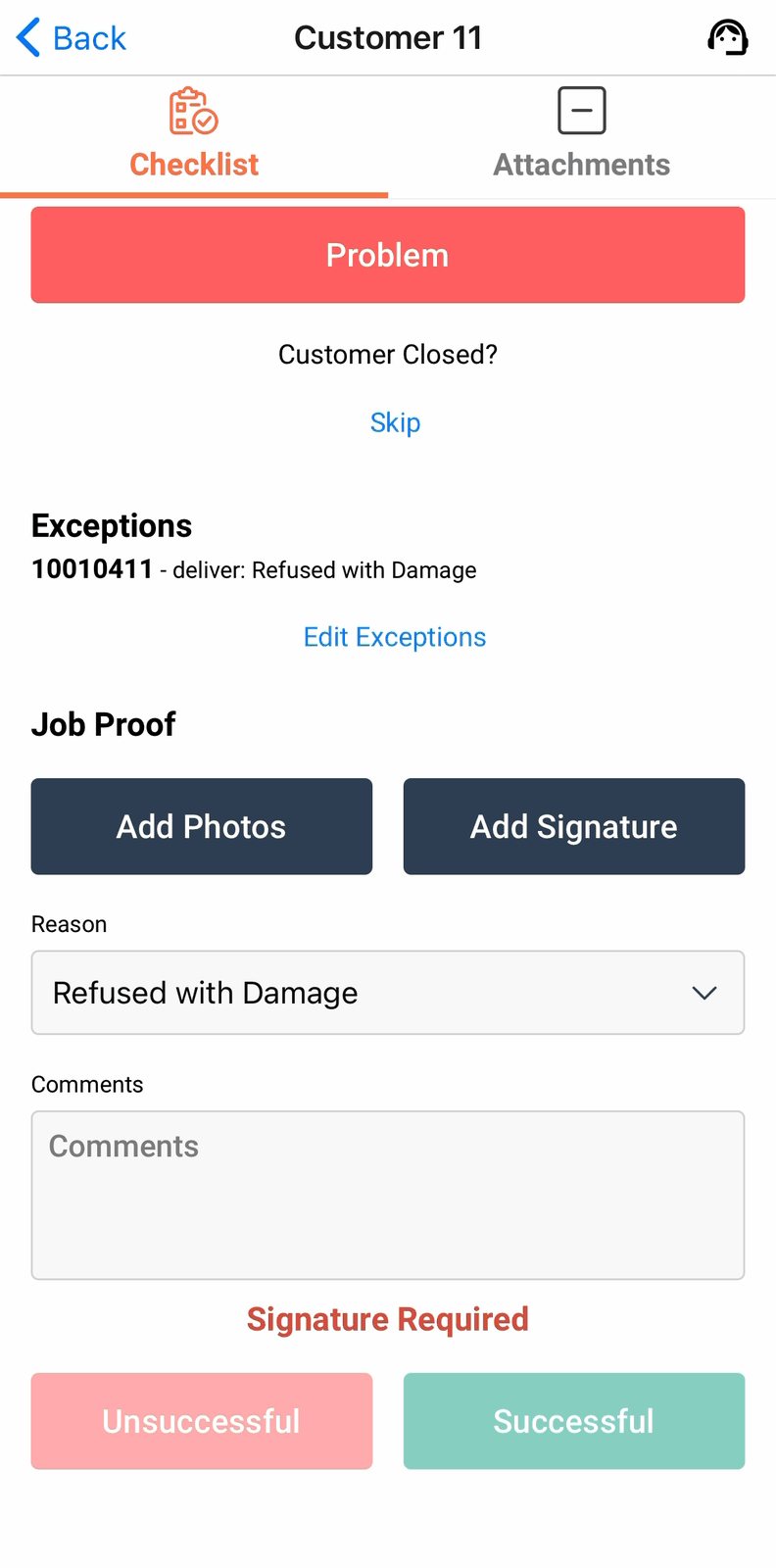
A Unit exception can change which Proof Reasons can be selected meaning Job Proof requirements (photo, signature, comment) may change.
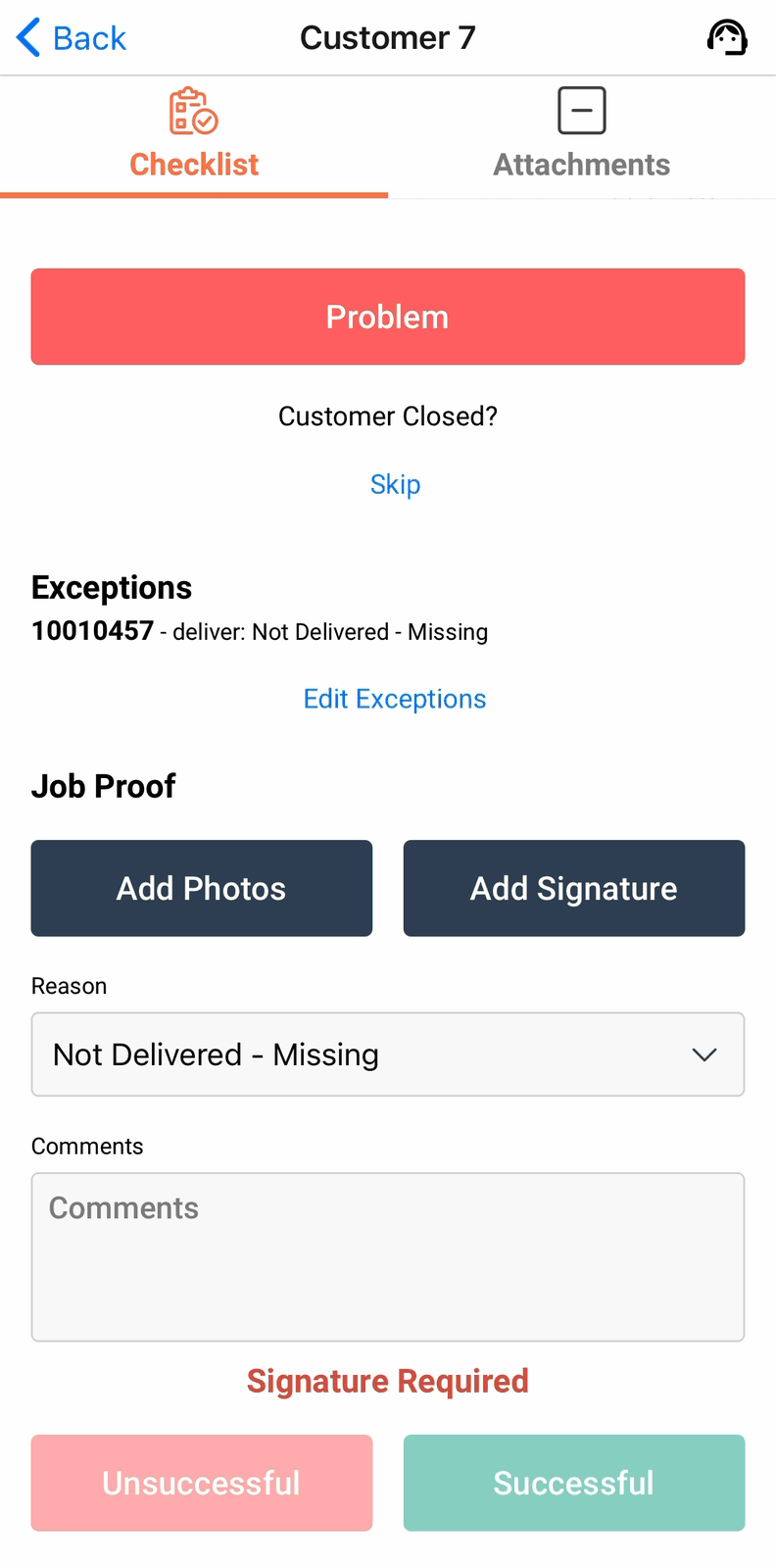
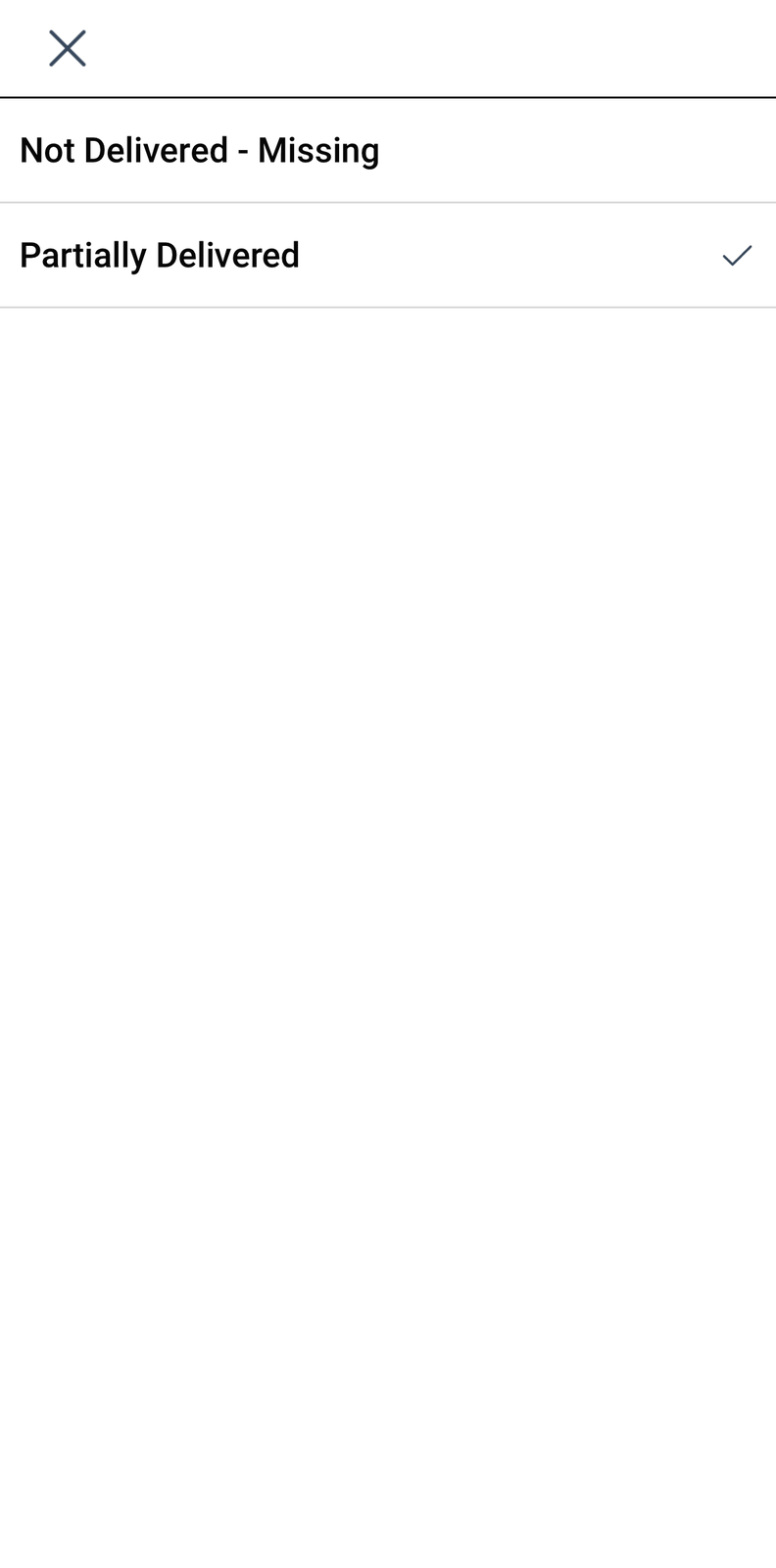
Mixed Unit exceptions, some units delivered, others not, defaults to a partial delivery Proof Reason. The Proof Reason dropdown suggests a default based on what happened, but it's worth checking rather than assuming, particularly on a mixed result.
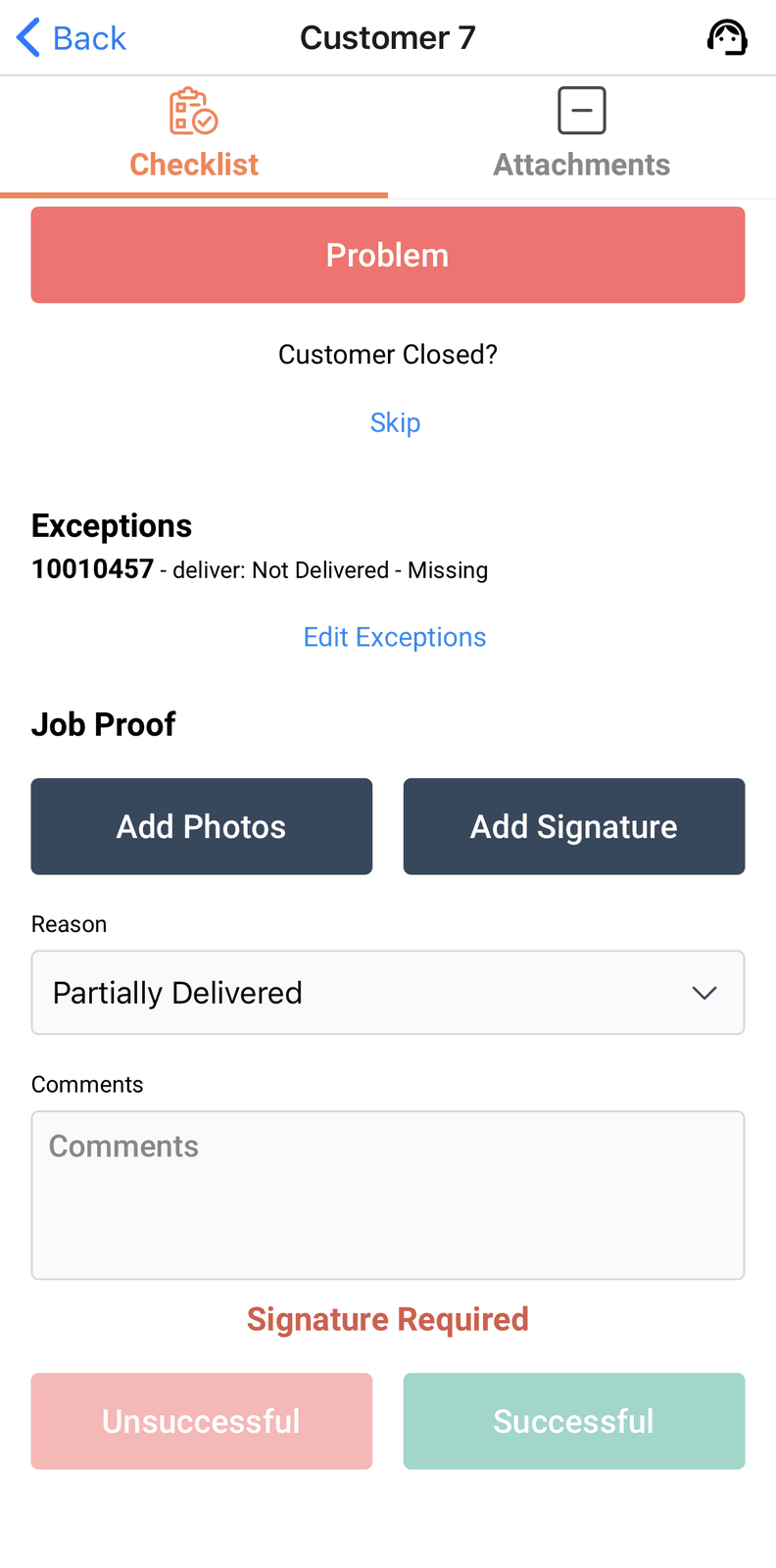
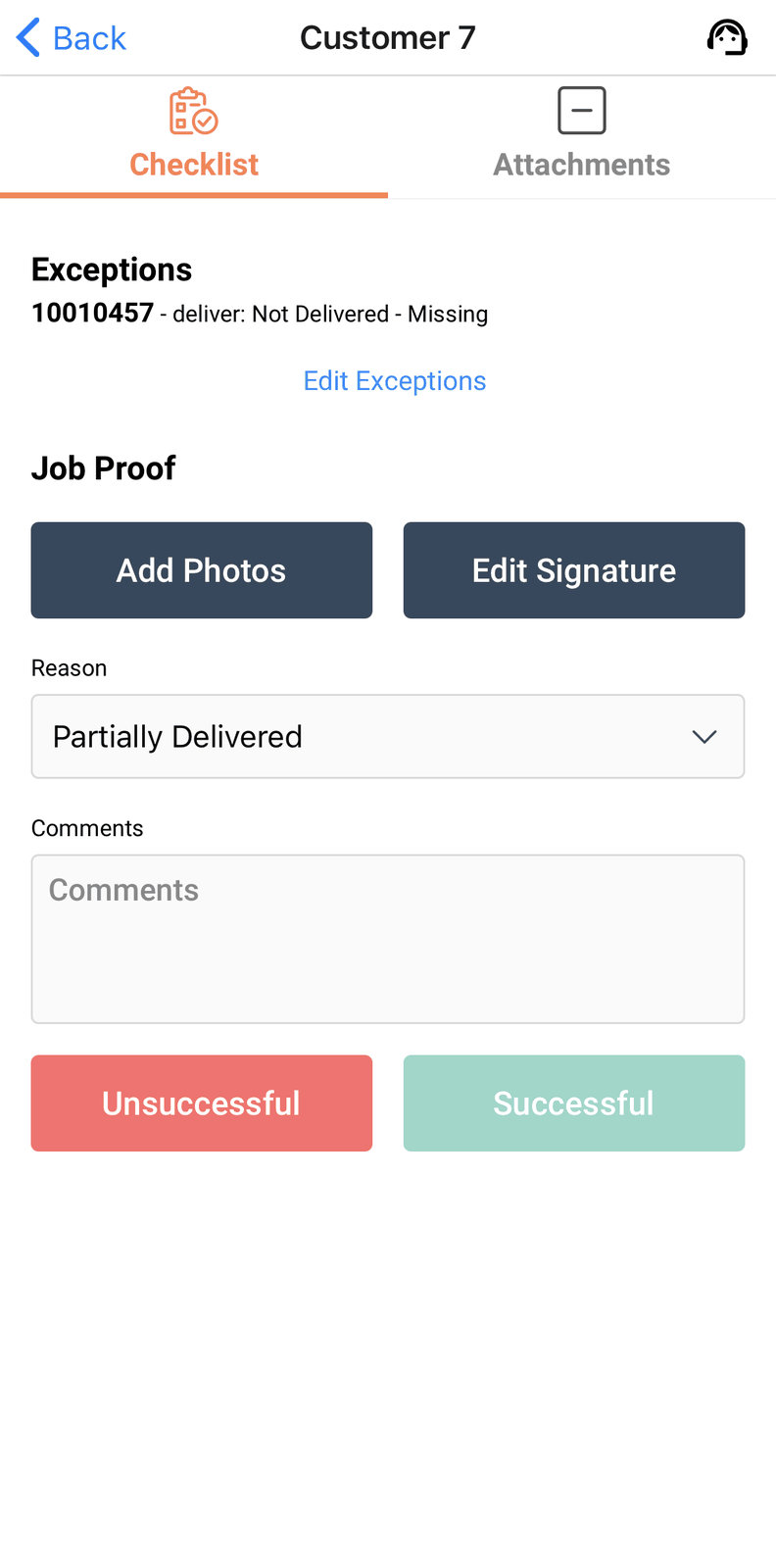
The Reason dropdown always lists the full set of allowable Proof Reasons your organisation has configured.
A problem job turns the runsheet row red; a clean one stays grey.
Skip ahead to a job that wasn't closed properly, and the app warns you before you go further.