App Settings
Use the App Settings tab to configure how the Tarot mobile app behaves for drivers.
These settings control GPS tracking, barcode logic, communication options, and helpdesk details.
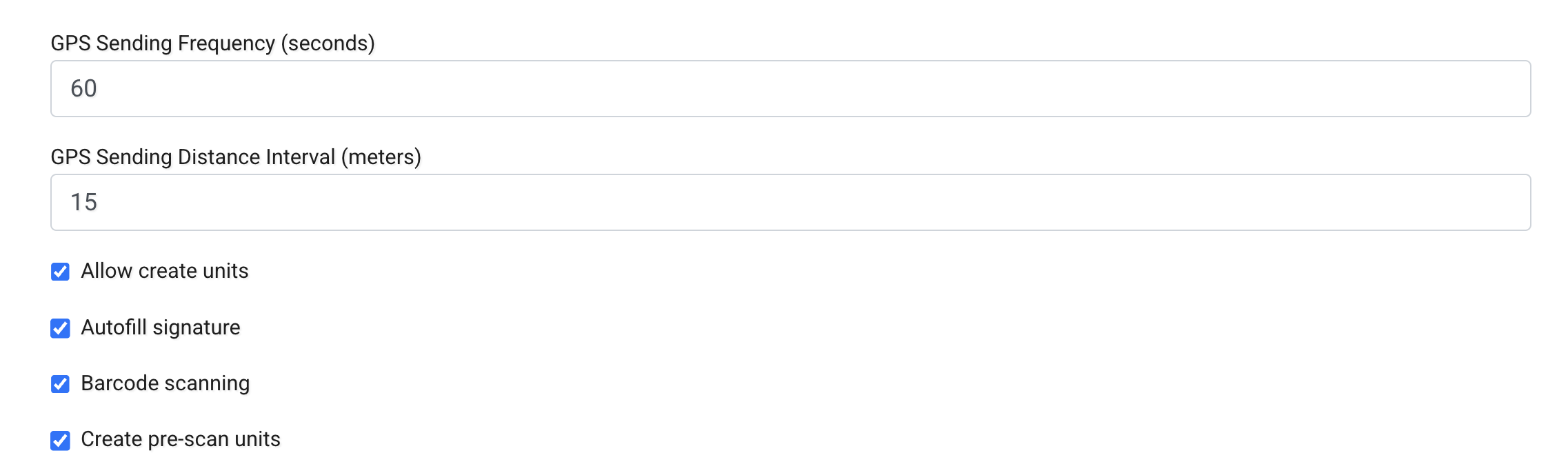
GPS Sending Frequency (seconds)
Defines how often the driver’s device sends GPS location updates.
Lower values: - provide more frequent tracking updates - increase battery and data usage
Higher values: - reduce battery usage - provide less frequent location updates
GPS Sending Distance Interval (meters)
Defines how far a driver must move before a new GPS update is sent.
This works together with the time-based GPS frequency setting.
Allow Create Units
If enabled, drivers can manually create units in the mobile app.
This is useful when: - shipments are added last minute - units are missing from the original job setup
Autofill Signature
Automatically fills the signature when completing a job.
This speeds up job completion in workflows where a physical signature is not required.
Barcode Scanning
Enable this to allow barcode scanning in the mobile app.
If disabled, drivers can manually mark units as loaded and then delivered without scanning barcodes.
This is useful if your workflow does not rely on barcode-based unit handling.
Create Pre-scan Units
Allows drivers to create units before scanning them.
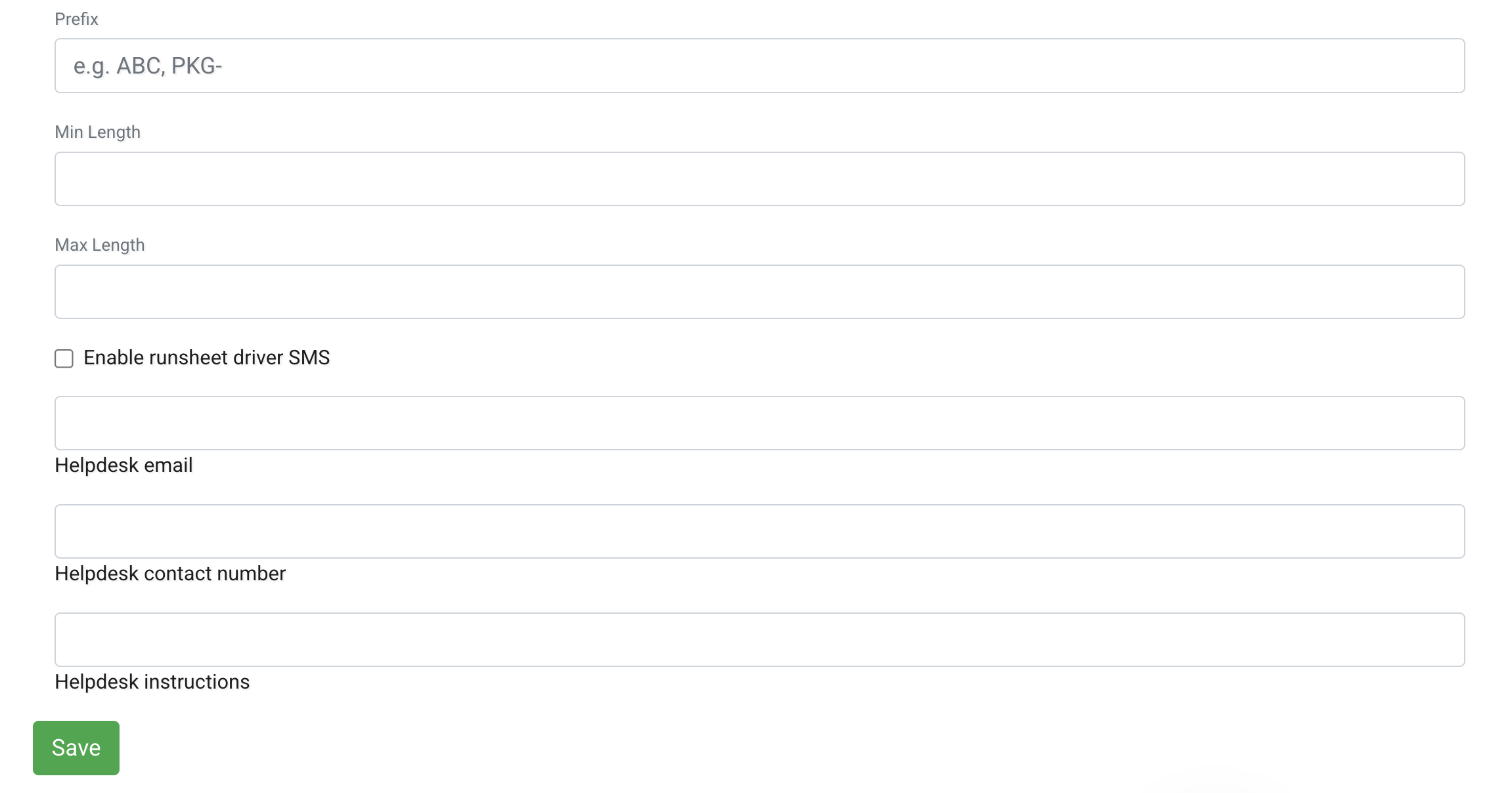
Unit Scan Pattern
The Unit Scan Pattern defines which barcodes are considered valid when scanning units in the mobile app.
Only barcodes that match the configured rule will be accepted.
Configure:
- Prefix – Required starting characters (e.g.
ABC,PKG-). - Min Length – Minimum total barcode length.
- Max Length – Maximum allowed barcode length.
Tarot automatically generates a validation rule (regex) based on these values.
If you need to match multiple patterns or apply more complex validation rules, select Advanced (Regex) to create your own custom validation rule.
You can learn more about regular expressions here.
If you're not familiar with regex, you can describe your barcode format to an AI assistant (such as ChatGPT or Gemini) and ask it to generate the appropriate pattern for you.
Enable Runsheet Driver SMS
When enabled, drivers receive their runsheet via SMS.
This option requires SMS to be configured in Tarot.
See SMS Configuration for more details.
Helpdesk Email
The email address displayed in the app for driver support.
Helpdesk Contact Number
The phone number drivers can call for assistance.
Helpdesk Instructions
Additional instructions shown in the mobile app.
Use this field to provide: - support guidance - escalation instructions - operational notes
After making changes, click Save to apply them.
Note
Changes to App Settings affect all drivers in the organisation. Make sure updates are aligned with your operational workflow.