Delivery & Tracking
The Delivery & Tracking page allows you to configure how your public tracking pages and delivery interactions behave.
It includes four tabs:
- Delivery Tracking
- Proof of Delivery
- Reschedule Notification Settings
- Dispatch Settings
Delivery Tracking
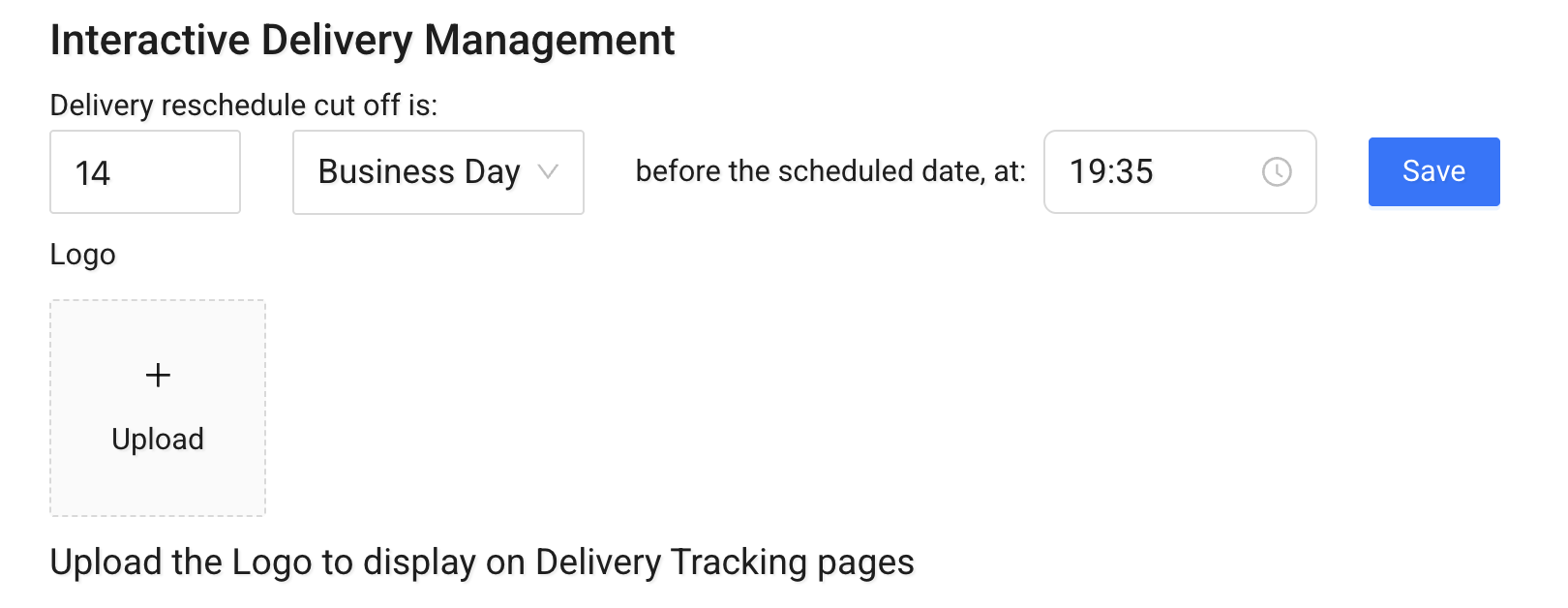
Interactive Delivery Management
Configure how customers can manage their delivery:
- Delivery reschedule cut off – Defines how long before the scheduled date rescheduling is allowed.
- Logo – Upload your company logo to display on delivery tracking pages.
This section controls customer-facing delivery interaction.
Page Customisation
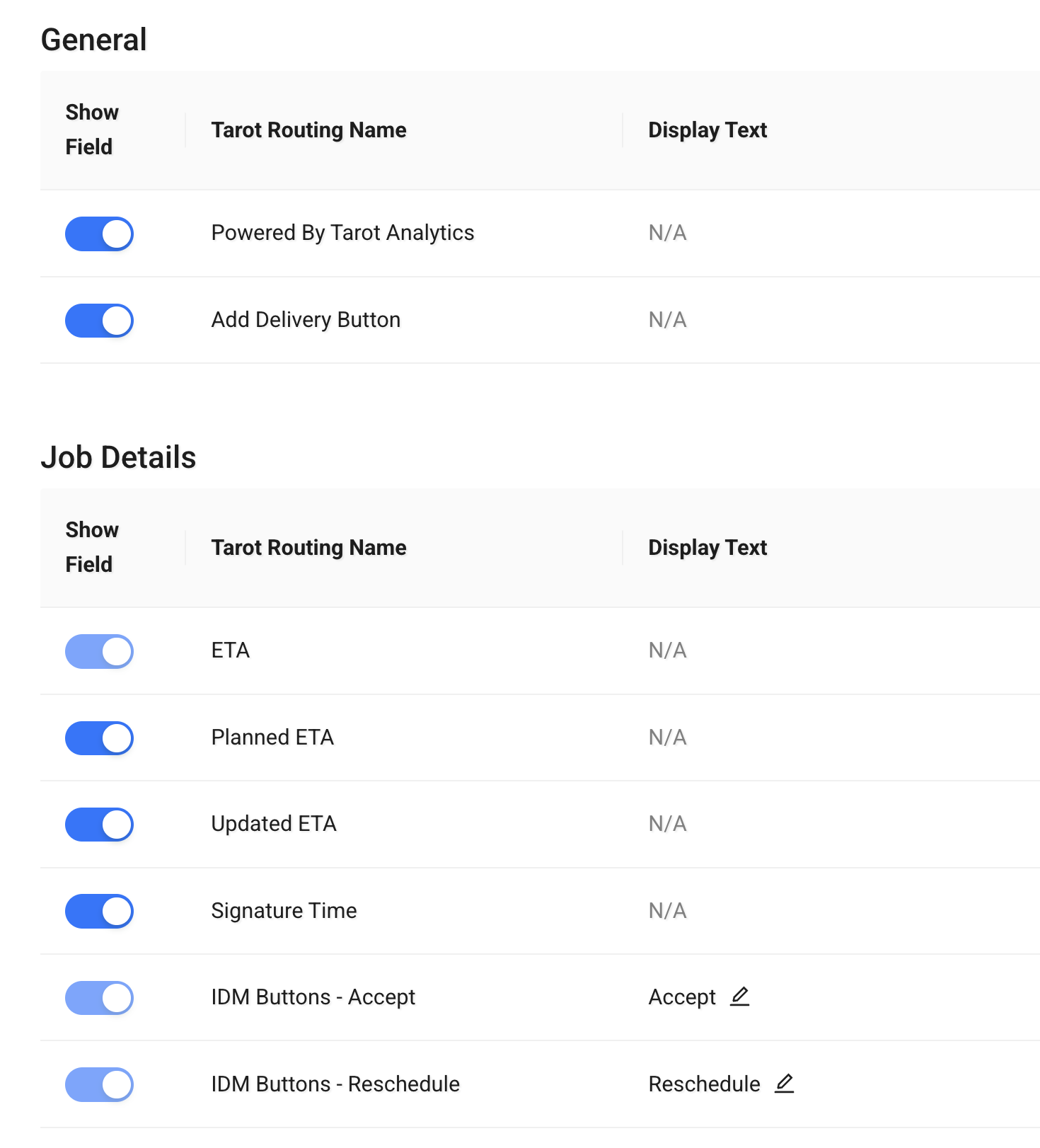
You can control which fields are visible on the tracking page.
Each row allows you to:
- Enable or disable a field
- Rename the display text shown to customers
General
Controls global tracking page elements:
- Powered by label
- Add Delivery button
Job Details
Control which job information is displayed:
- ETA (planned and updated)
- Signature time
- Accept / Reschedule / Schedule buttons
- Delivery instructions
- Address
- Job UID
- Tracking ID
- Sender
- Delivered by
- Attachments and Proof buttons
Delivery Milestones
Control which status milestones are visible:
- Created
- Planned
- Started
- Delivered
- Custom status messages
Delivery Scheduling Modal
Customize the rescheduling interface:
- Delivery Scheduling title
- Option labels
- Comment field
- Reschedule button
- Schedule Delivery button
This allows you to tailor the tracking experience to match your branding and workflow.
Proof of Delivery
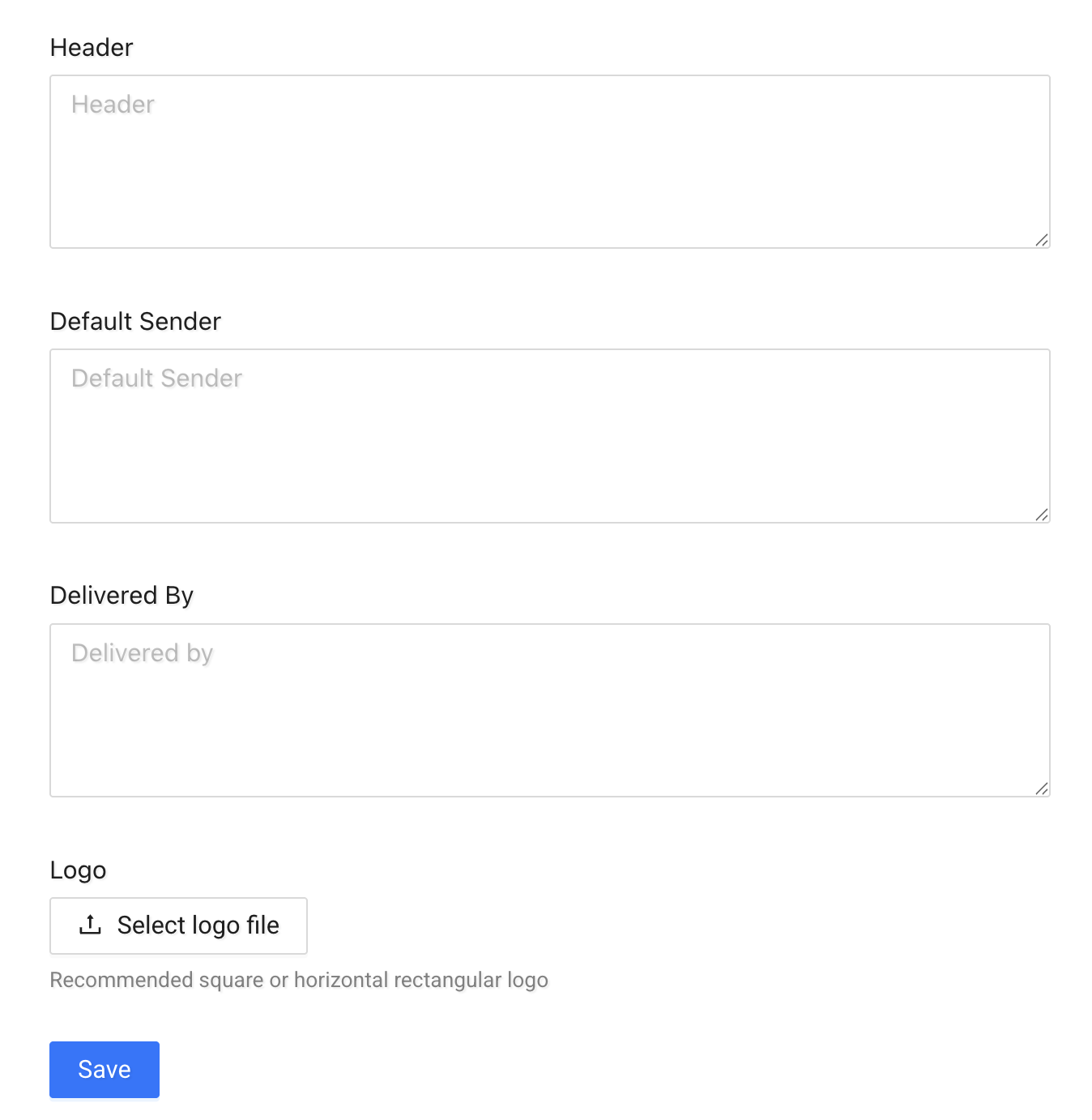
Configure how Proof of Delivery (PoD) documents are presented.
You can define:
- Header text
- Default sender
- Delivered by text
- Logo
These settings affect how PoD documents appear when viewed or downloaded.
Reschedule Notification Settings
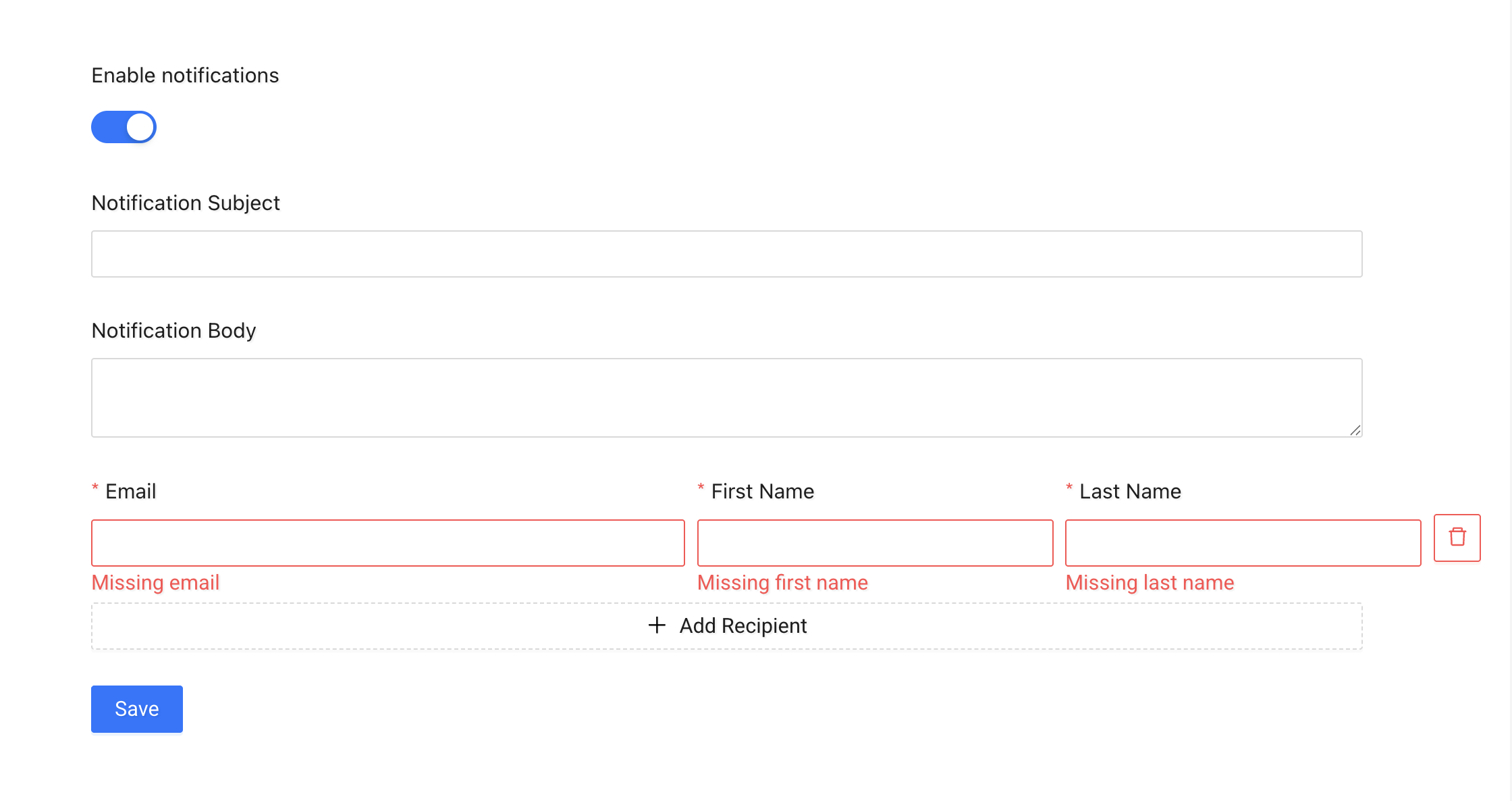
Configure email notifications sent when a delivery is rescheduled.
You can:
- Enable or disable notifications
- Set the notification subject
- Define the notification body
- Add one or more recipients
Dispatch Settings
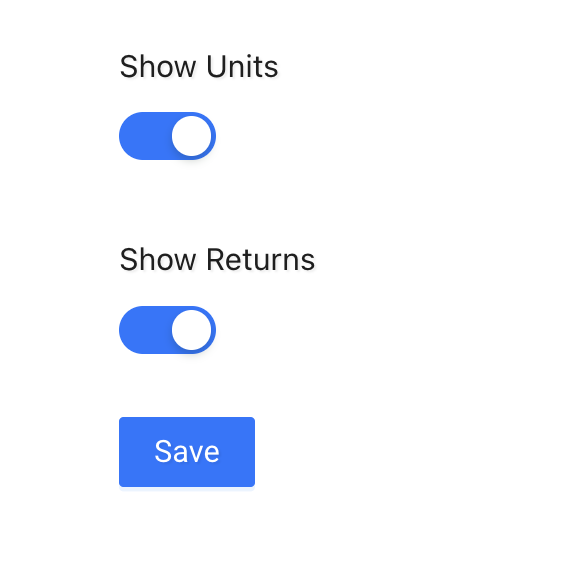
Control visibility of additional job data:
- Show Units
- Show Returns