When Your Organisation Doesn't Scan Barcodes
For a driver whose organisation has turned off Barcode Scanning, where Units and Returns are worked from a list instead of the camera.
What changes, everywhere it changes
If your business or operation does not have the ability to print labels with barcodes or you cannot get barcode information into Tarot to scan Units you can turn on Checklist Mode
One organisation setting, Barcode Scanning, governs Load, Unload, Returns Pick Up and Returns At Depot all at once — turn it off and the camera doesn't open on any of them. The screens underneath are otherwise the same: same progress bars, same job search, just a plain checklist where the viewfinder would be.
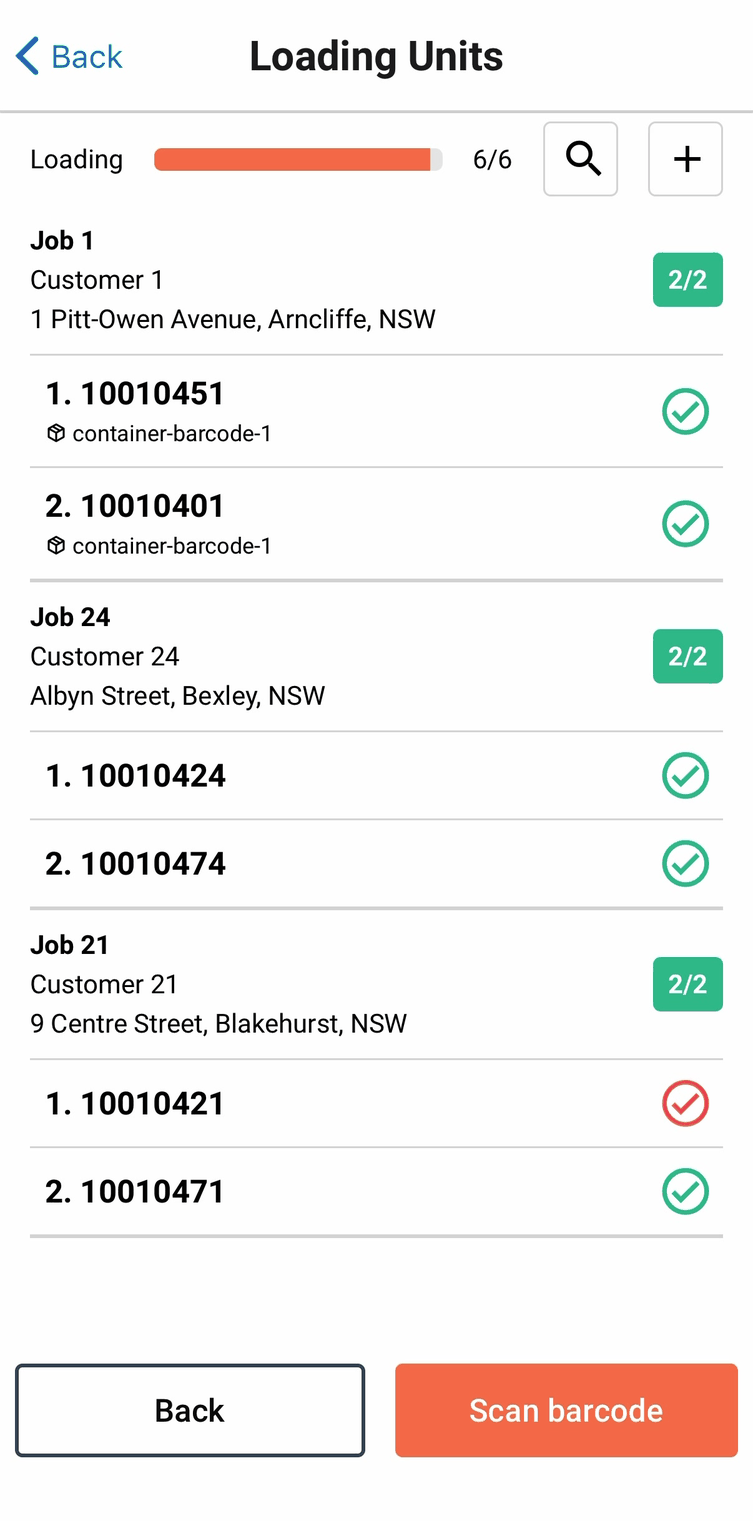
Loading in Checklist Mode
Each Unit gets a red cross and a green tick instead of a single empty circle.
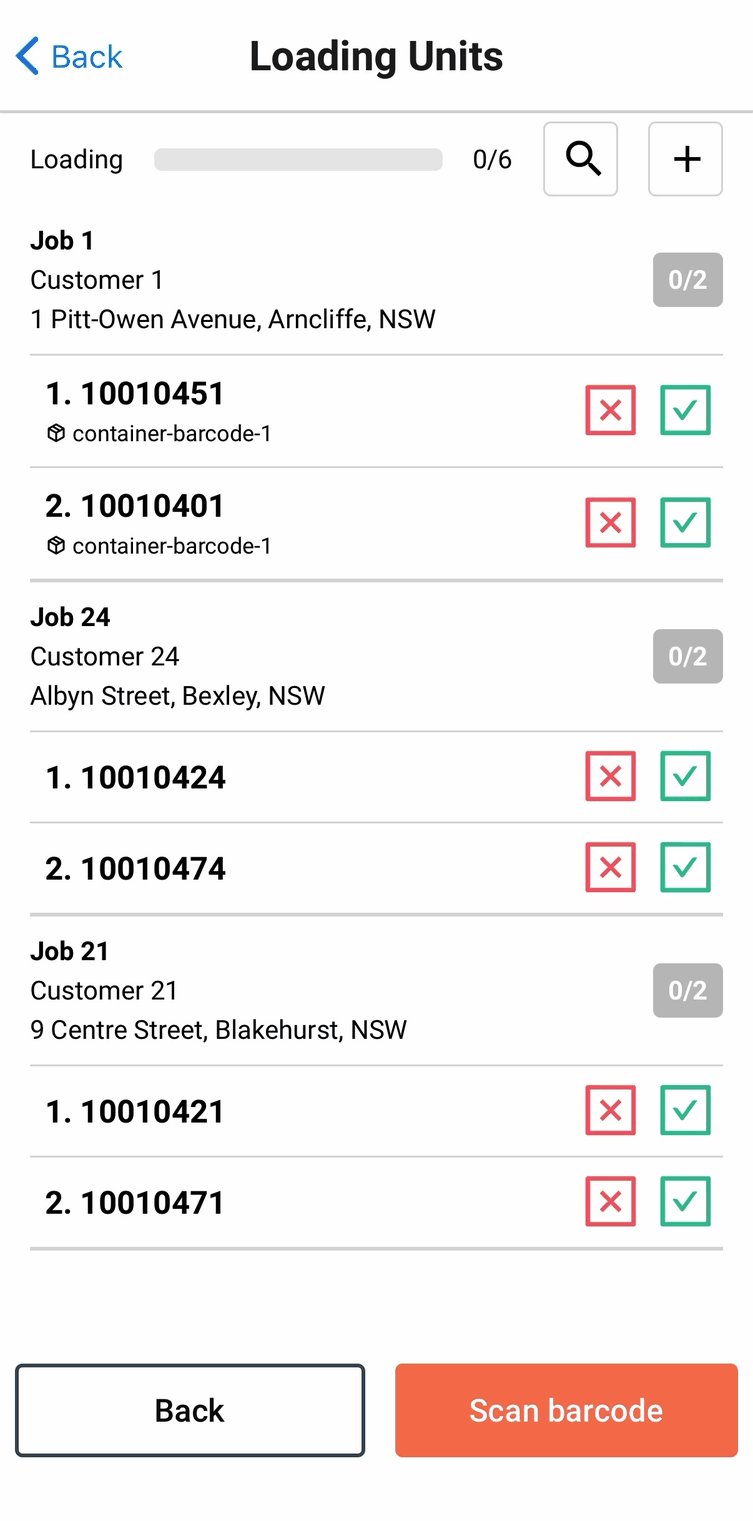
Tap the green tick and it records a successful Proof, red cross for an unsuccessful proof.
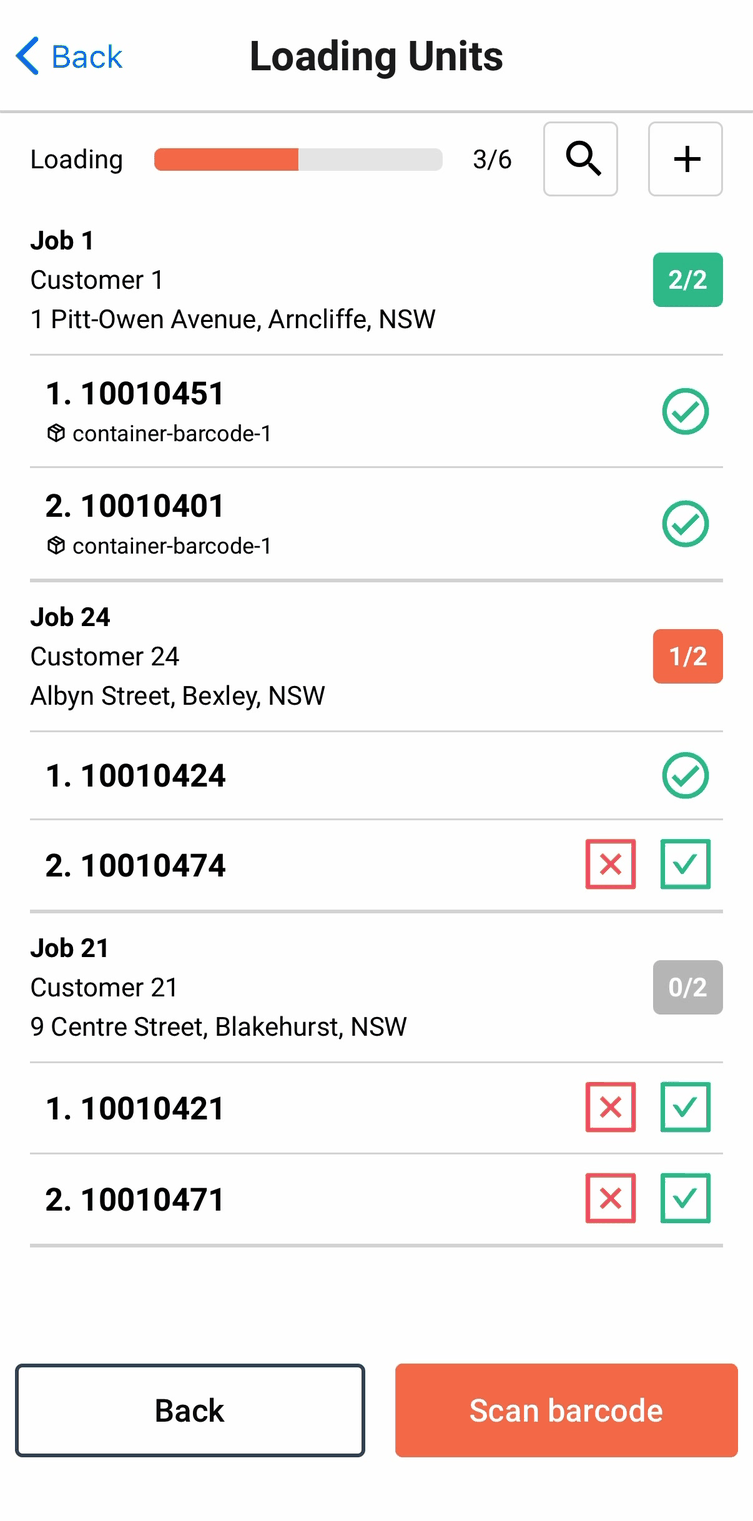
Scan barcode sits next to Back at the bottom of the list. Where labels are mixed, scanning is faster and more accurate than ticking, so use it whenever you're holding something that will actually scan.

Job search still works the same way it does from the camera, including the Only not-fully loaded jobs toggle. A + icon appears beside it too, but only where your organisation allows Creating Units — it opens a name-entry modal for a parcel that isn't on the runsheet at all, the no-scanner equivalent of Create Unit.
Delivering in Checklist Mode
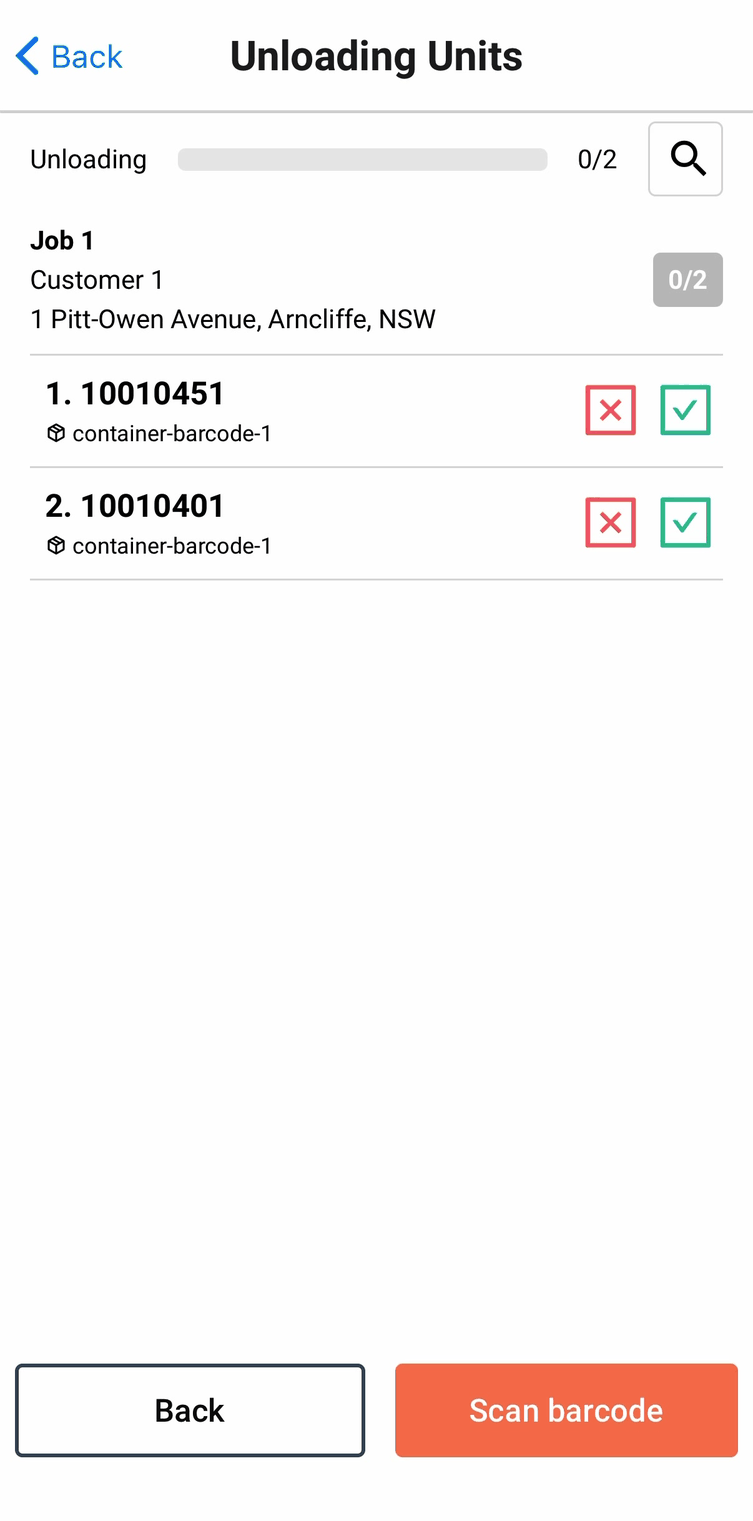
Delivering works exactly the same way with the same Scan barcode override at the bottom.
When a unit can't be ticked off
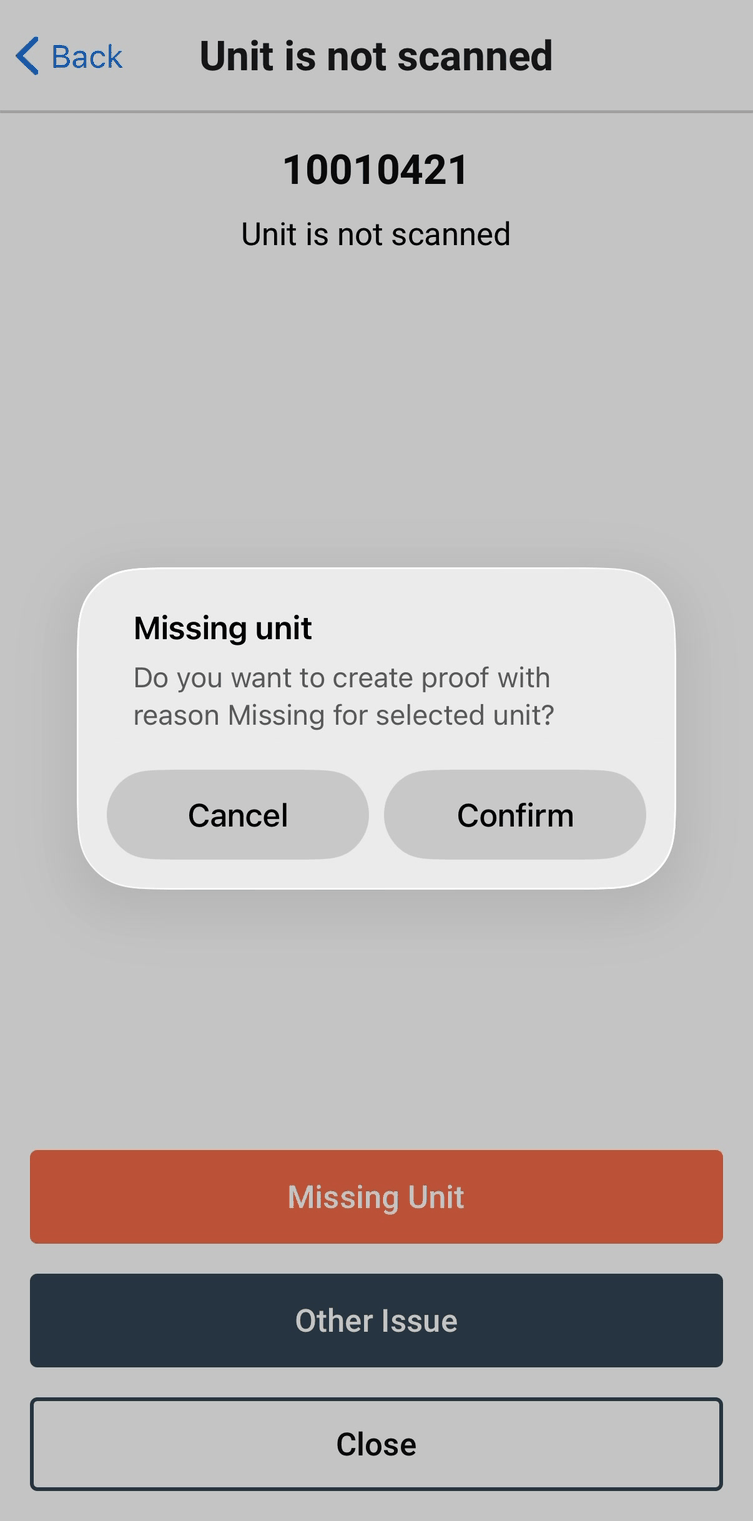
The red cross opens the same Unit is not scanned screen a scanning driver reaches from a failed scan, with Missing Unit and Other Issue as the options.
Missing Unit asks for confirmation before it's recorded.
Similar to barcode scanning, all Units need to have proofs before a Run can be started (at loading) or a Job can be closed (in the Delivery Checklist).
Other Issue leaves the comment box empty here. It only pre-fills "Barcode Issue" when your organisation scans barcodes — with scanning off, there's no barcode to have failed, so Barcode Issue isn't offered as a reason at all.
Returns without scanning
Returns follow the same tick/cross pattern, plus manual entry for anything without a code — more detail on Returns
Checking your own mode
Burger menu → Settings → Show organisation App Settings opens a read-only view of how your organisation has things configured: Barcode Scanning (Enabled/Disabled), Autofill Signature, Creating Units, and the two GPS update intervals.
It's the quickest way to answer "why won't the camera open" yourself — also covered on Troubleshooting.