Load a Run
For a driver starting a shift. Getting a run sheet onto the phone, and finding your way around once it's there.
Driver login not required
A driver is not required to create an account or sign in with a password. The run sheet itself is the credential. Planner Login on the home screen routes to the planner login screen; it is not for drivers.
In practice, that means a phone with no run sheet loaded is a blank app with nothing to protect, and a driver who picks up someone else's phone can start their own run on it by scanning their own run sheet.
Loading a run sheet
There are two ways onto a run, and they're the same mechanism underneath — both hand the app the same run sheet token.
- Scan the QR code on the printed run sheet, from Scan a runsheet on the home screen.
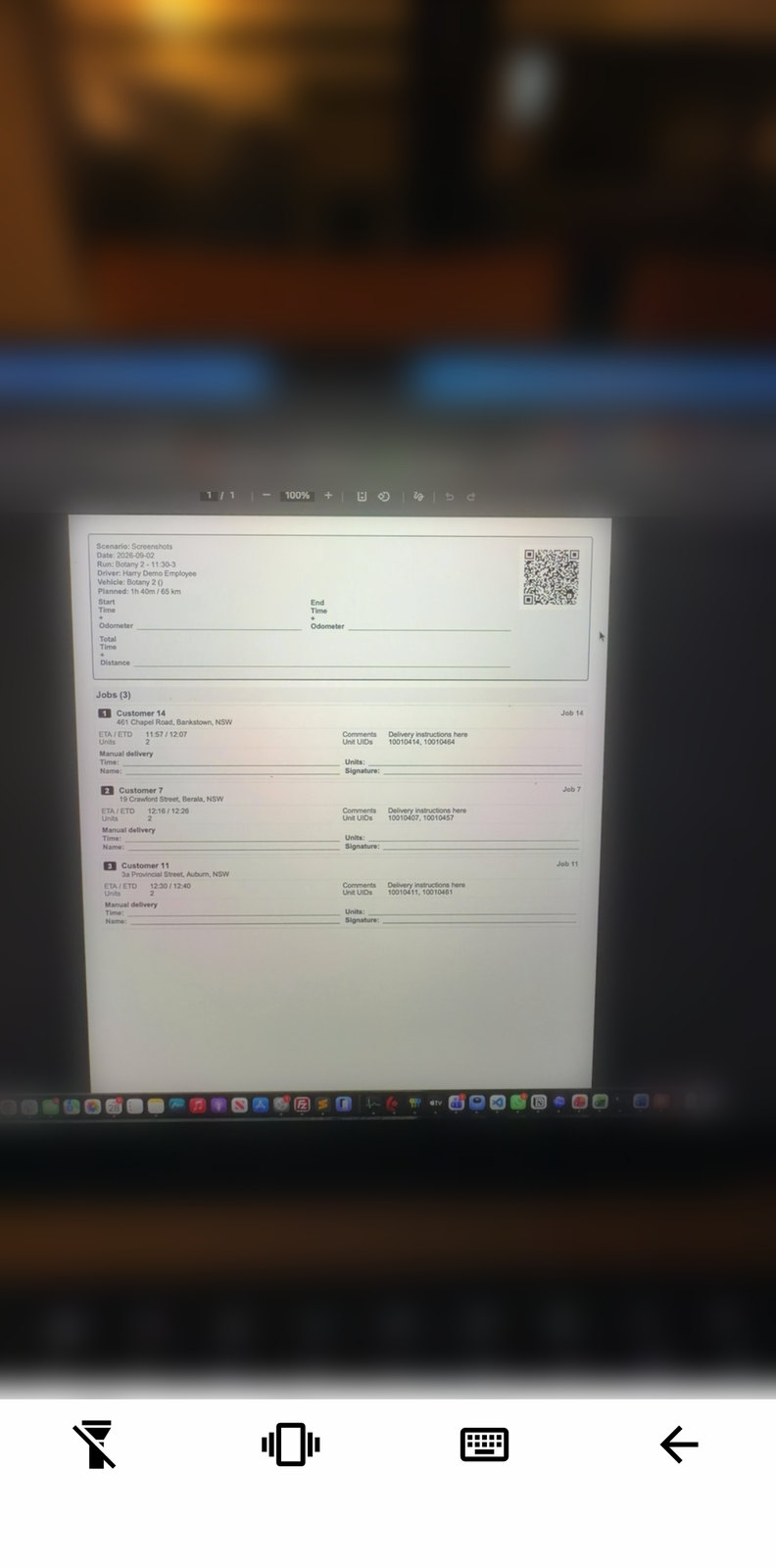
- Tap a run sheet link. A link your planner sends you —
https://route.optimiser.app/runsheet…— opens the app directly on both Android and iOS, without needing the camera at all.
While the run sheet downloads, the app shows Loading Runsheet over the screen. A few things can interrupt it:
- No internet connection — the app offers Close or Try again rather than failing silently.
- An invalid or unrecognised code — you'll see Invalid Runsheet, make sure you have correct Runsheet URL. Rescan or ask your planner to resend the link.
- A run sheet link tapped while another run is already active — the app won't switch runs out from under you. It asks You have tried to open a new Run before closing the last one, and gives you the choice to open the new one anyway or go back to the run you're on.
Accepting the privacy notice
The Welcome To Tarot Routing modal appears after the run sheet loads, over the home screen — not on first launch. It covers the same location-sharing disclosure as install (sharing between Start Route and End Route, including in the background), with links to the Privacy Policy and Terms of Service.
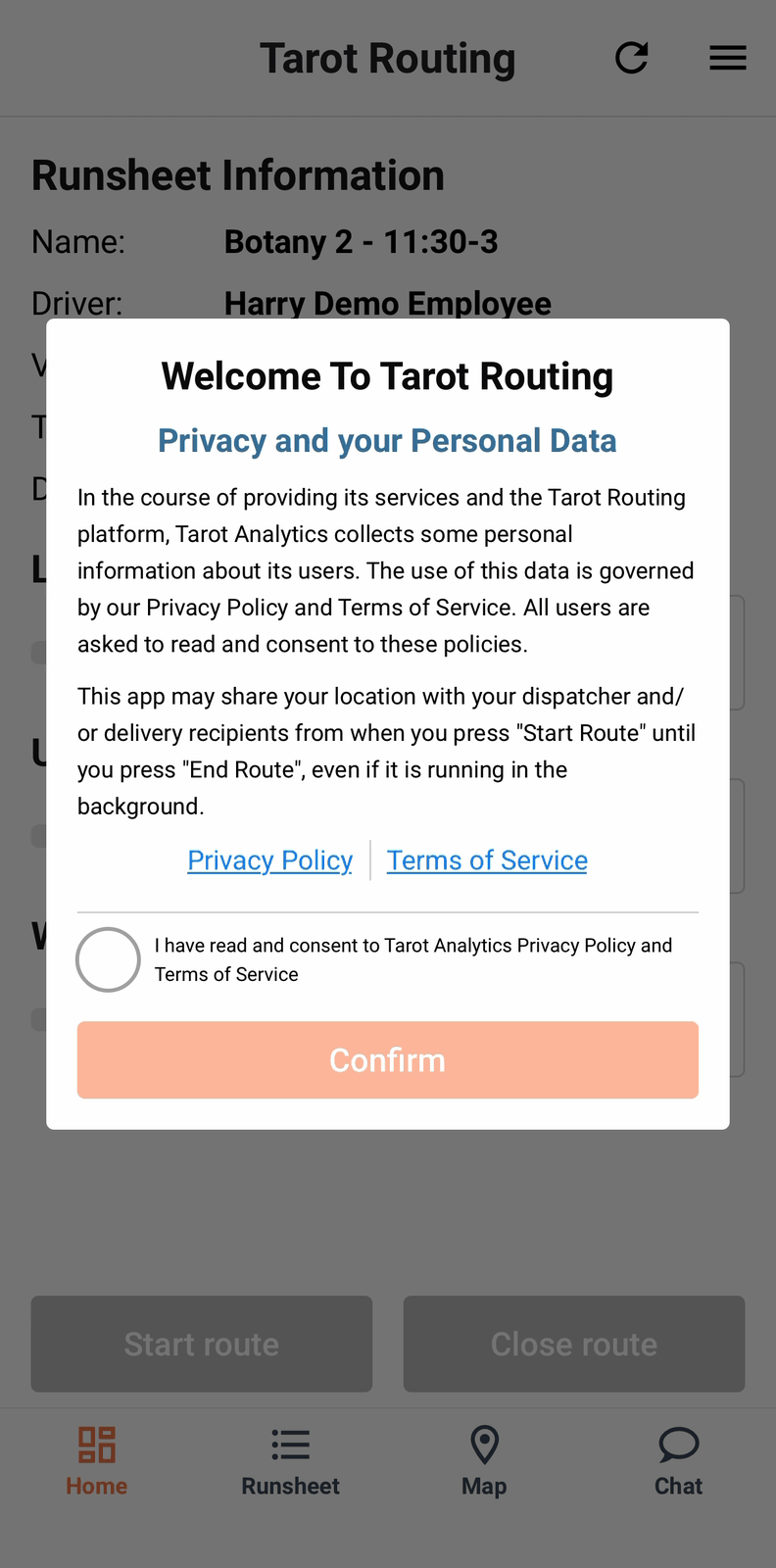
Confirm stays disabled until the consent checkbox is ticked.
The home screen, once you're in
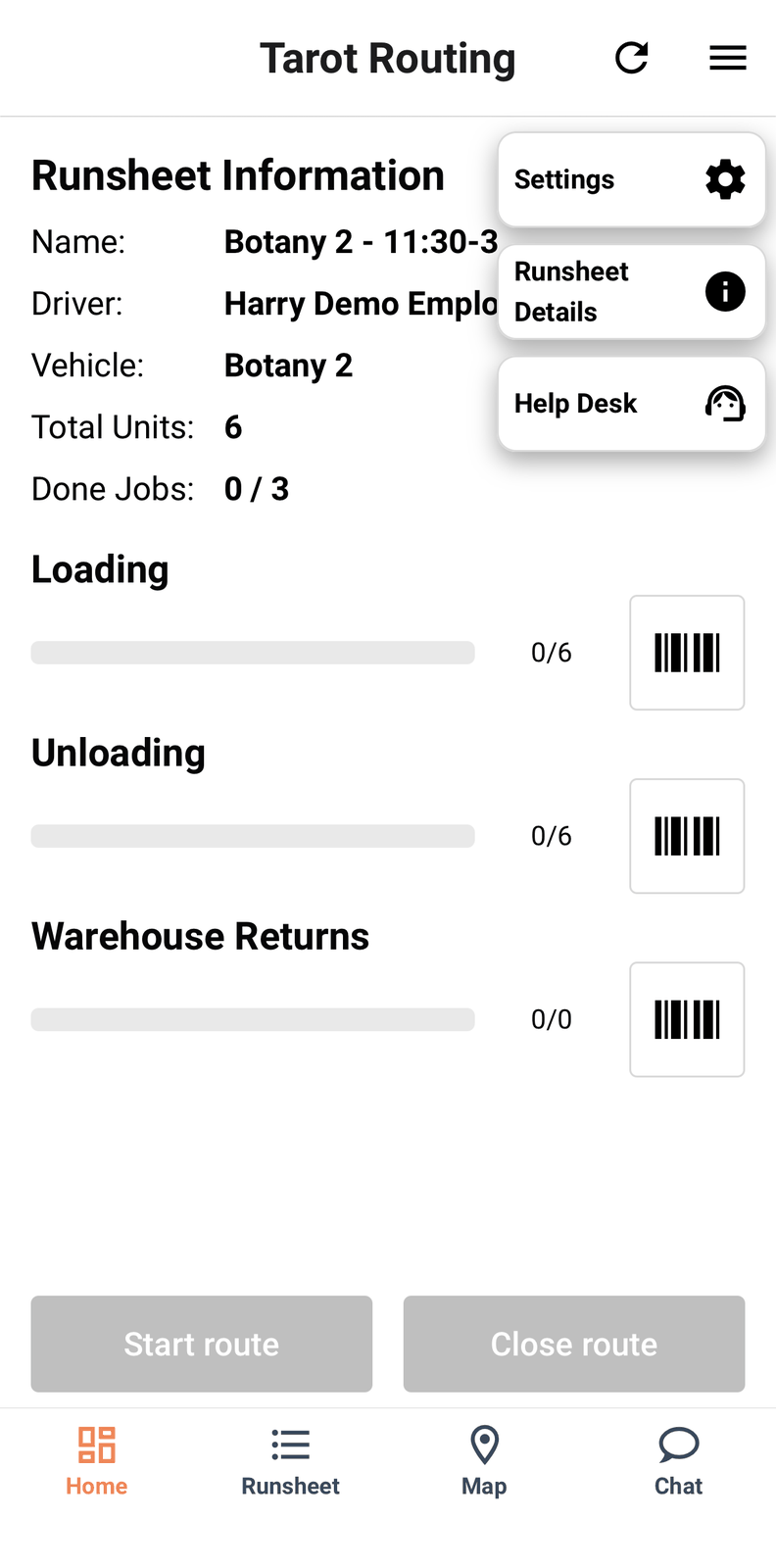
Runsheet Information gives you the shape of the day at a glance: Name, Driver, Vehicle, Total Units, and Done Jobs, alongside Loading and Unloading progress bars — both at zero before you've scanned anything.
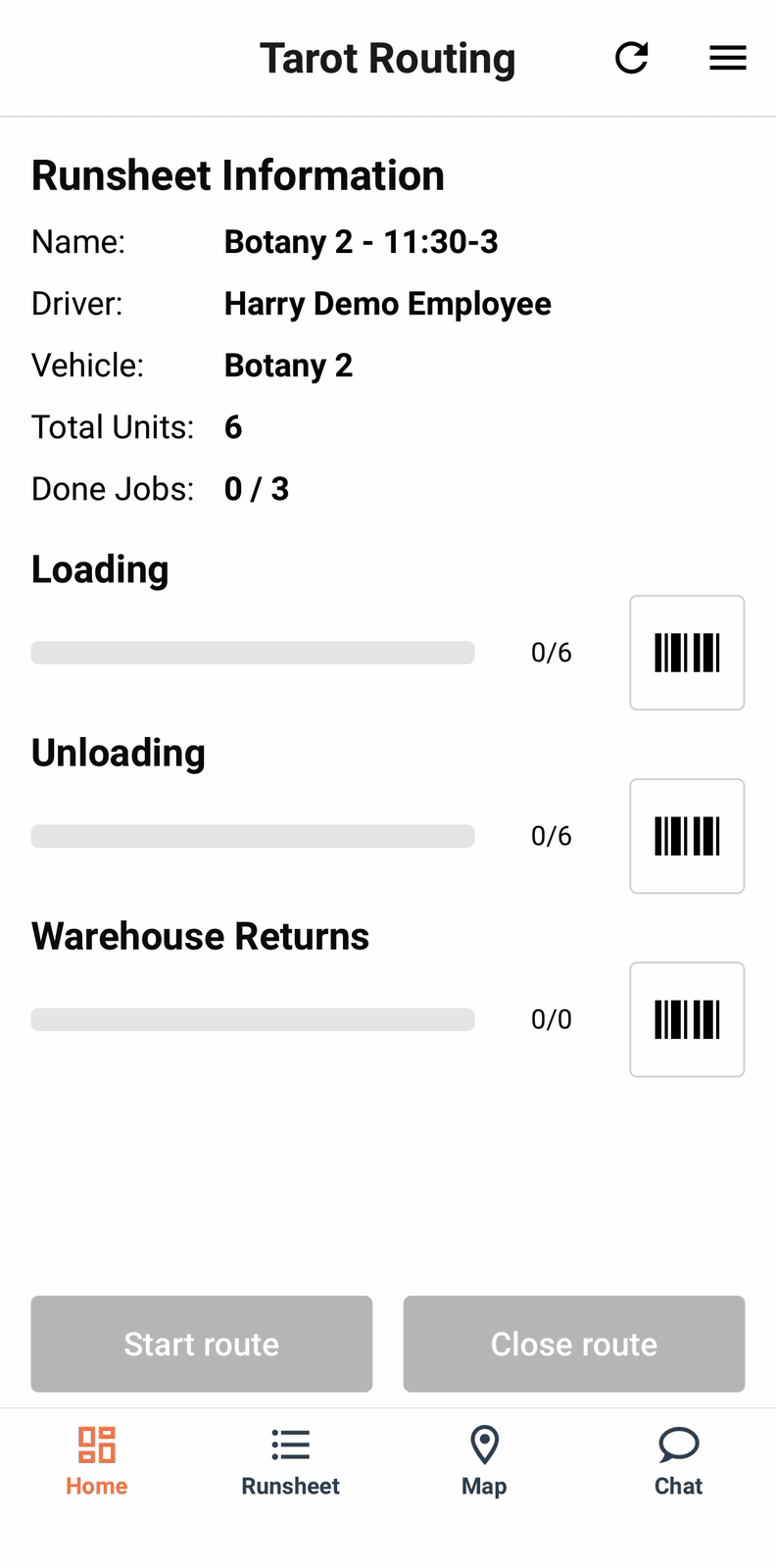
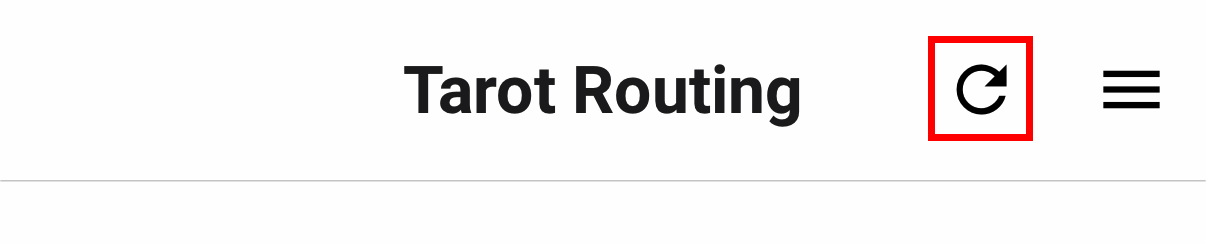
The refresh button beside the menu is worth knowing about before you need it: it's how jobs and units your planner added after the run sheet was scanned actually reach your phone. Tapping it shows a Refreshing toast, then confirms with Updated once it's pulled the latest, or tells you plainly if there's no connection to refresh with. A driver who doesn't know this button exists will assume a late addition never made it and ring the planner to ask — the refresh fixes that without a call.
Four tabs run along the bottom: Home, Runsheet, Map and Chat. The overflow menu in the top right adds Settings and Runsheet Details, plus Help Desk where your organisation has one configured — the Help Desk item doesn't appear at all for an organisation that hasn't set contact details up.
Runsheet Details shows how the day is actually going against how it was planned — distance, driving time, total time against your shift, capacity used, weight, volume, and fuel and CO2 figures where your organisation tracks them.
Settings
Settings holds a mix of device preferences and diagnostics. The ones a driver actually needs day to day:
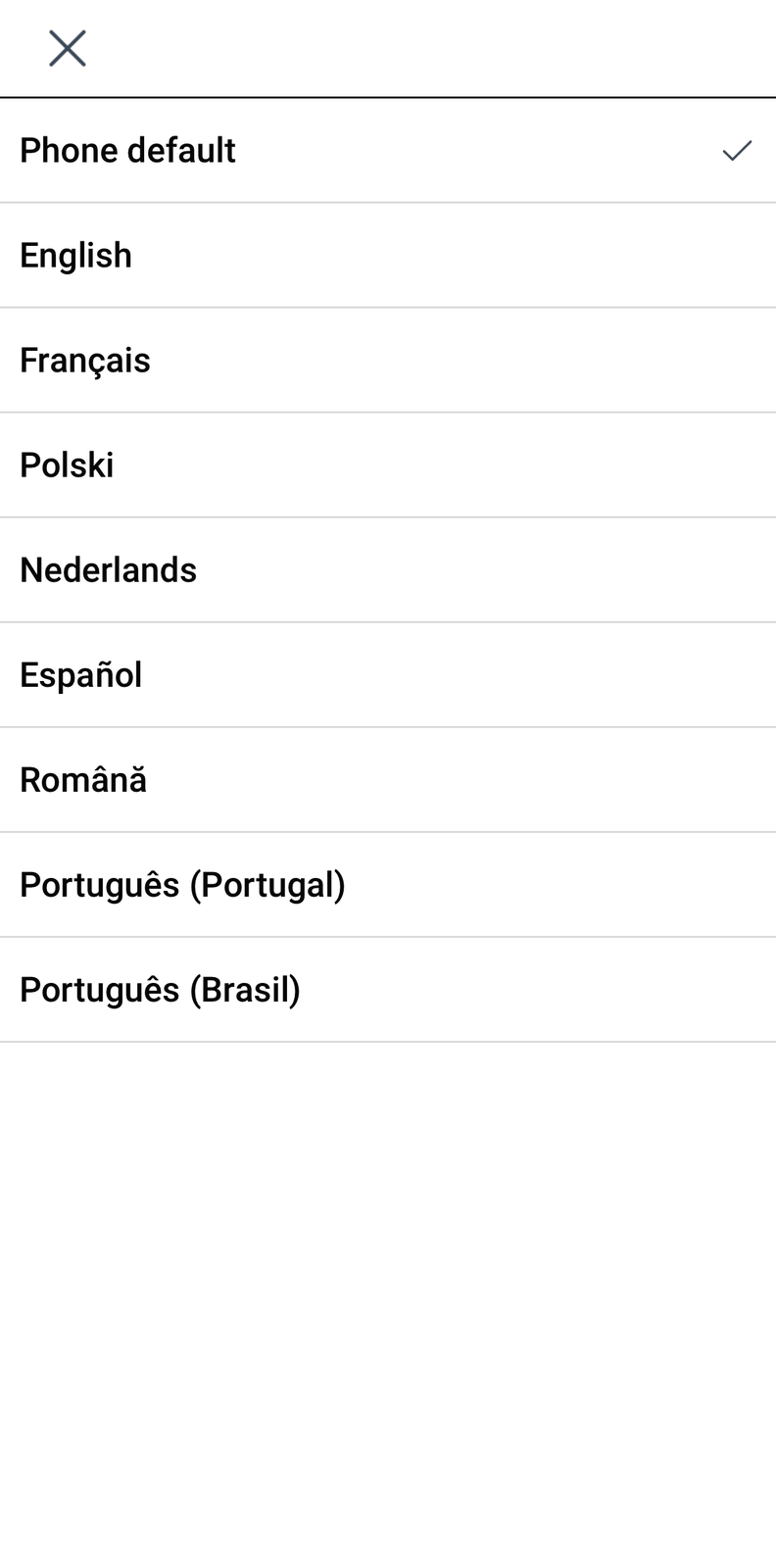
- Language — expand the list to change the app's display language.
- Navigation App — pick which app addresses open in. The picker only lists apps already installed on your phone; install one first to be able to select it.
- Device ID, with an option to edit it — your Help Desk may ask for this when troubleshooting.
- Alternative camera and Blink effects on barcode scanner, covered on Troubleshooting.
- Display over other apps (Android only) — once granted, shows a small floating bubble with your next stop's address and customer name over whatever app you're in, so you can check it without switching back to Tarot mid-navigation.
- Notifications — only shown if notifications aren't yet enabled, so you don't miss an update from your planner.
- Barcode Filter Settings, covered on Loading.
- Show organisation App Settings, covered on Troubleshooting.
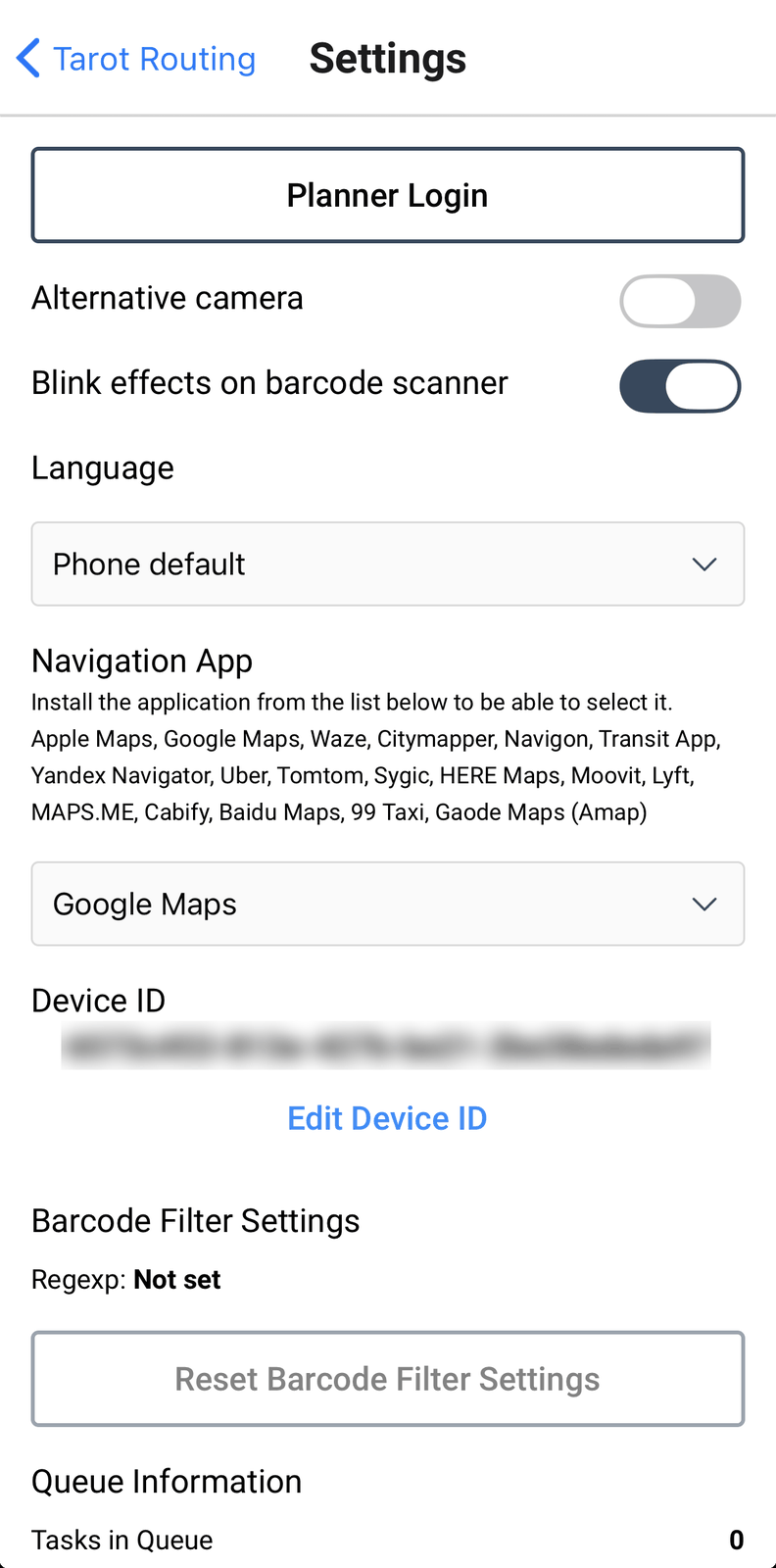
Further down, Queue Information and Unsent Photos Gallery show what's still waiting to sync — useful if the Help Desk is trying to work out why a proof hasn't come through. Share QR re-displays the code that loaded your current run sheet, for scanning onto a second device. App Information at the very bottom carries your app version and build number, again mainly useful when reporting a problem.
Help Desk
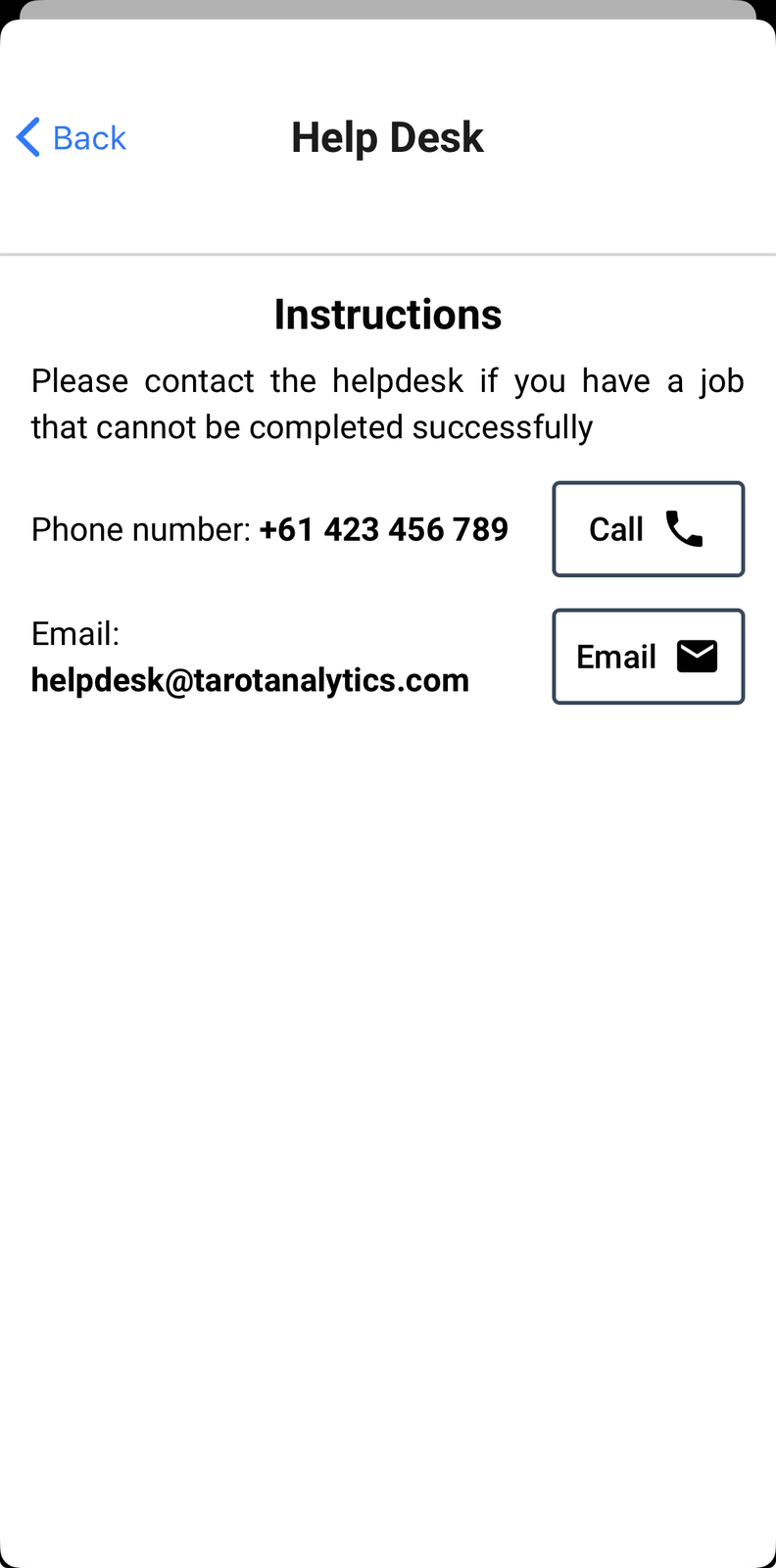
Where your organisation has one configured, Help Desk shows their instructions, phone number and email — each only appears if your organisation has set it. Tapping Call or Email opens your phone's dialler or mail app directly with the number or address already filled in.
Leaving a run
Exit route in Settings leaves immediately — no confirmation — clearing the loaded run sheet and returning you to the neutral home screen. Use it if you've scanned the wrong run sheet, or you're handing the phone to someone else.
Once a route is closed, the Start route / Close route buttons on the home screen are replaced by an Exit Route button of their own. This one does ask first, since it's the last chance to attach a close-route proof before you leave the run behind for good.
There is no "Load New Runsheet" option anywhere in the app — leaving a run always means exiting it first.