Closing a Route
For a driver finishing up at the end of the day, once every job has been delivered.
Closing the route
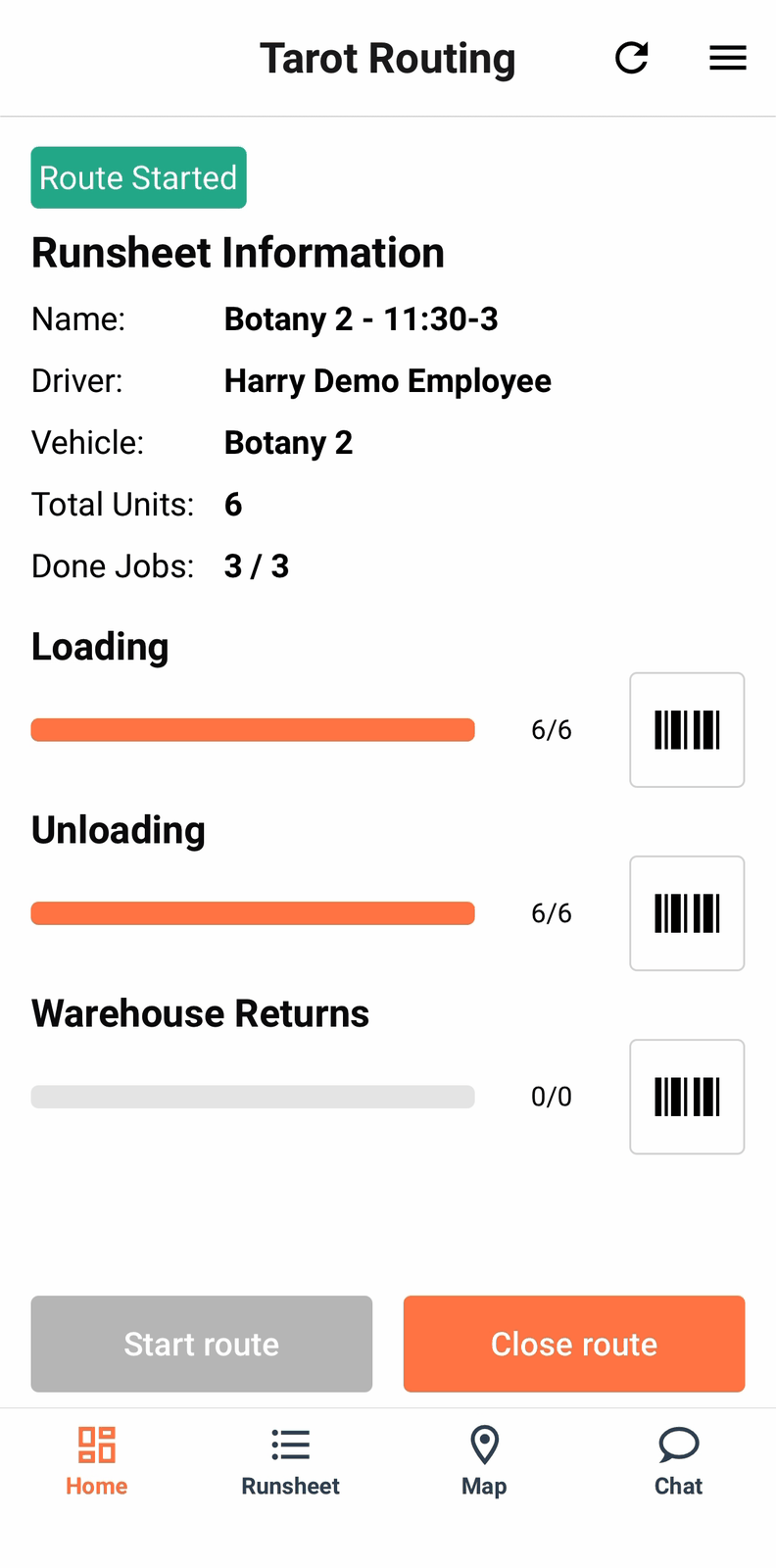
Once every job is closed, Home shows a Route Started badge with Loading and Unloading both complete, and Close route as the only live button.
Closing mirrors starting. The Close Route screen shows your start date and start odometer for reference, then asks for a closing Odometer reading — which has to be higher than the start reading, or the app rejects it — plus optional photos, a signature and a comment.
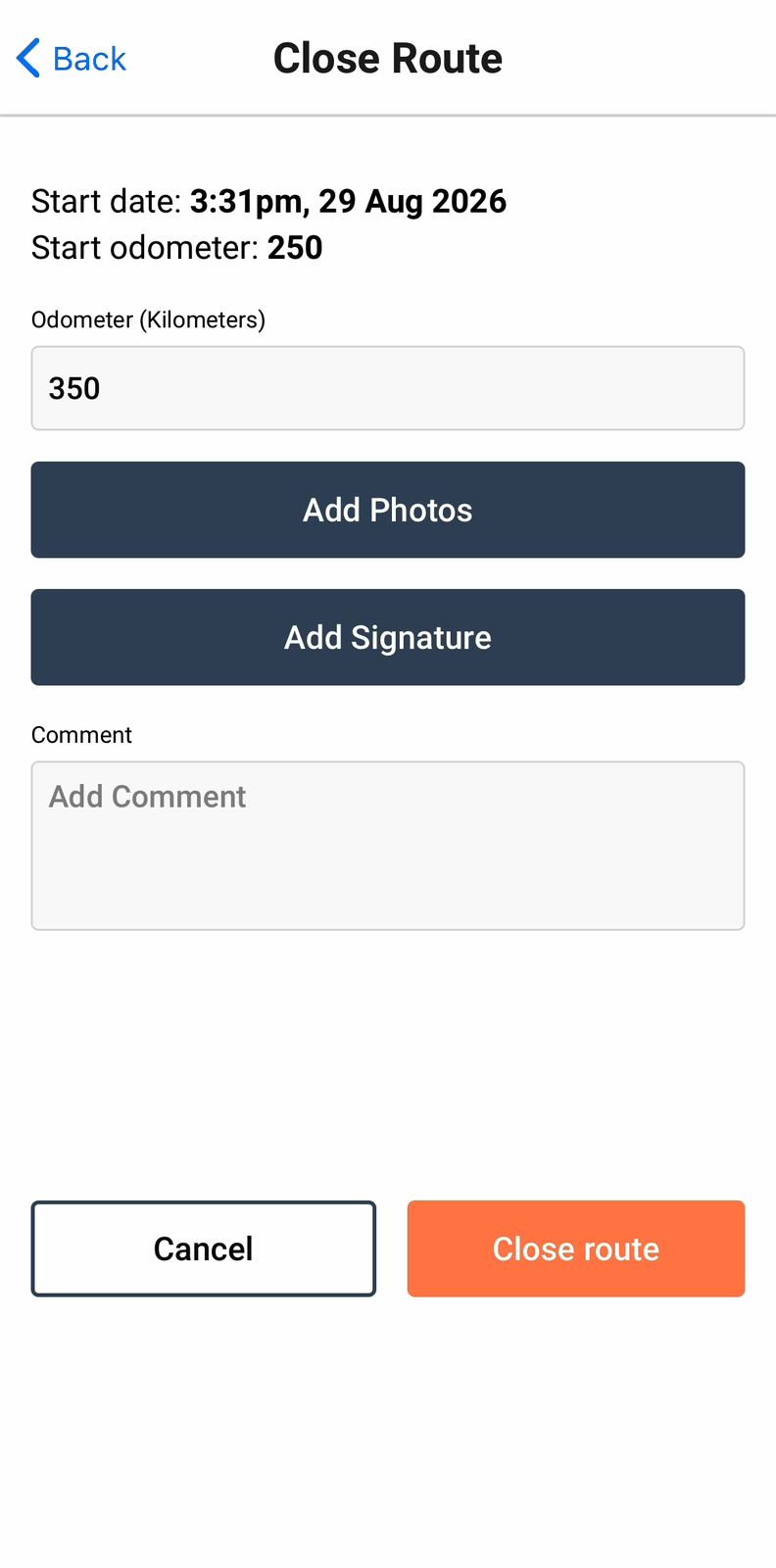
Where your organisation has an end-route checklist configured, a Checklist button appears here too, outlined red with Required beneath it if it's mandatory — and Close route won't go through until it's filled in.
Closing with jobs still open doesn't block you outright; it warns you first and lets you continue.
Closing returns you to the neutral home screen — Planner Login, Scan a runsheet, Pre-Scan. The run sheet is gone, and that's how you know you're finished.