Returns
For a driver picking up Returns from a customer and checking them back in at the depot.
How Returns work
Returns are things to be Picked-up from the customer. Every Return has two Proofs: Pick up at the customer, and an At depot at the end of the run. Until both Proofs are recorded a Return is unfinished and a driver cannot Close route.
Once the Runsheet loads, Home shows the planned Warehouse Returns total, how many Returns you're expected to collect across the whole run.
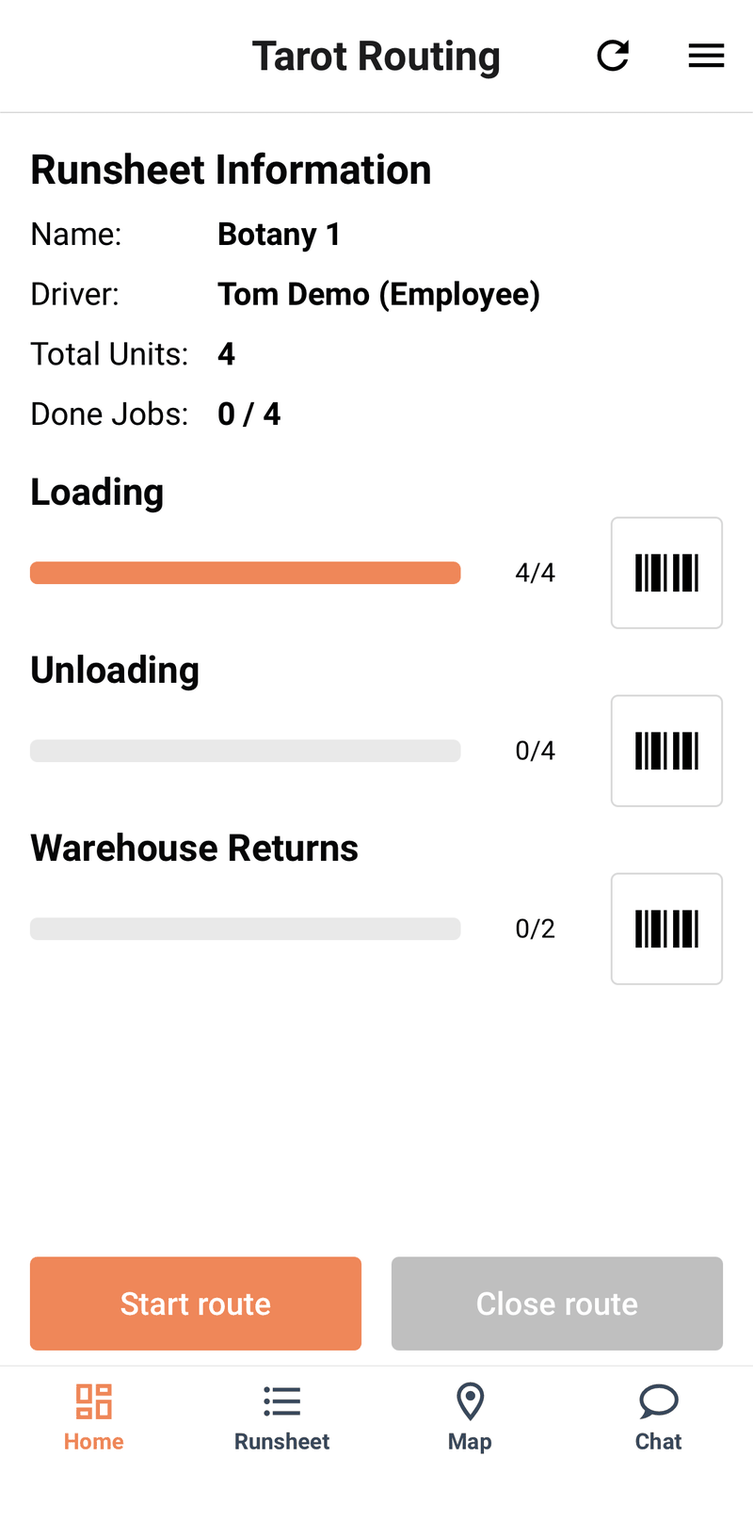
A planned Return is already attached to a Job when the Runsheet loads. An unplanned one is something a customer hands you that wasn't on the paperwork, covered below. Both planned and unplanned Returns may existin in a run
Creating and searching Returns from the planner side is covered on the Admin Panel's Returns page; this page only covers what a driver does with one in hand.
Picking up a planned Return
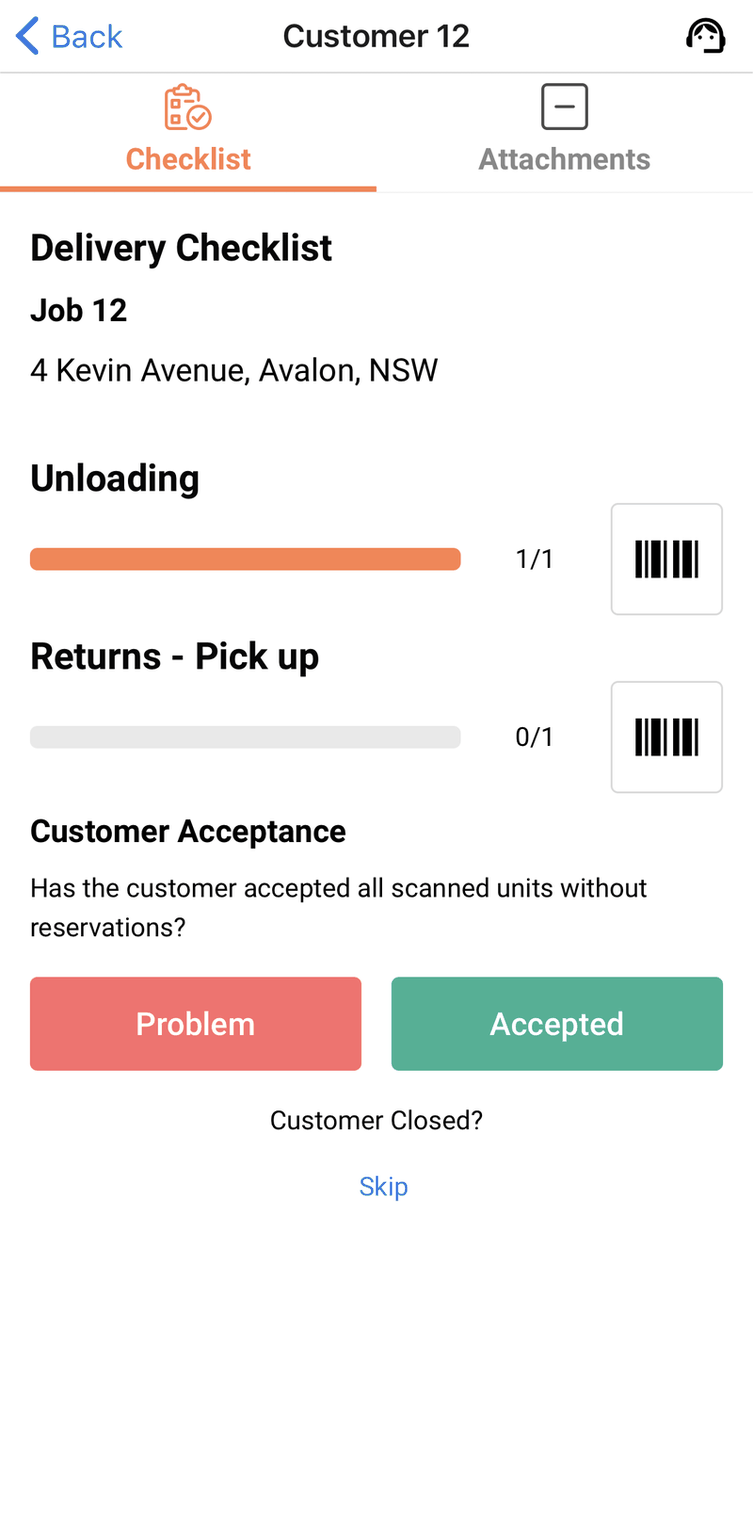
At the Job, unload the delivery units first, then use the barcode button beside Returns - Pick up.
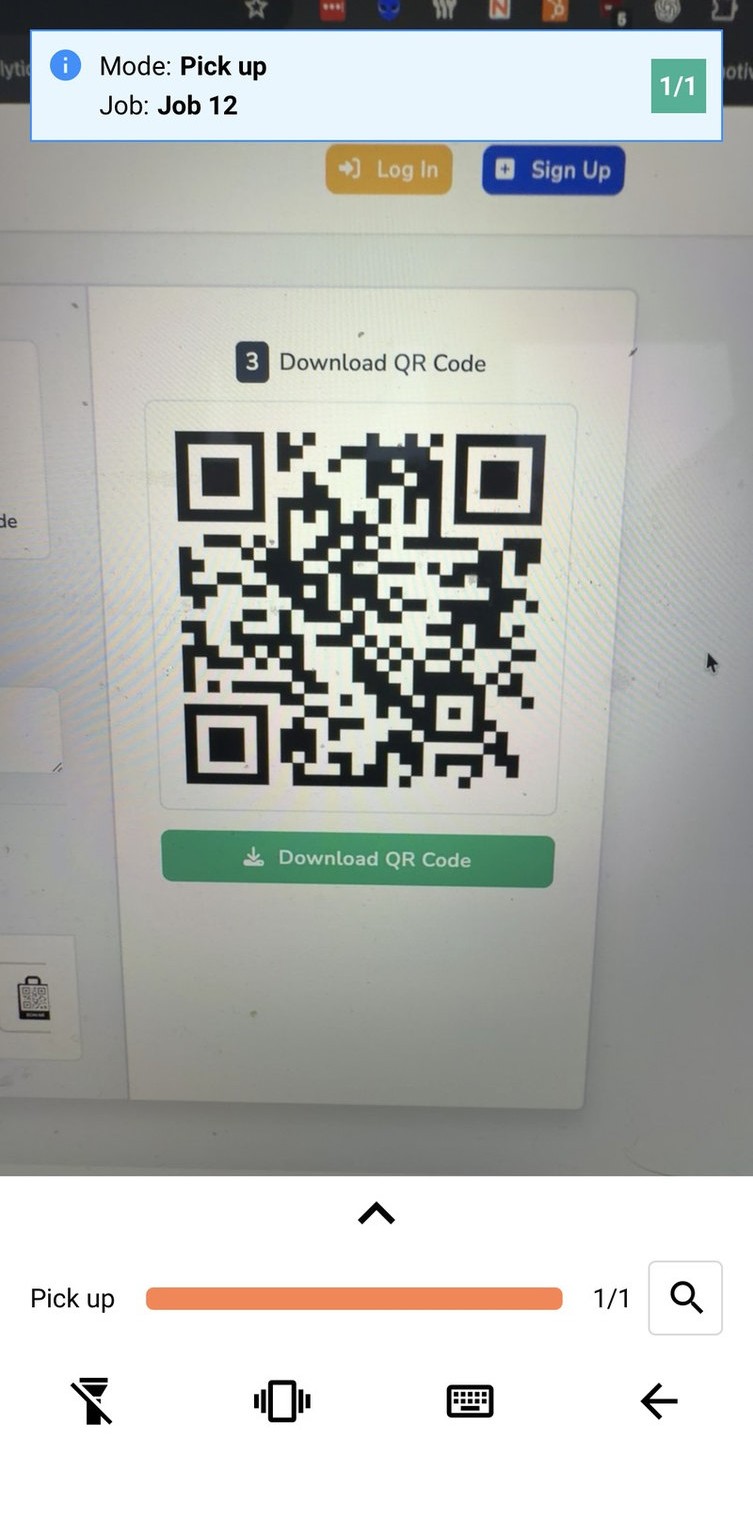
Scanning opens in Pick up mode, scan each Return and check the counter reaches its total before you leave the customer.
Complete the Job Proof as normal once you're done. If a planned Return genuinely isn't there, don't leave it unresolved — it needs an unsuccessful Pick up outcome recorded instead.
Creating an unplanned Return
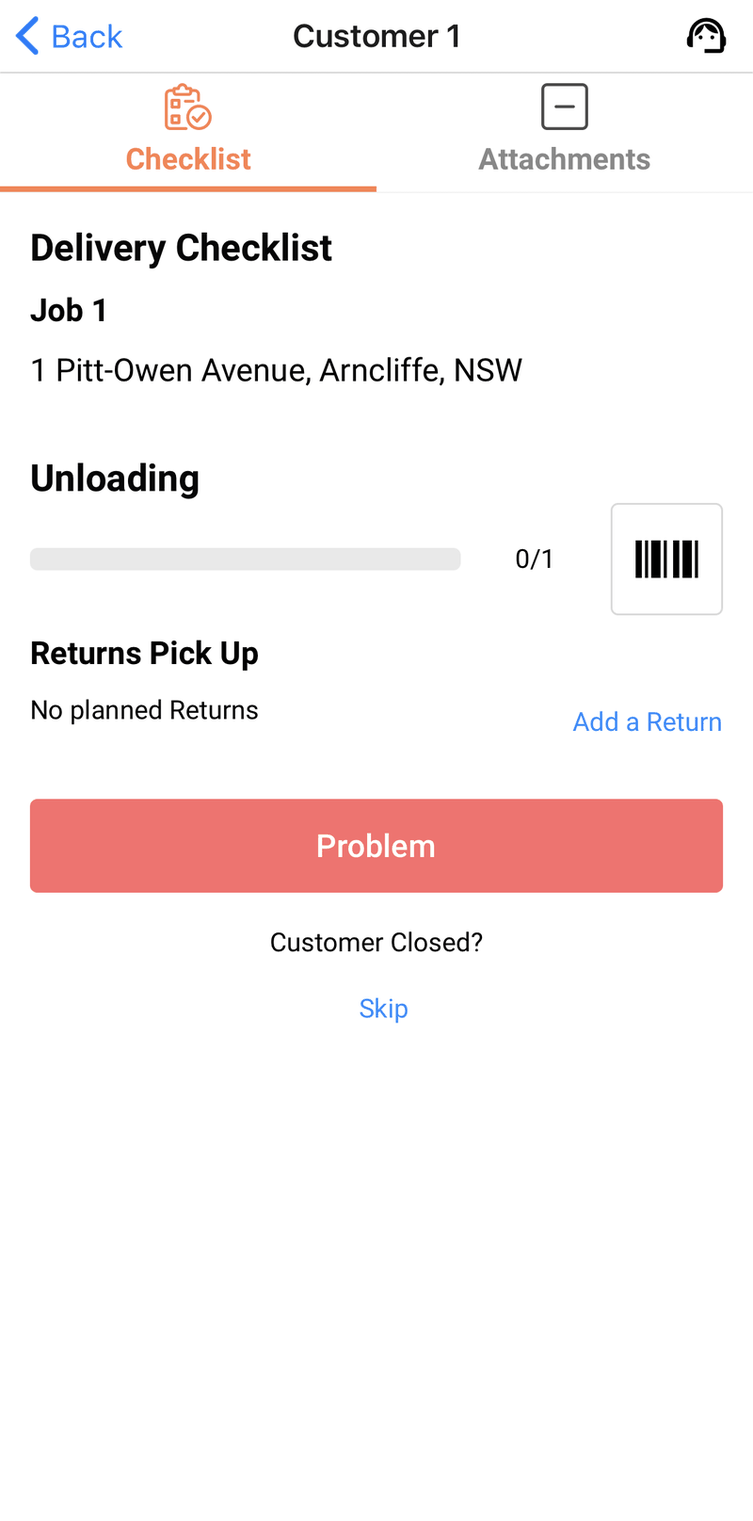
When a Job shows No planned Returns, Add a Return opens the camera.
Scan the item, check the scanned label on screen against the physical label, then choose Create or Ignore.
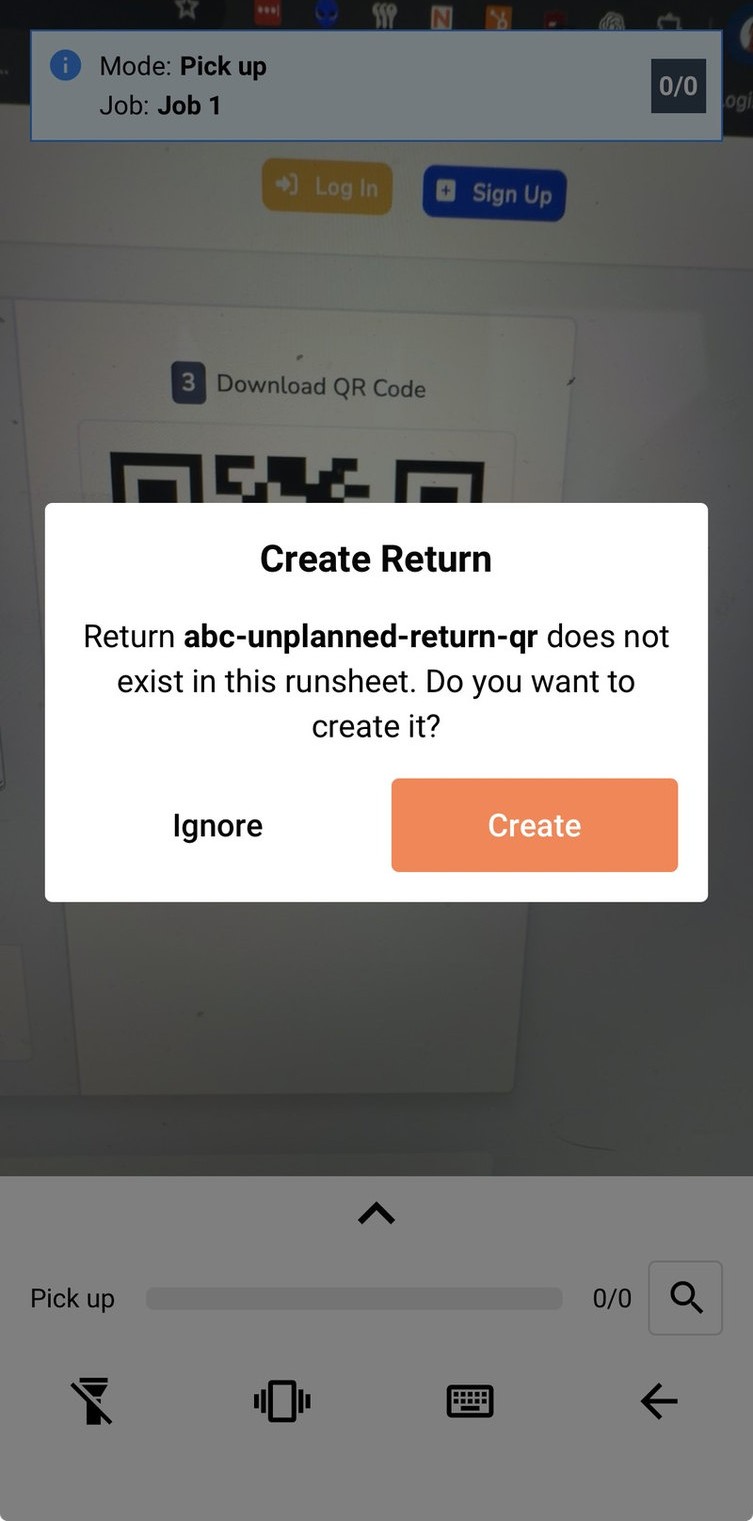
Create attaches the Return to the current Job and records a successful Pick up.
Unplanned Returns can be created when a Job already has planned Returns. The scanner behaves exactly the same way: scan the extra item, and it offers the same Create prompt for anything that isn't already on the list.
Returning items to the depot
Back at the depot, Home → the barcode button beside Warehouse Returns opens the At depot scanner.
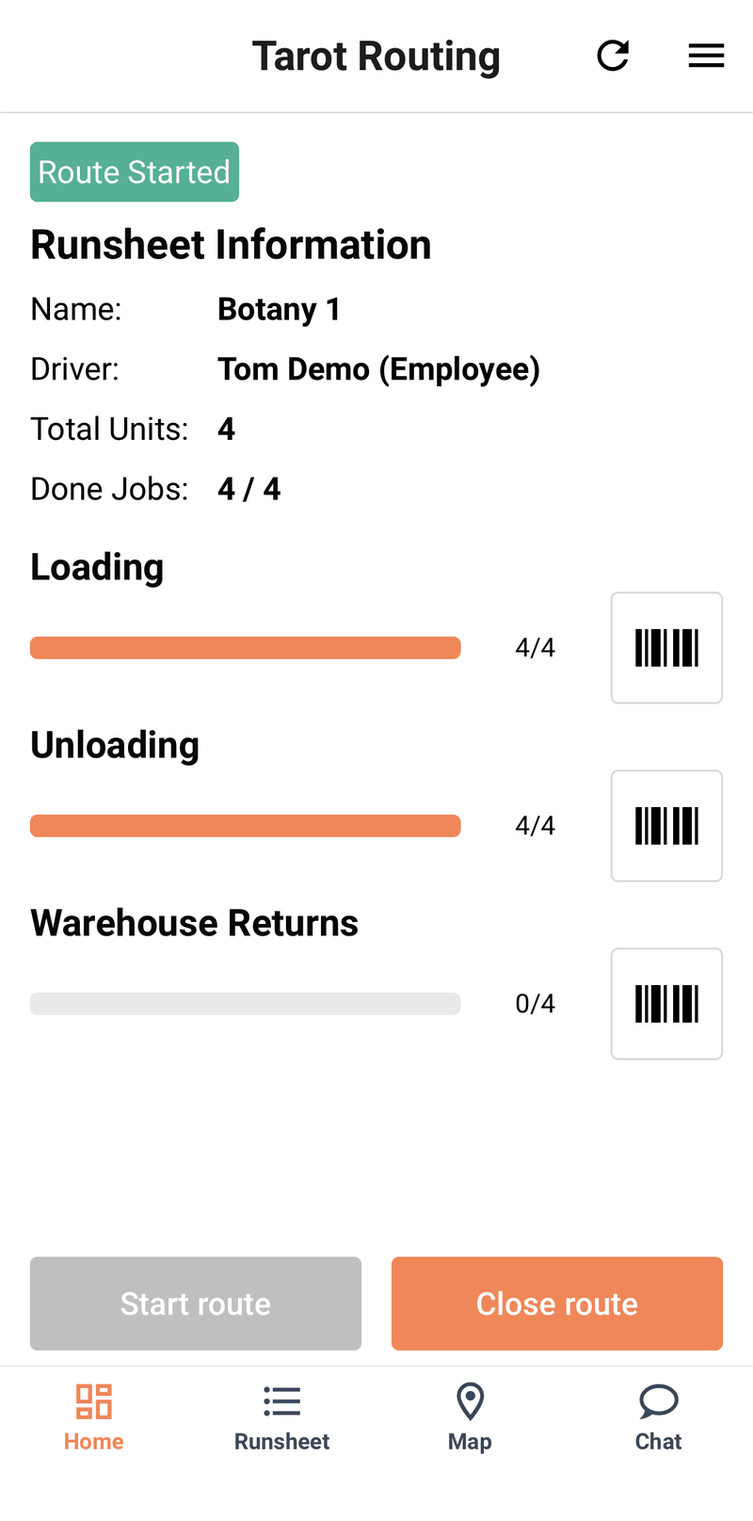
Each at warehouse Return scan shows the matched Job. The counter shows the total number of Returns to be scanned, both planned and unplanned.
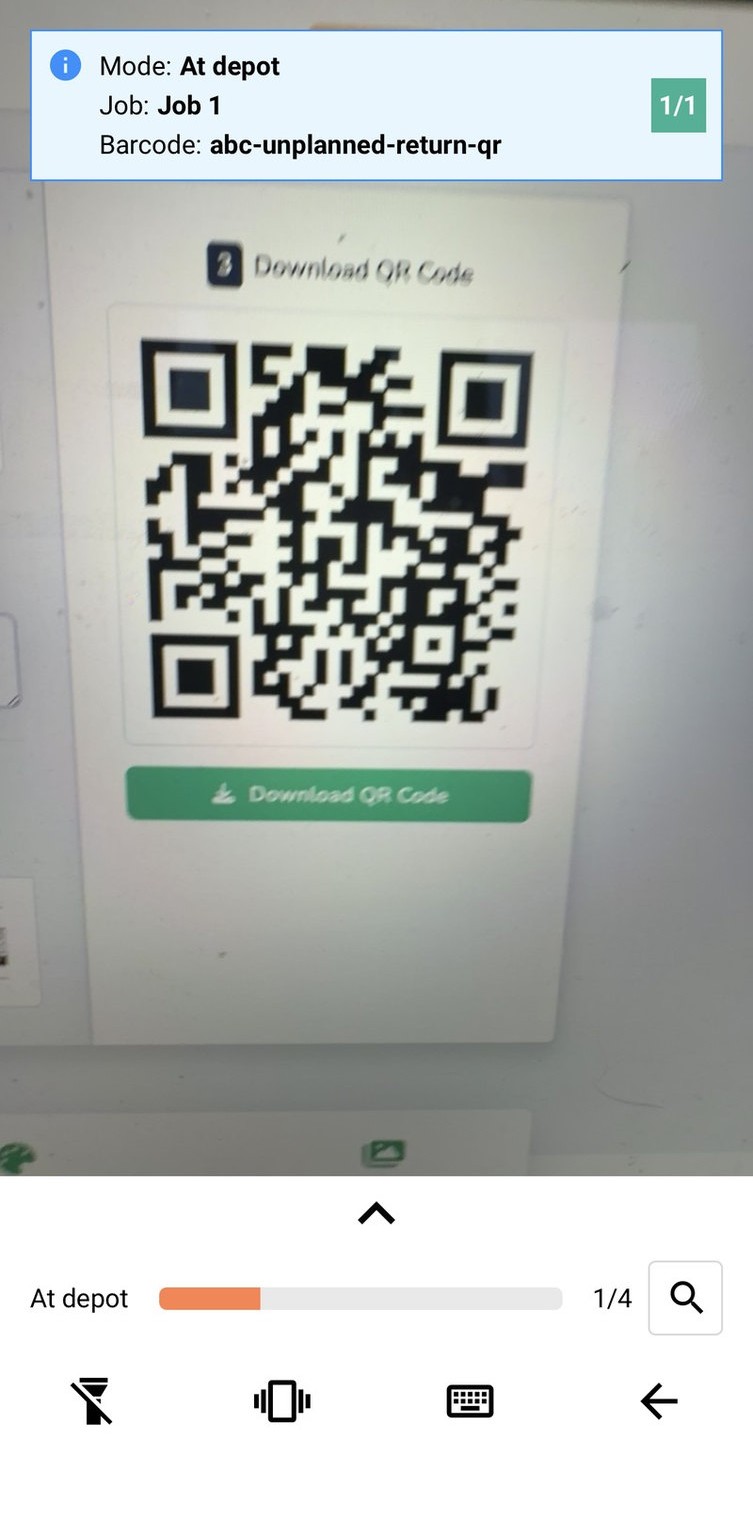
Once all Returns are scanned the driver can Close Route
Returns without barcode scanning
Where scanning is off, Returns work the same way units do: a green tick for collected, a red cross for an exception.
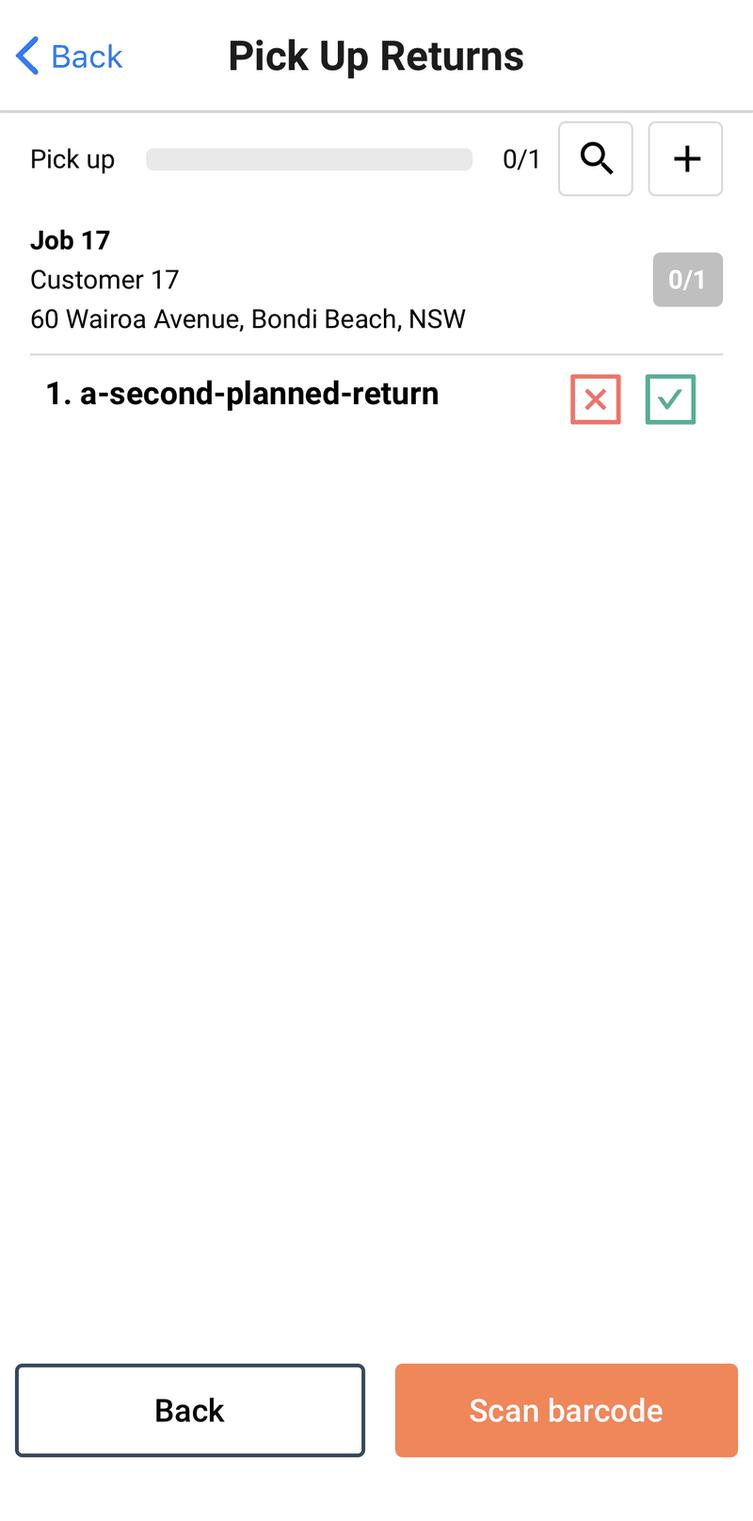
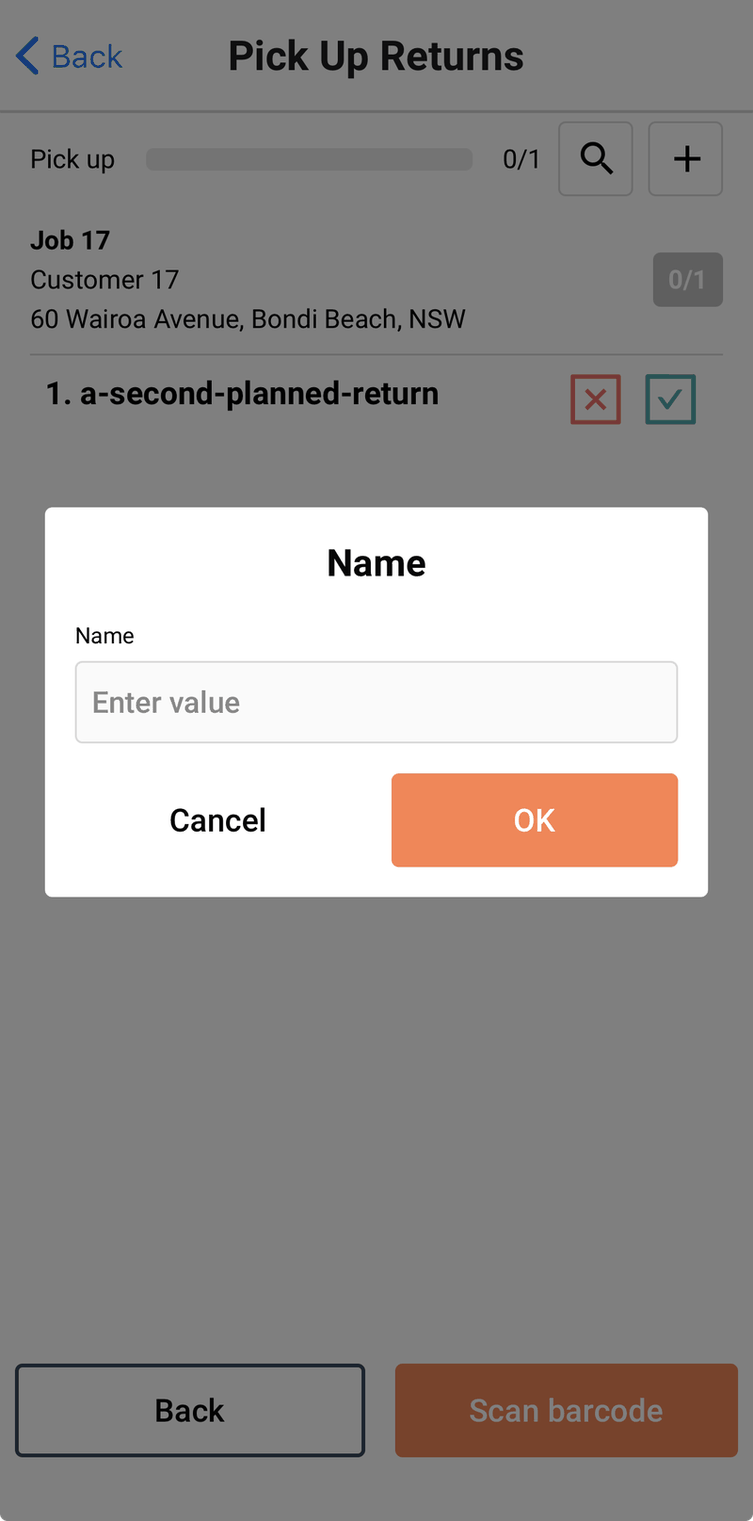
The + button adds a Return manually — enter its name, verify it, then create it.
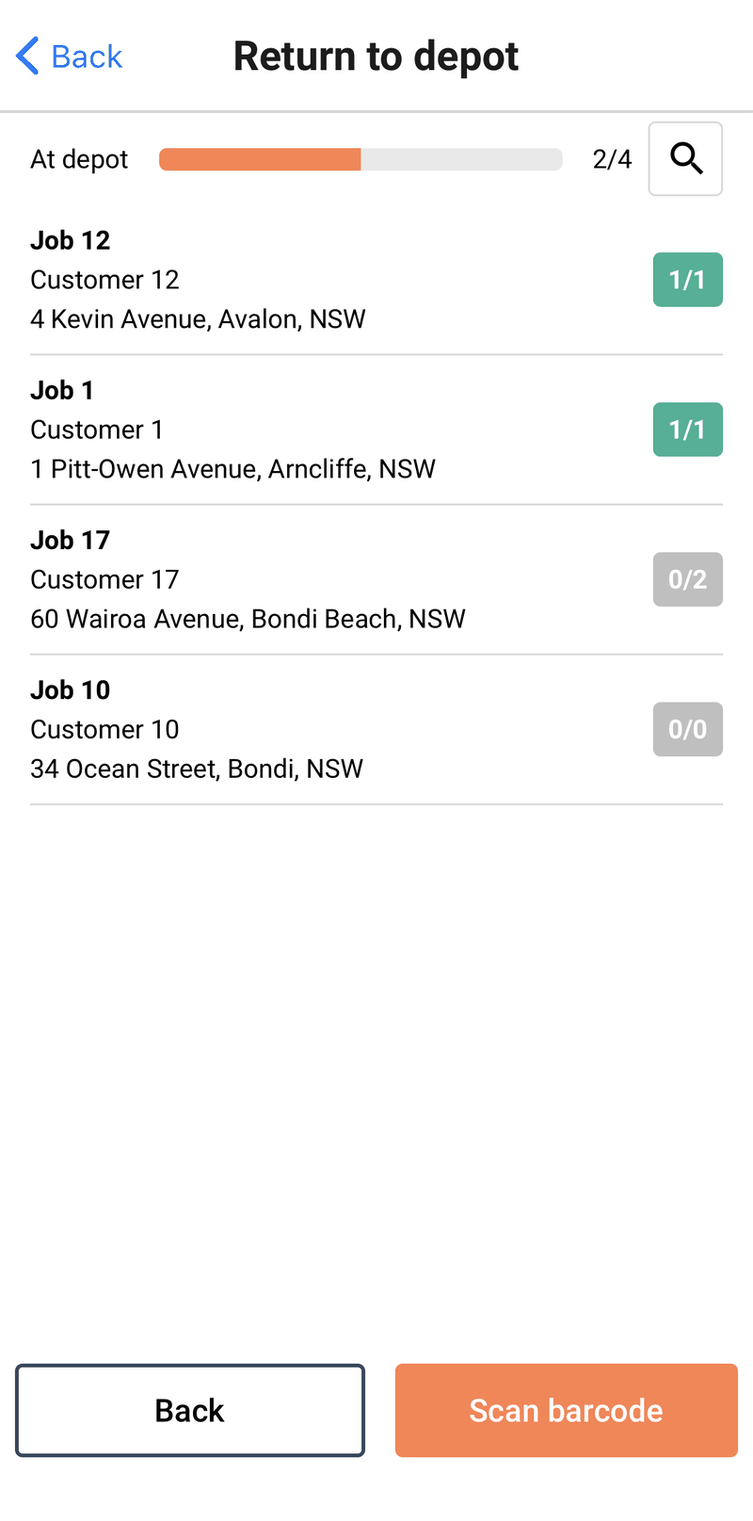
At depot, checklist mode adds a layer: a Job list with per-job completed/outstanding counts first.
Open a Job to see its Returns inside, each with its own tick or cross — including any Return you created manually.
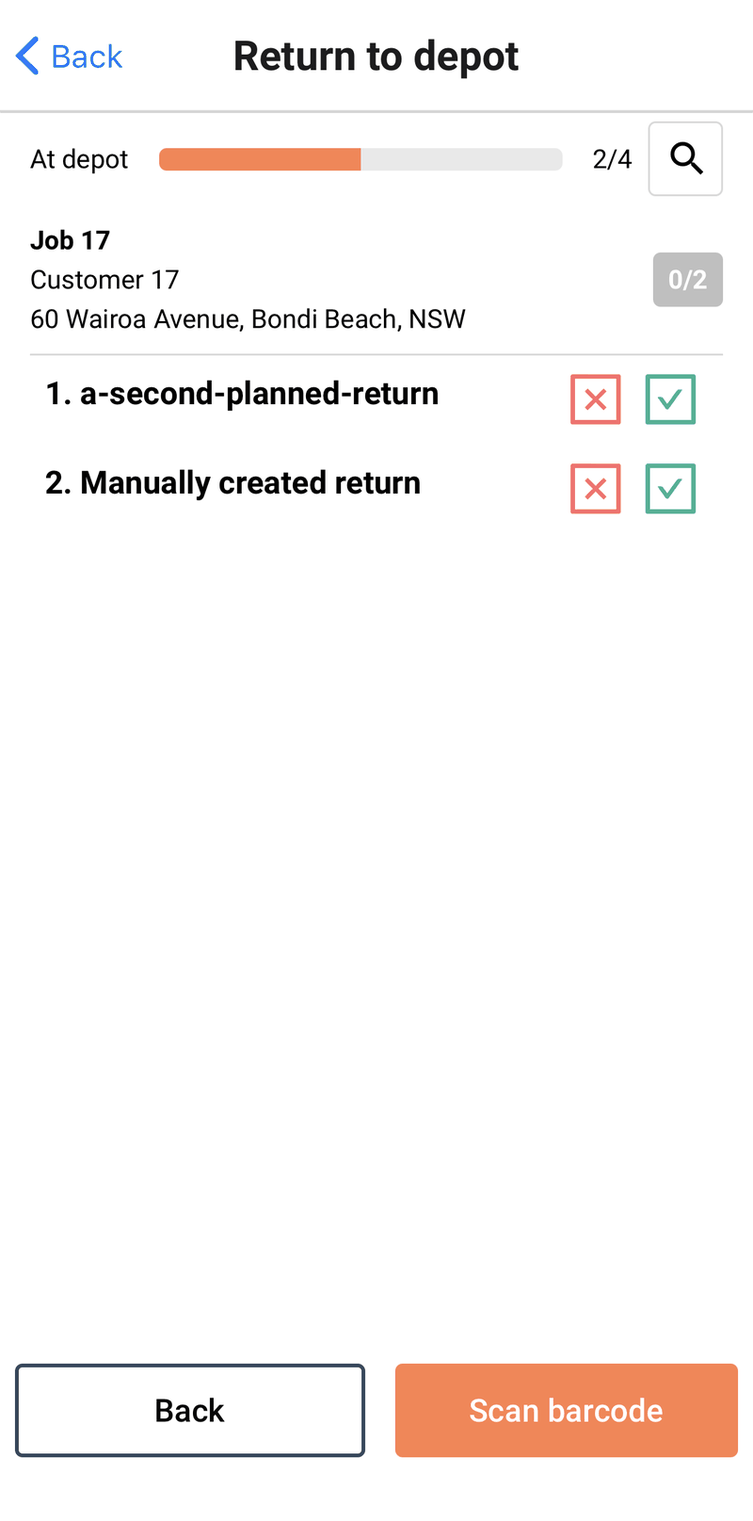
Scan barcode is still available if the Return paperwork happens to carry a code — full detail on what changes with scanning off lives on When your organisation doesn't scan barcodes, not repeated here.