Loading
For a driver loading the vehicle at the depot where Units are labeled with Barcodes or QR codes that can be scanned.
Loading the vehicle
Before a Driver can start his shift and make deliveries he needs to load. The Run contains the Jobs in an optimised delivery Sequence. Jobs can have Job Attachments:
- Units: Things to be Loaded prior to starting the Run (e.g. at the warehouse) and Delivered to the customer at the Job's Location.
- Returns: Things to be Picked-up from the customer at the Job's Location and returned to the depot at the end of the Run
- Containers: Boxes, pallets, vessels where multiple Units can be consolidated during Loading so they can be delivered with a single scan at the Job's location.
Prior to starting a Run all Units need to be loaded. The barcode or QR code on the label of each thing to be delivered is loaded into the Run as the Unit Uid. Scanning each label records Proofs, tagging the time and location each Unit was loaded in Tarot Routing.
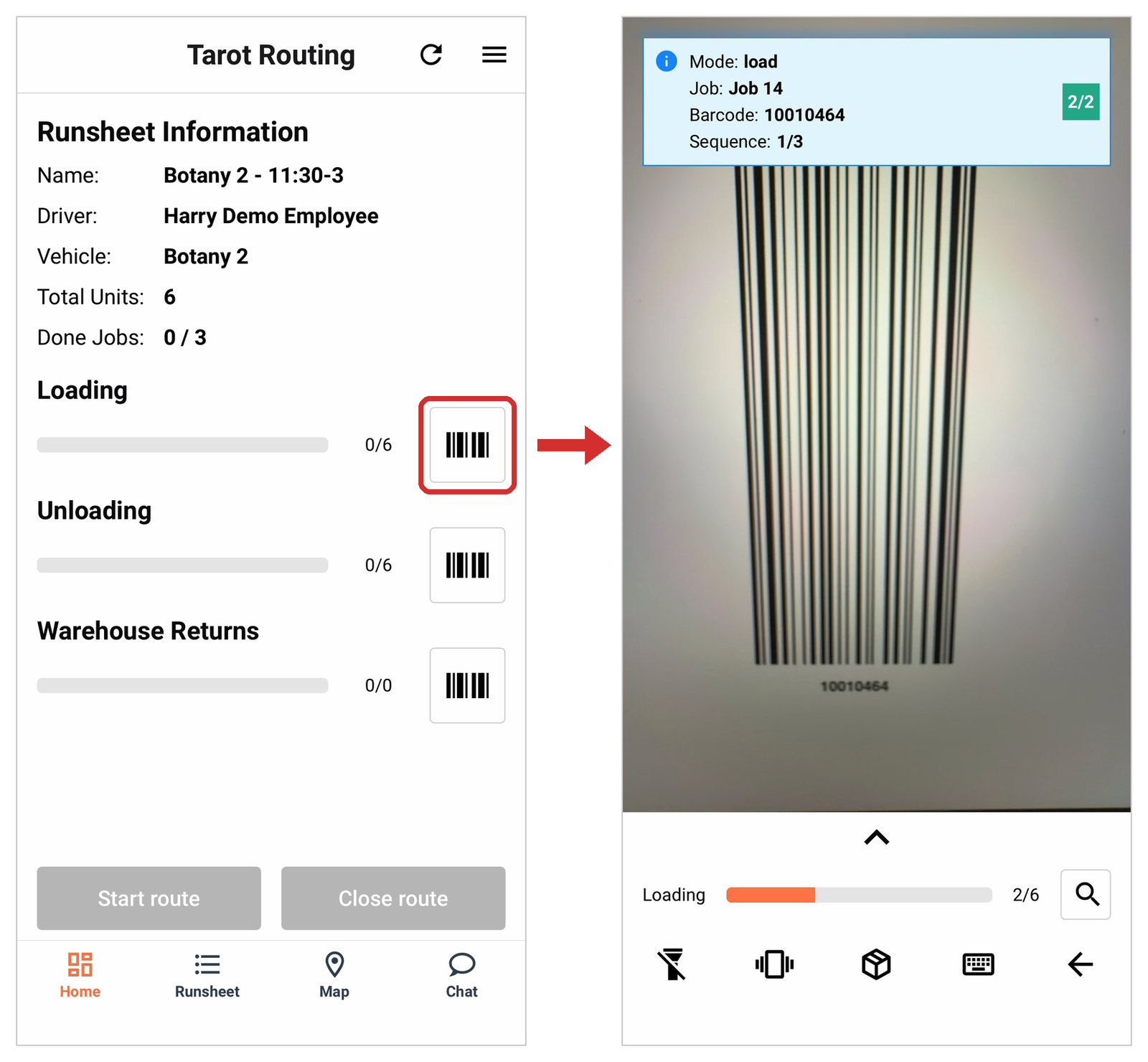
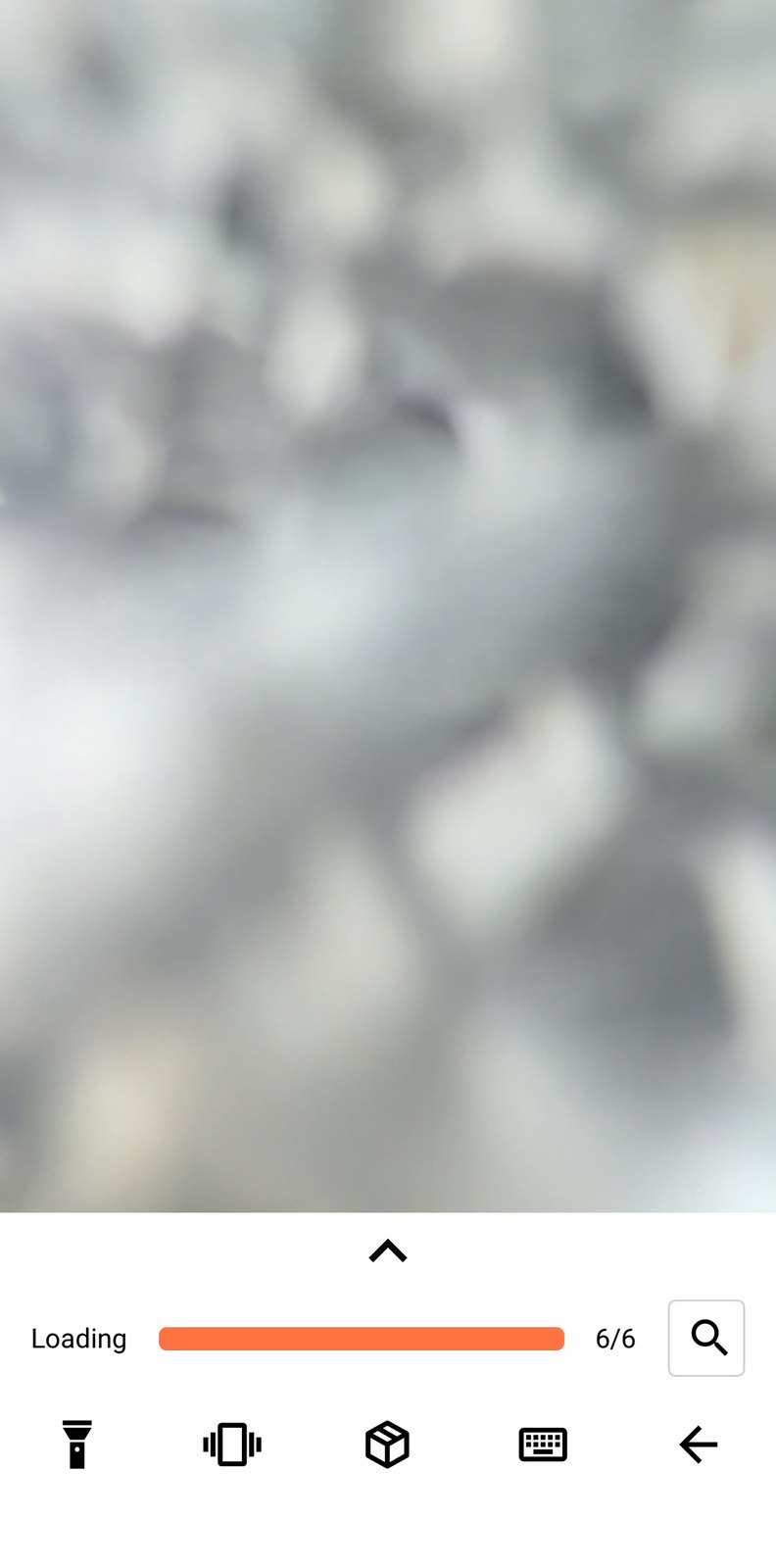
Loading starts on the home screen. The barcode button beside the Loading bar opens the camera, and from there you scan each Unit to be delivered in turn.
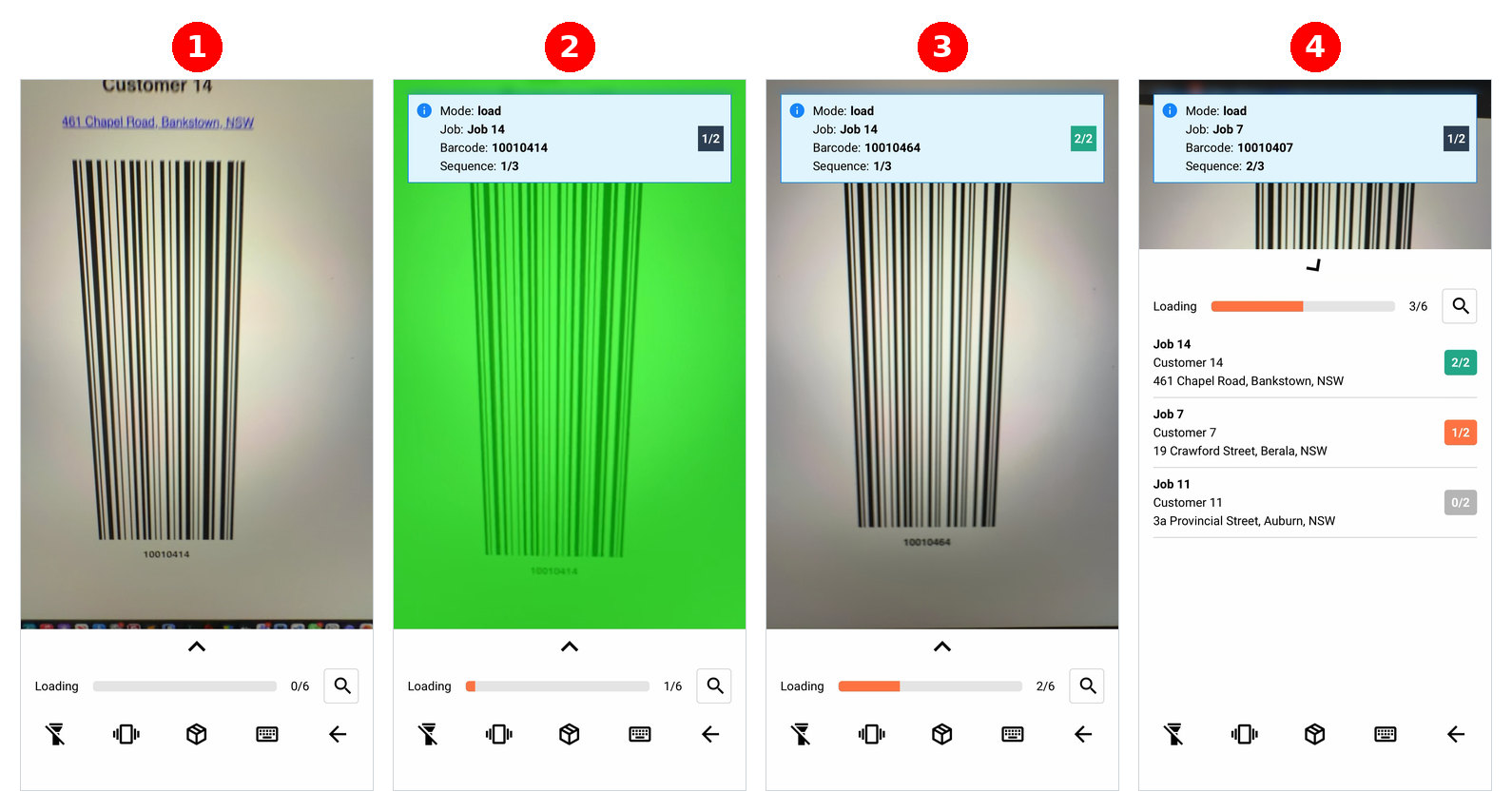
A successful scan flashes the whole screen green and the phone vibrates or chimes.
A toast notification appears showing Mode, Job, barcode number and Job's Sequence for the scanned barcode. A counter on the right of the toast shows how many Units have been scanned for that Job.
The Loading bar shows Unit scanning progress for the Run as a whole. How many Unit's scanned across all Jobs.
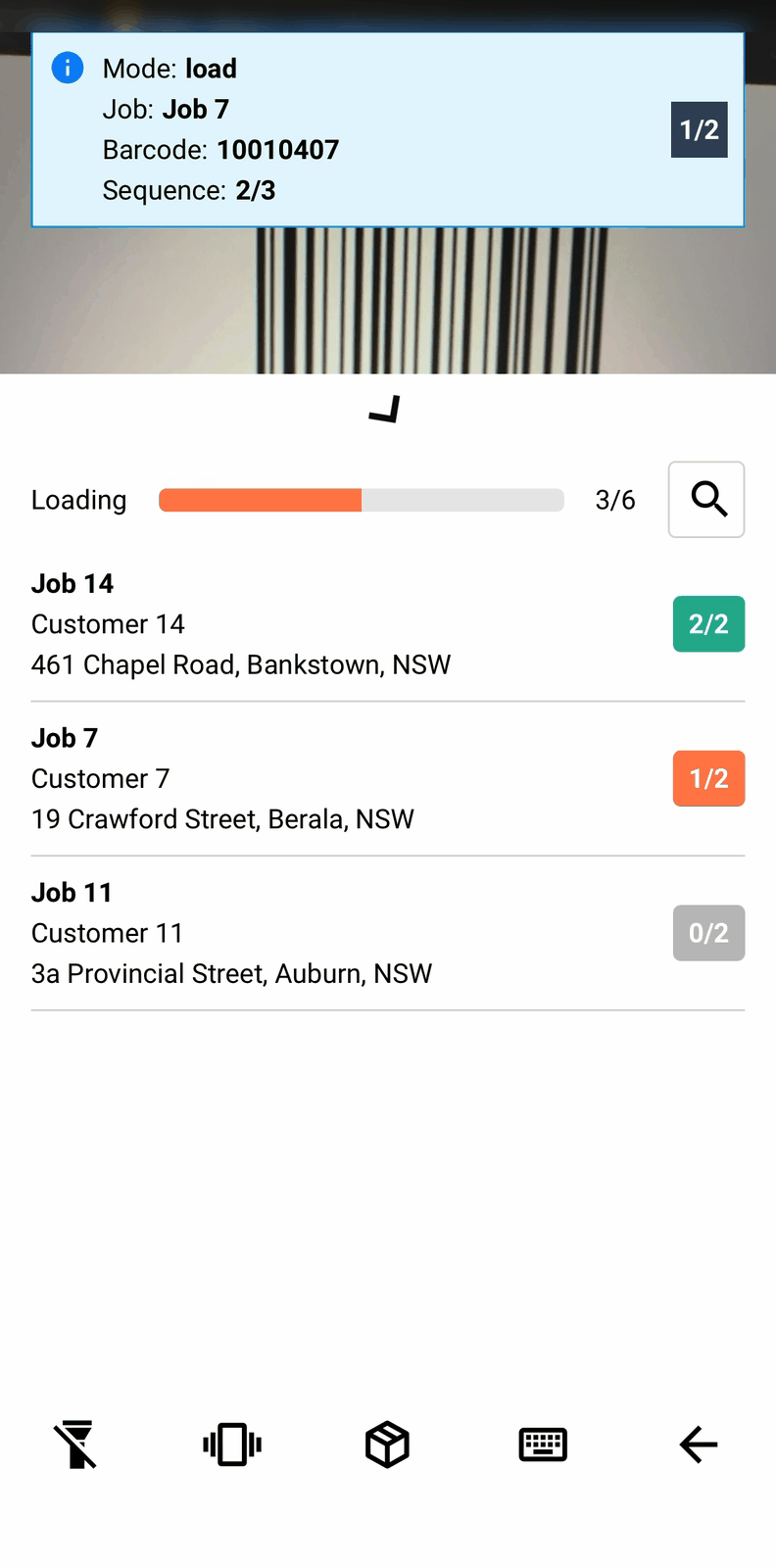
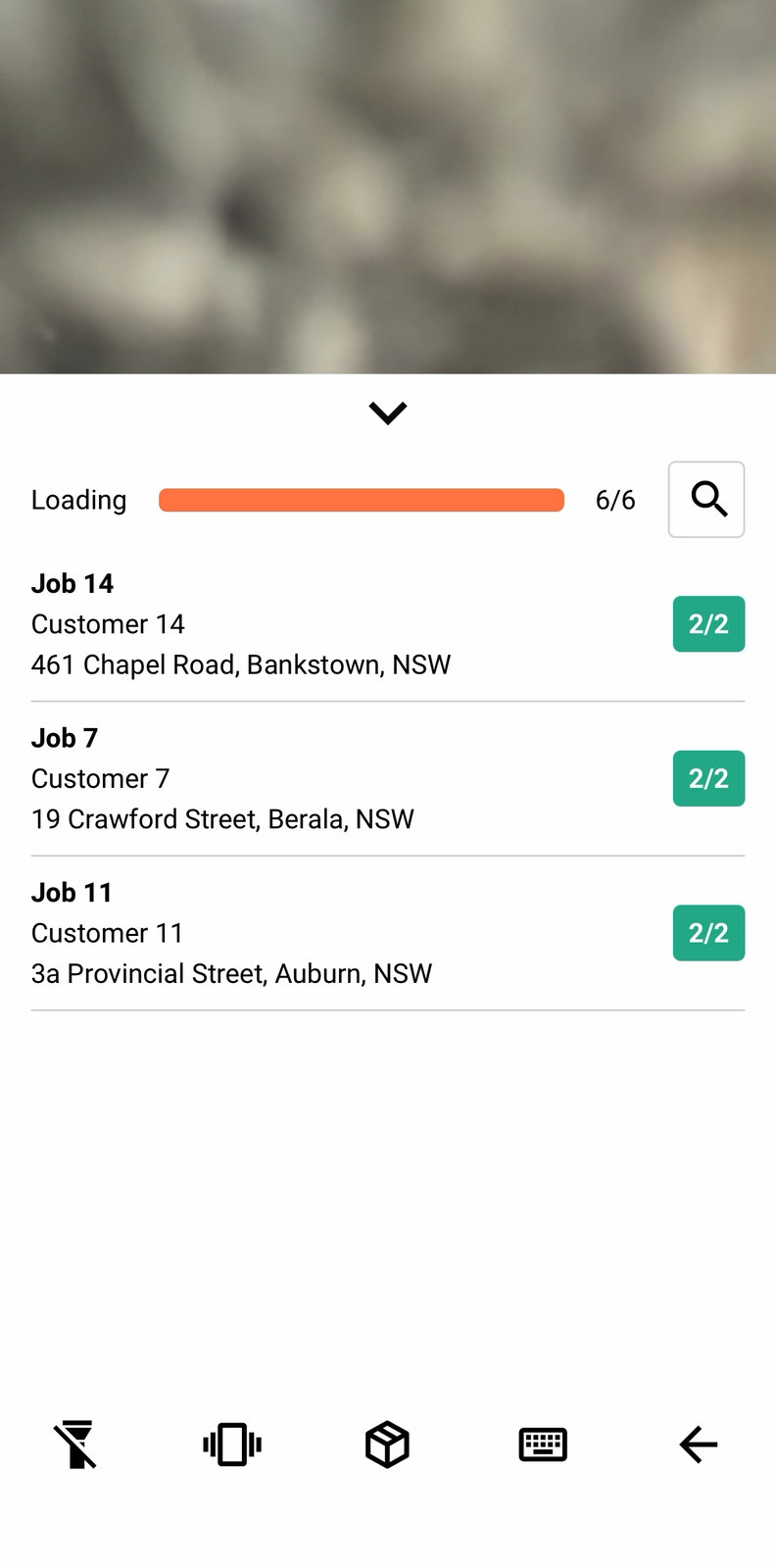
Tap the chevron above the Loading bar to expand it into a job-by-job view, each with its own badge — green once every unit on that job is loaded, orange for partly done, grey for untouched.
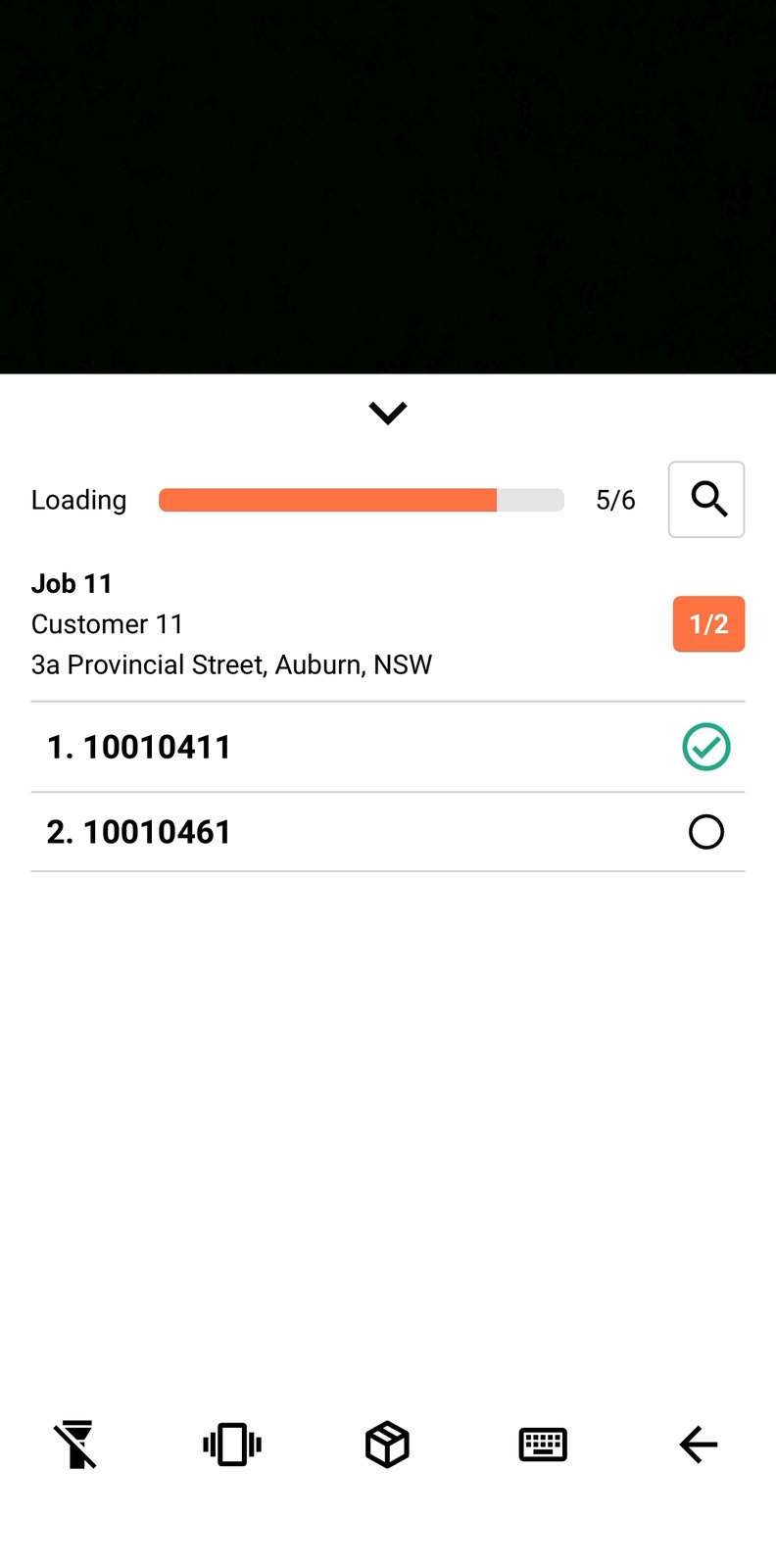
Expand a job further and you get to unit level — one row per barcode, ticked or not — the last step in tracking down a specific missing parcel.
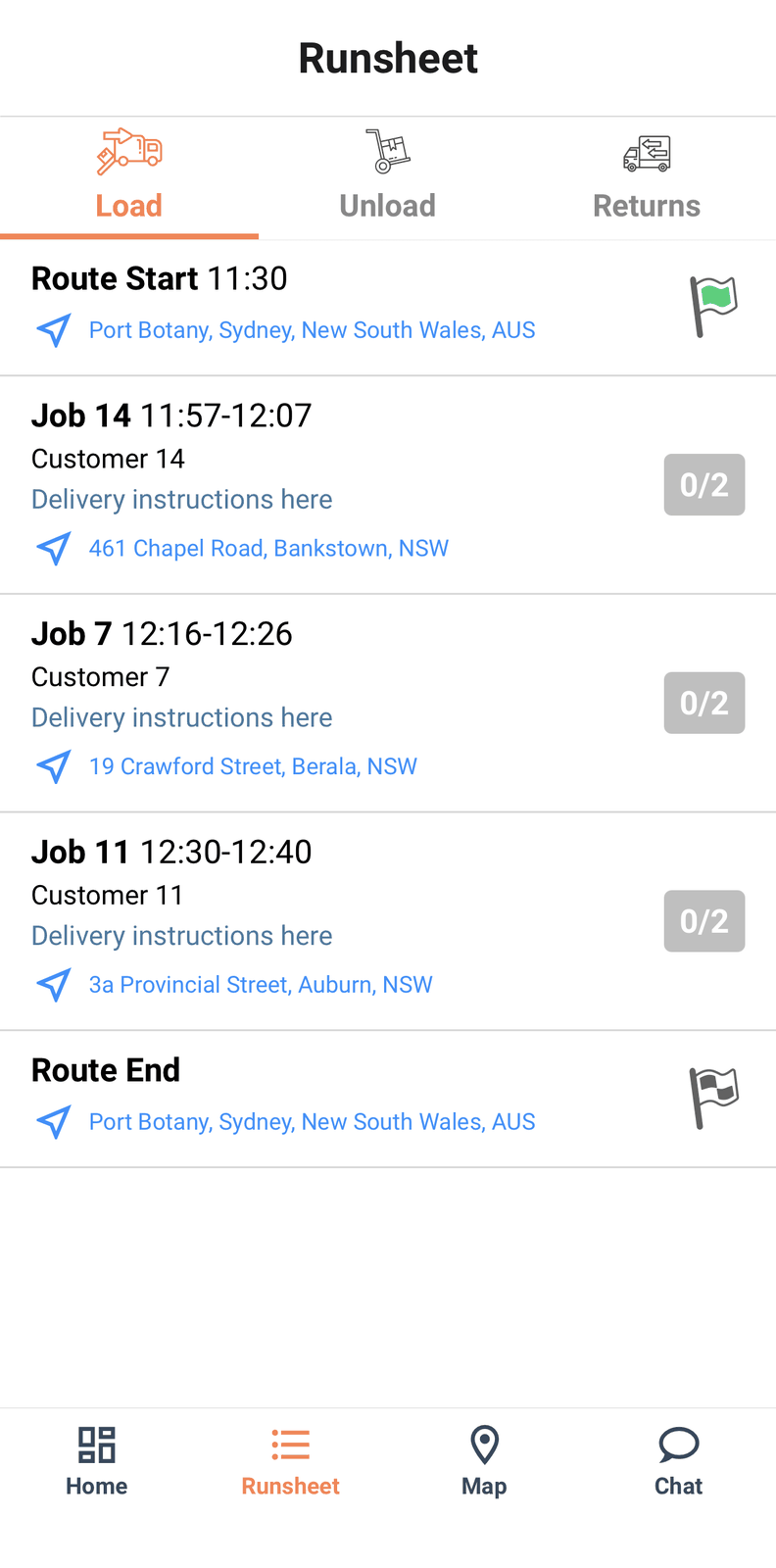
Once part of the run is scanned, the same picture is also available from Runsheet tab → Load.
The camera controls
This toolbar is identical everywhere scanning happens — loading, delivering, picking up Returns, and pre-scanning. It's documented once, here, and every other page links back to it.
Five controls run left to right: torch, sound, container mode, manual entry, back.

Torch turns the flashlight on, for scanning somewhere dim.
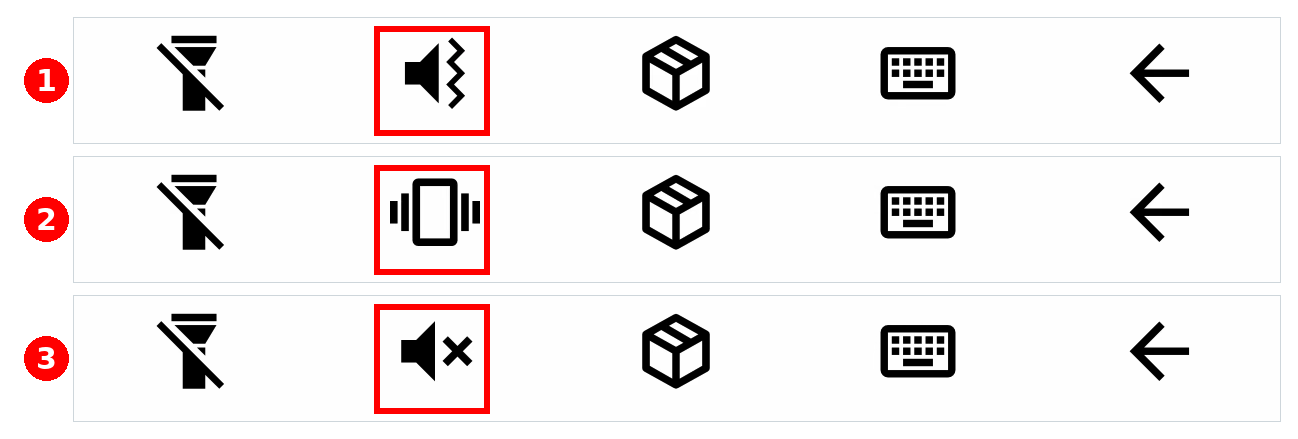
Sound cycles through three states on one tap each — sound and vibration, vibration only, then silent — with no label to say which you're on. It's worth knowing the cycle exists: a driver who taps it twice by accident lands on silent and assumes the scanner has stopped working, when it's really just gone quiet.
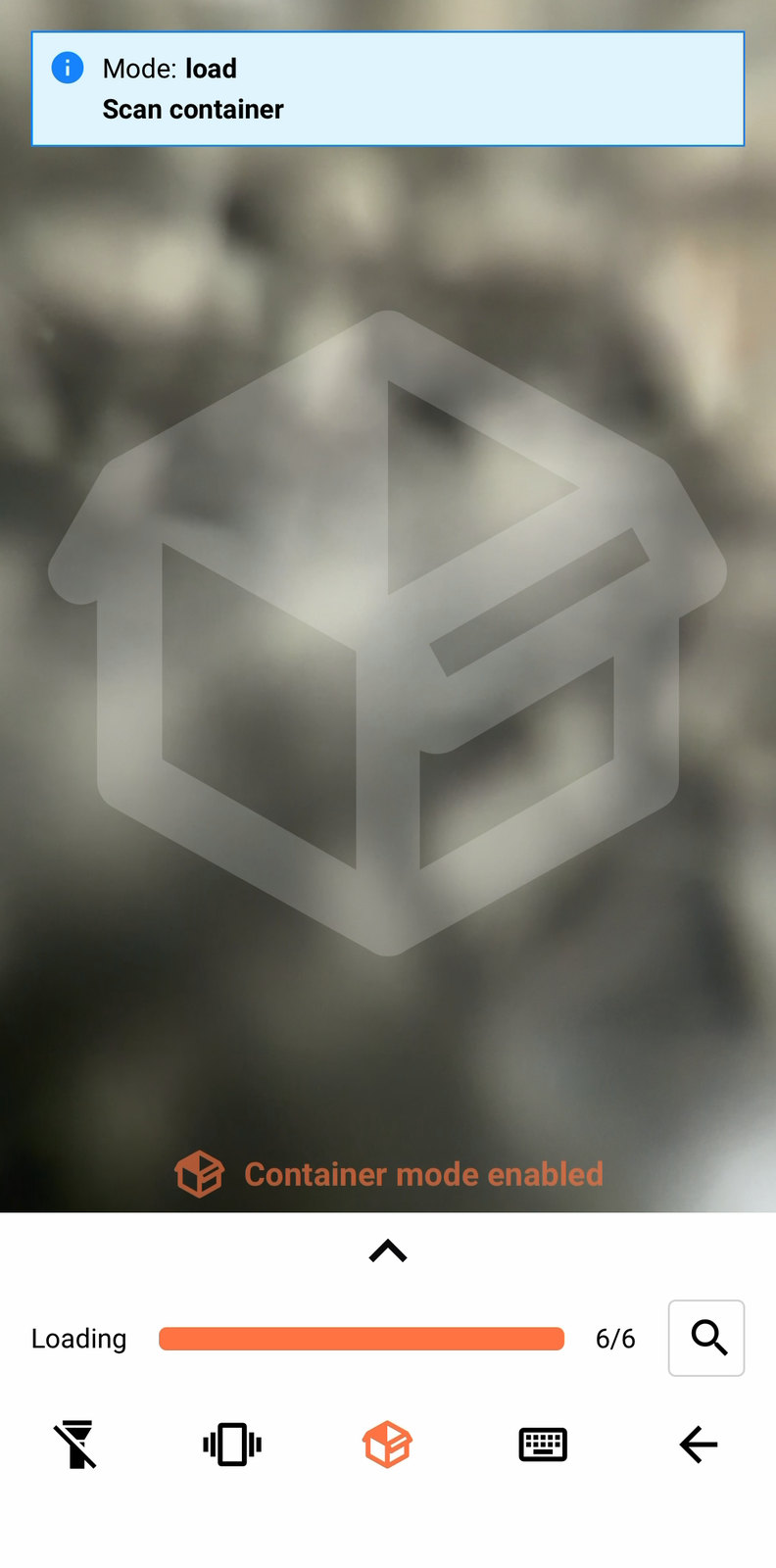
Container mode switches the scanner into loading-a-container mode, covered in full on Containers. It only appears in the toolbar for organisations with the Containers module enabled — except while pre-scanning, where it's always available, since there's no Runsheet yet to check that against.
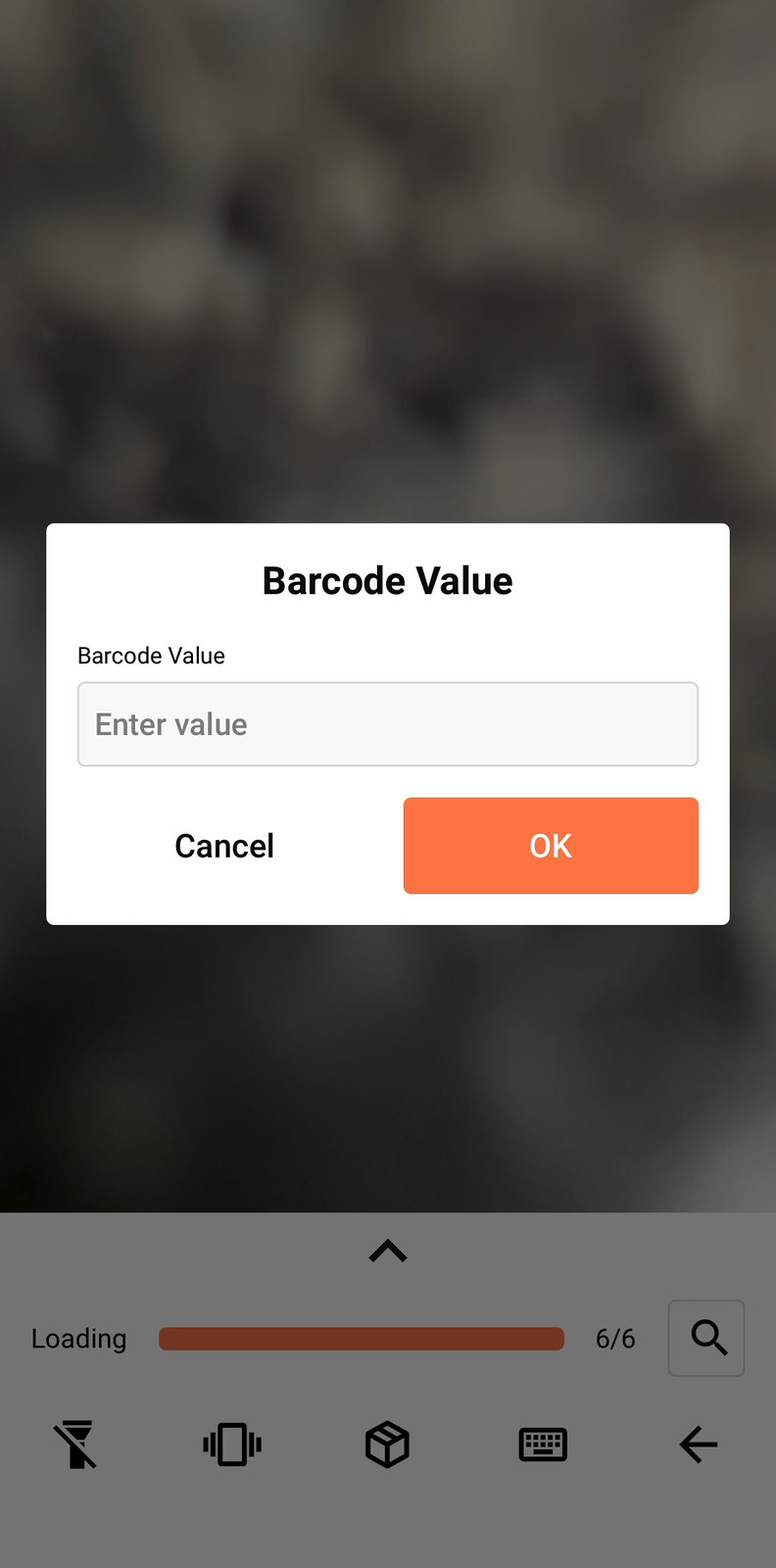
Manual entry opens a keyboard for typing in a barcode the camera can't read. A unit loaded this way gets "Barcode Entered Manually" recorded against it automatically, so there's a record afterwards of what was typed rather than scanned.
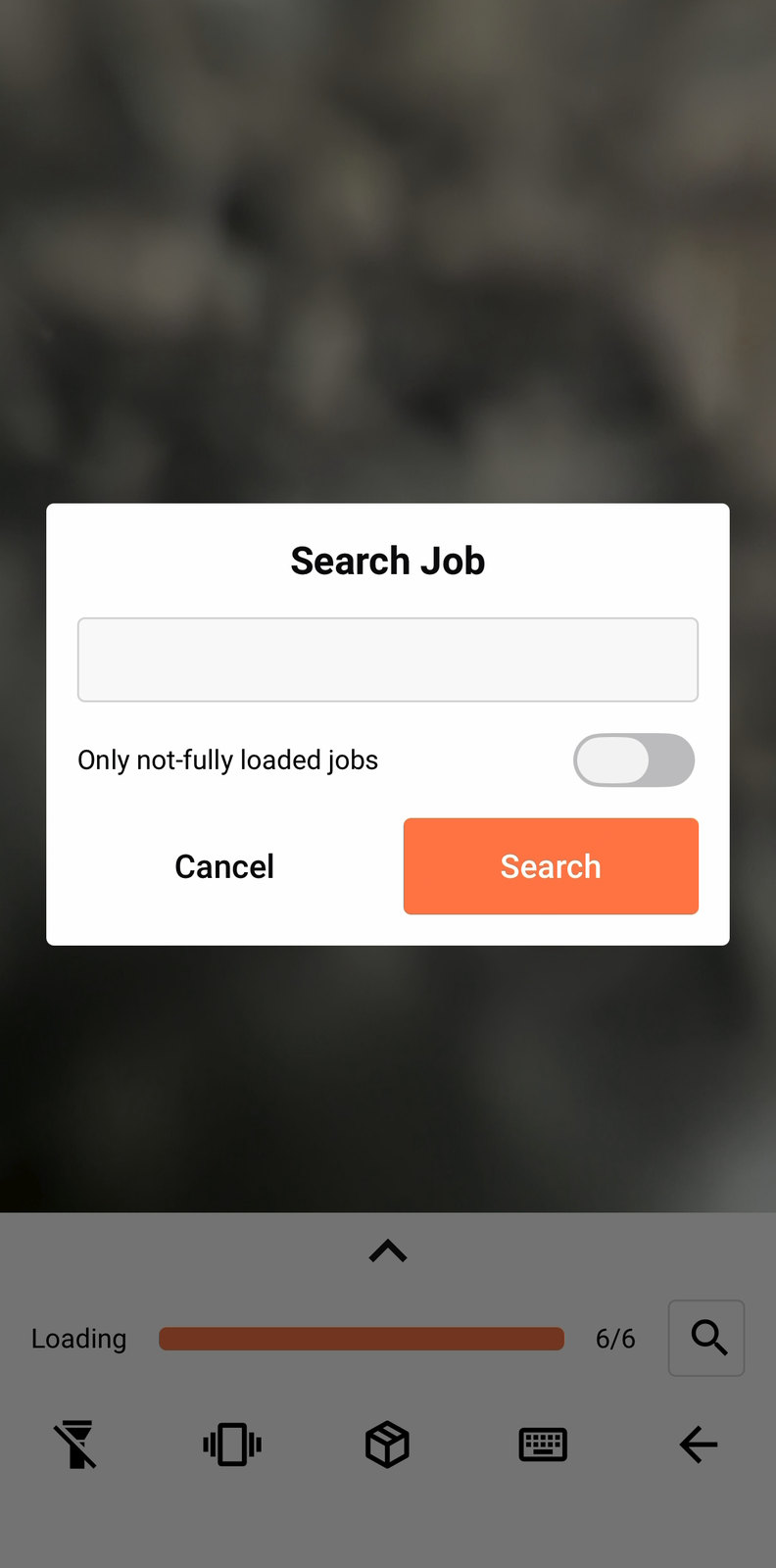
Search Job sits beside the counter rather than in the toolbar itself — tap the magnifier to search by job, with an Only not-fully loaded jobs toggle for when you're hunting a specific stop mid-load.
The chevron expands the job list over the live camera, so you can check progress without leaving the scanner.
When a scan doesn't go to plan
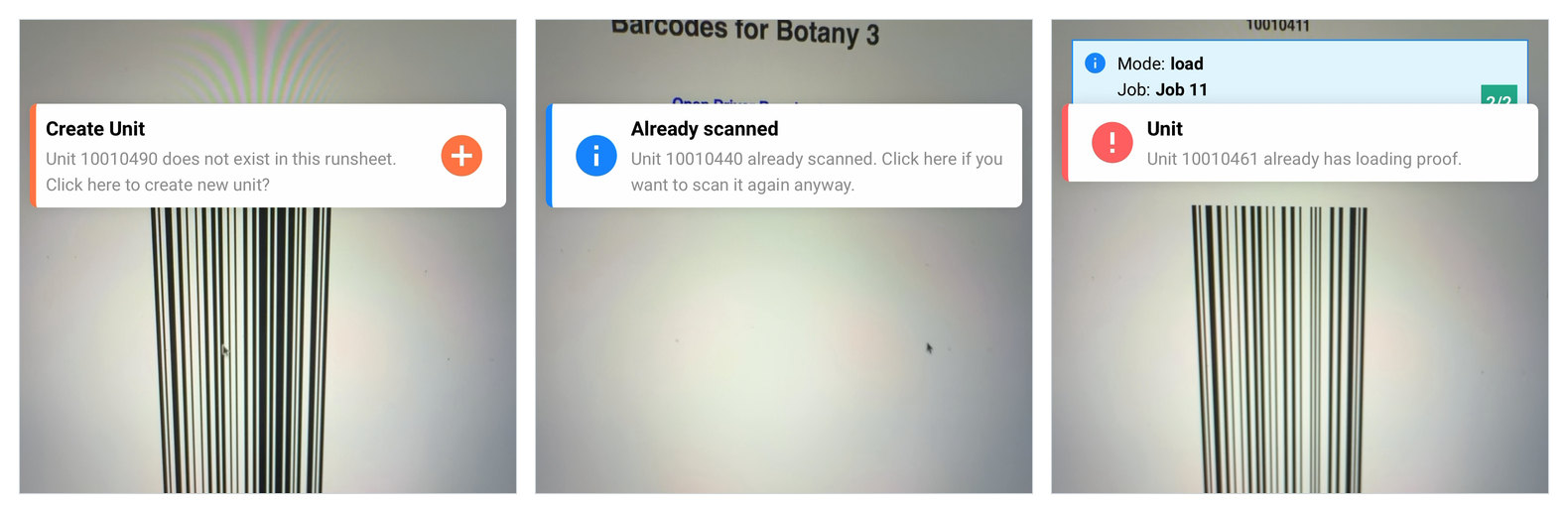
Three different things can happen when a barcode doesn't scan cleanly, and they're easy to conflate.
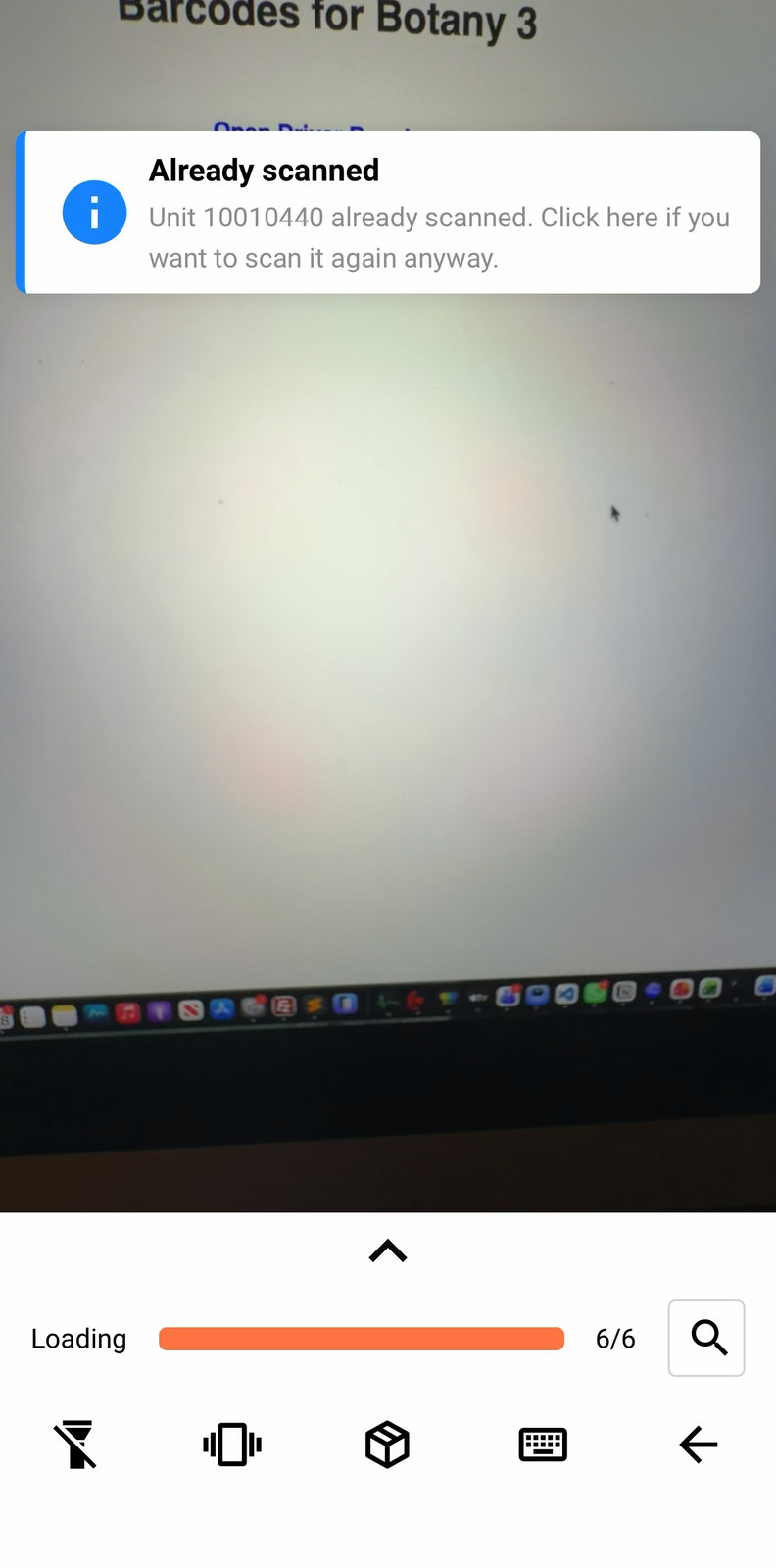
Already scanned is informational rather than a problem — you scanned this exact barcode a moment ago, and the app offers to accept it again anyway if you tap through. It's blue, not red, because nothing is actually wrong.
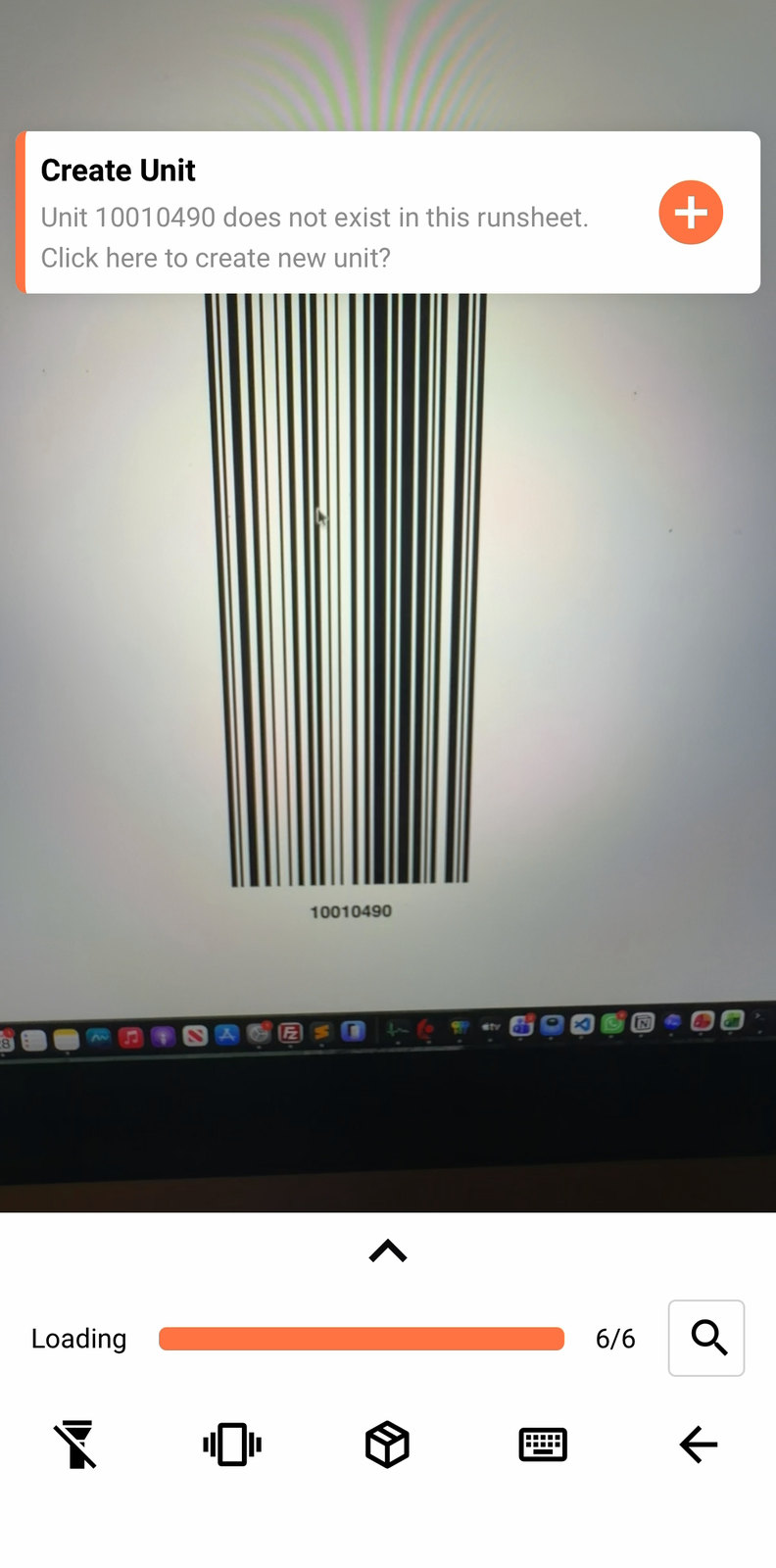
Create Unit appears when a barcode belongs to another run entirely, and only where your organisation has Creating Units set to Allowed. Tap through and the app photographs the label, reads it with on-device text recognition, and suggests a job to attach the new unit to before you confirm — worth knowing, since the guess is often right.
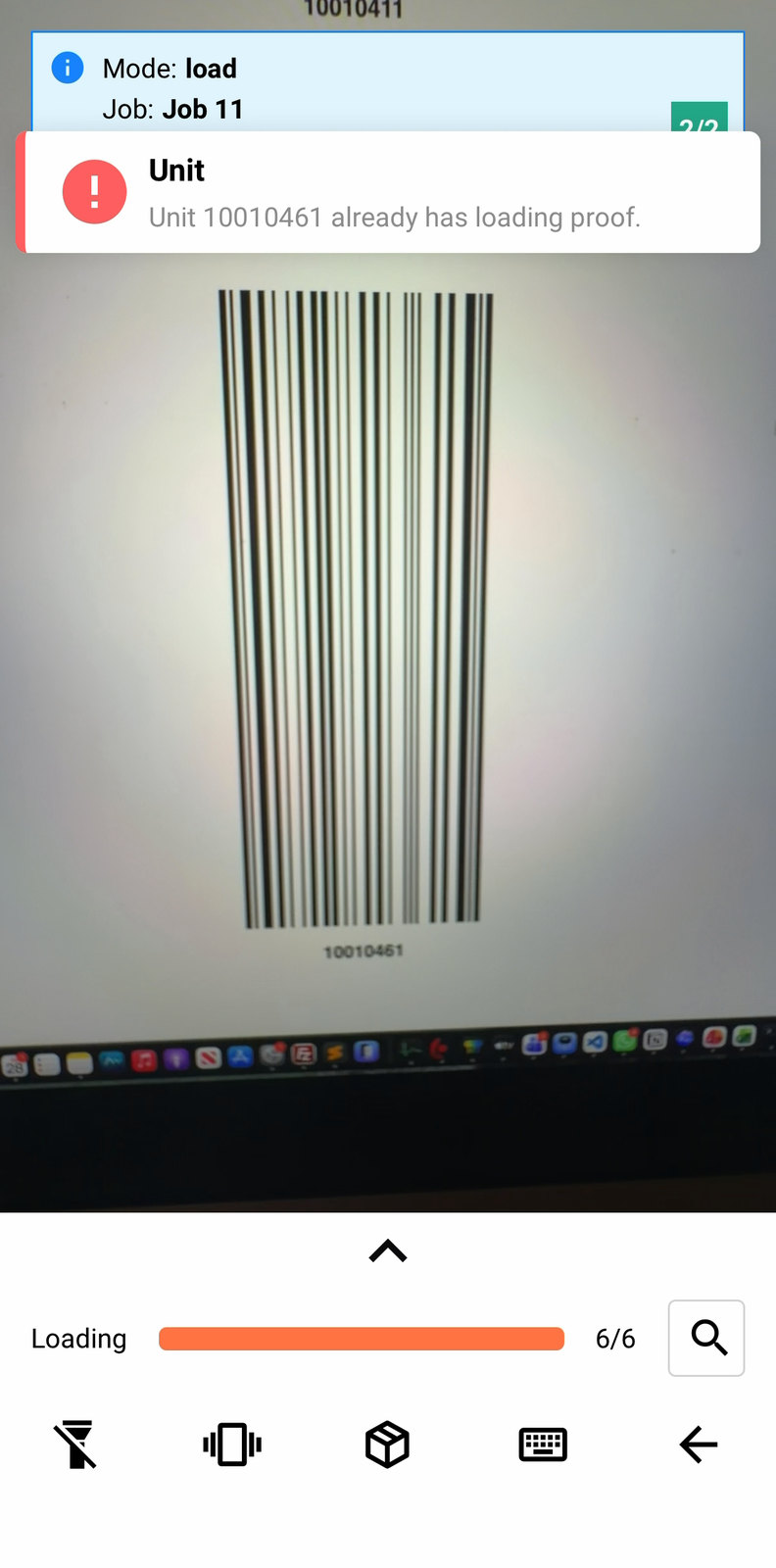
Already has loading proof is a hard stop, not something to tap through: the unit is already proven on the platform, usually because it was loaded on a different run or by someone else. This one's red, and it's worth a call to your planner rather than trying again.
All three side by side, for comparison:
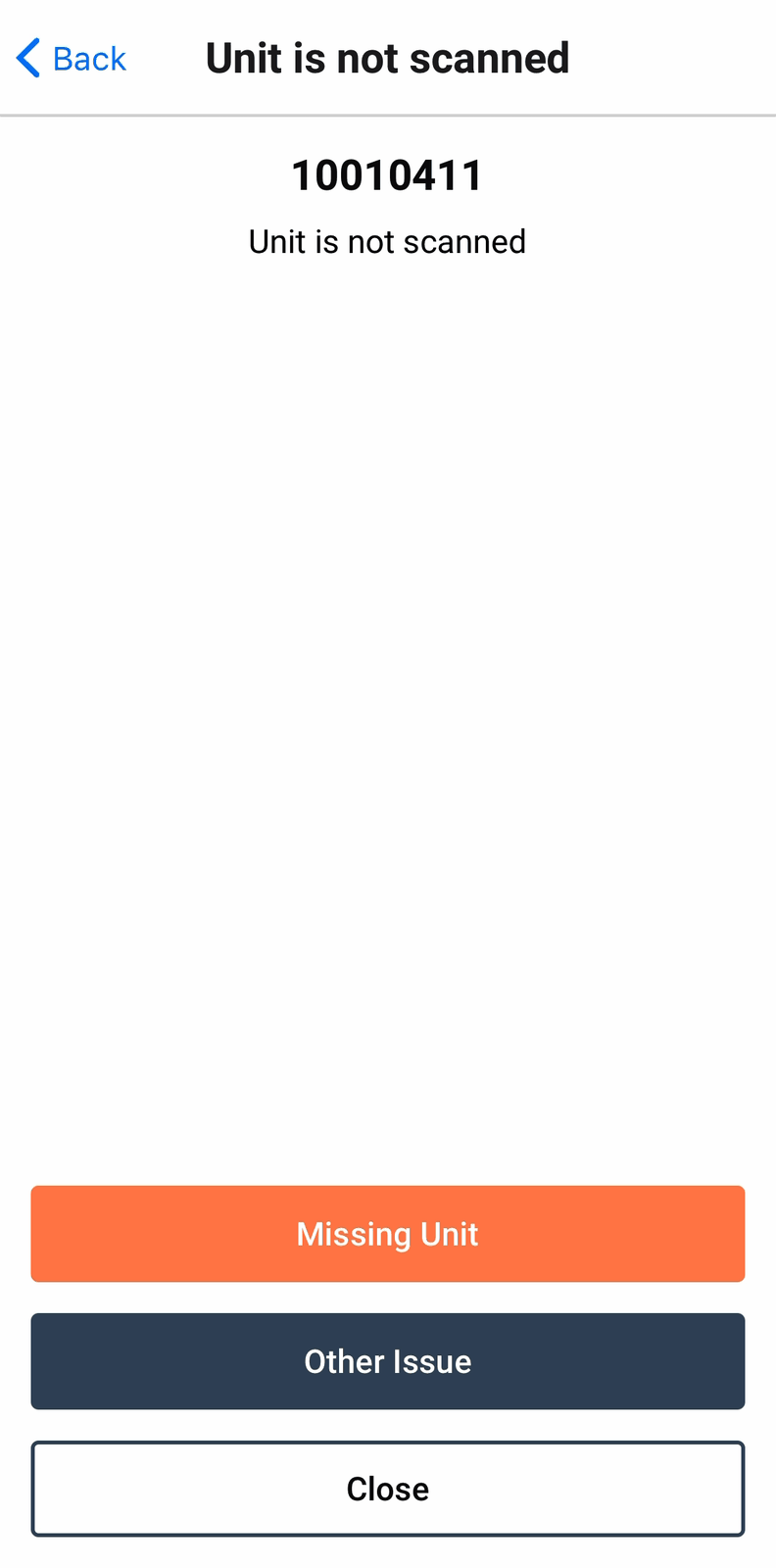
Tapping an unscanned unit in the expanded job list opens Unit is not scanned, with Missing Unit and Other Issue as your options.
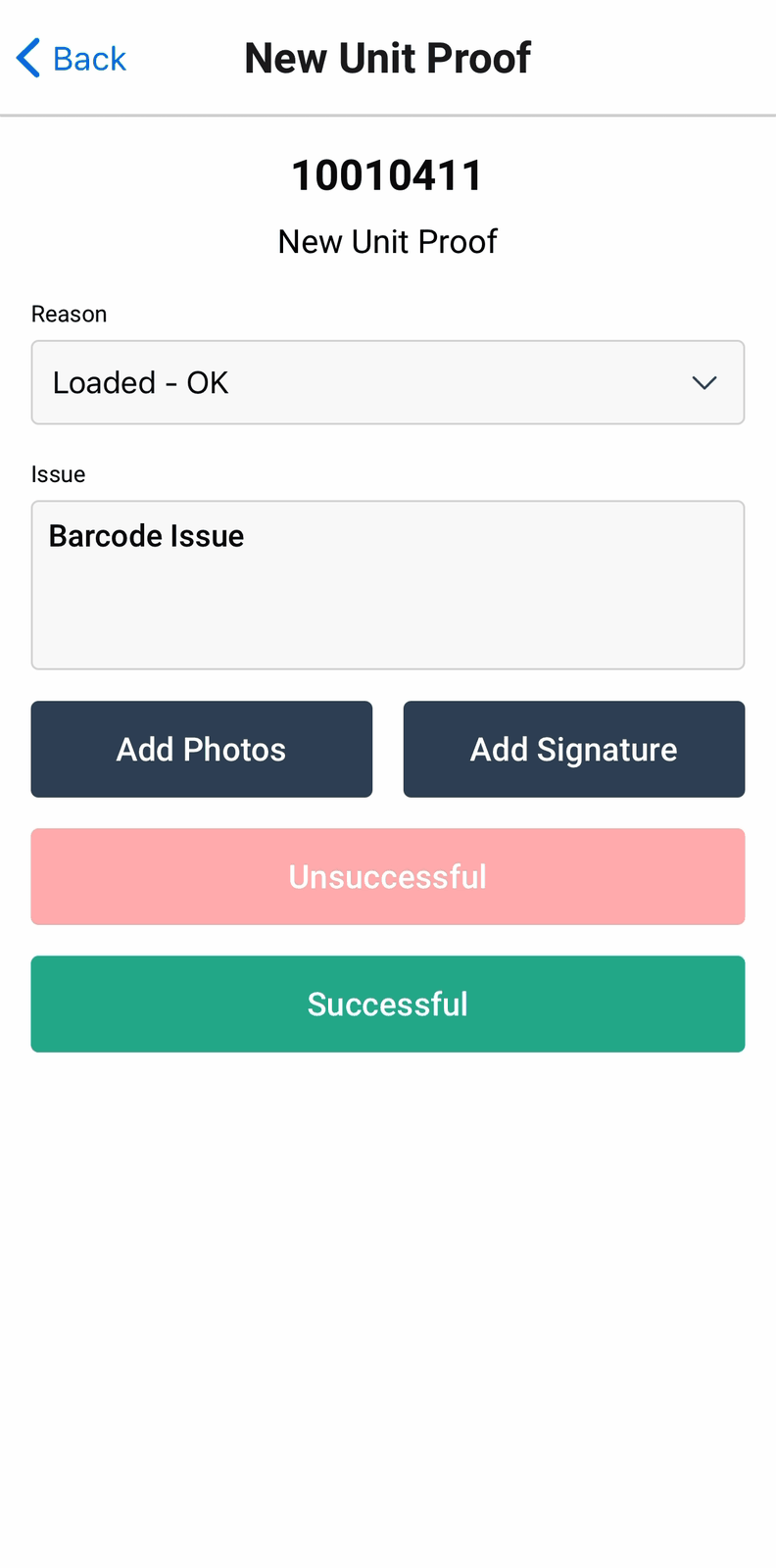
Choosing Other Issue for a barcode that won't scan takes you to New Unit Proof, where Barcode Issue is offered as the reason. This option only exists for organisations that scan barcodes at all — one using a no-barcode checklist instead won't see it, since there's no barcode to have an issue with.
The barcode filter
Some labels carry more than one barcode, and without a filter the scanner picks up whichever one it sees first — rarely the one you meant. Where your organisation has set one up, only barcodes matching the configured shape are accepted.
A barcode that doesn't match is rejected before anything else happens — no unit lookup, no load, no proof — with an error tone and an Incorrect barcode toast.
Tap the toast itself and it clears the filter for the rest of your session. That's the fix if a legitimate label is being rejected by a filter that's slightly off — but it's also a trap: dismiss the toast by tapping it rather than swiping it away, and you've turned the filter off without meaning to, with nothing but a brief confirmation to say it happened.
The same filter applies while delivering and pre-scanning too, not only while loading.