Events & Actions
Use the Events & Actions section to automatically send notifications when something happens in Tarot.
For example, you can send an email or SMS when:
- a job is created
- a job is completed
- a run starts or finishes
This helps you keep your team and customers informed without manual work.
Events & Actions Builder
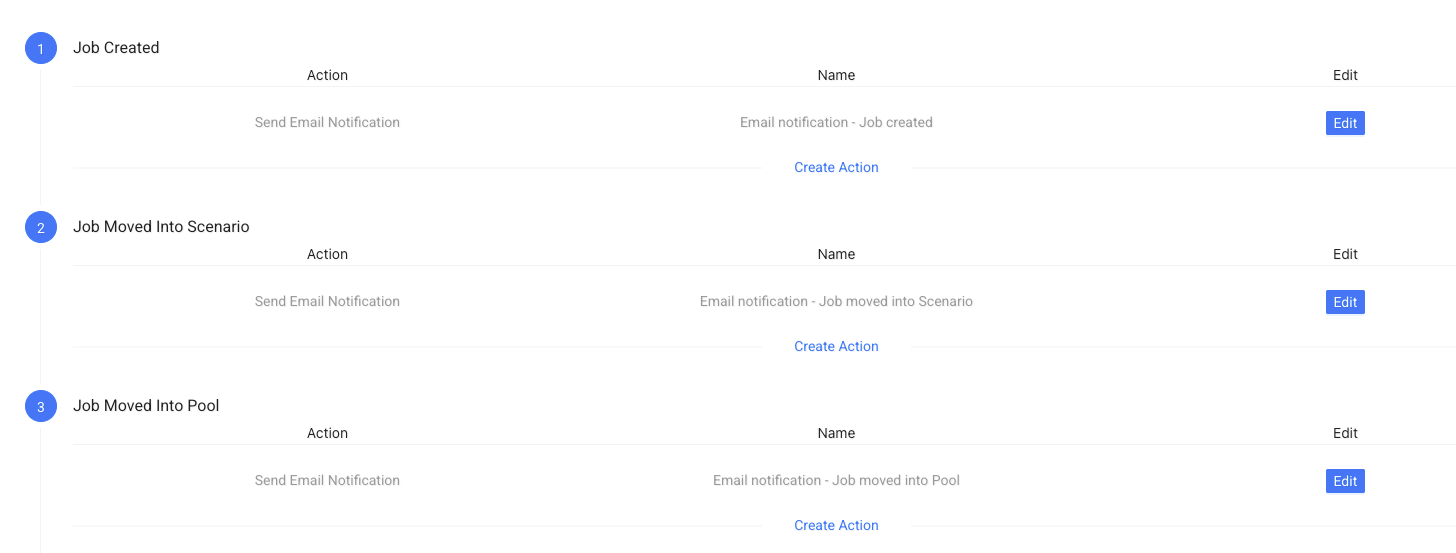
On this page, you see a list of events.
Each event is something that can happen in Tarot.
You can attach actions (notifications) to any event.
Events
Events define when a notification should be sent.
Common examples:
- Job Created – when you add a new job
- Job Moved Into Scenario – when you assign a job to a scenario
- Job Moved Into Pool – when a job is moved back to the job pool
- Job Completed – when a job is finished
- Run Created – when a new run is created
- Run Started – when a driver starts a run
- Run Completed – when a run is finished
Actions
Actions define what happens when the event occurs.
You can choose:
- Send Email Notification
- Send SMS Notification
You can add multiple actions to the same event if needed.
Add an Action
Click Create Action under the event you want to use.
Then configure your notification.
Configure an Action
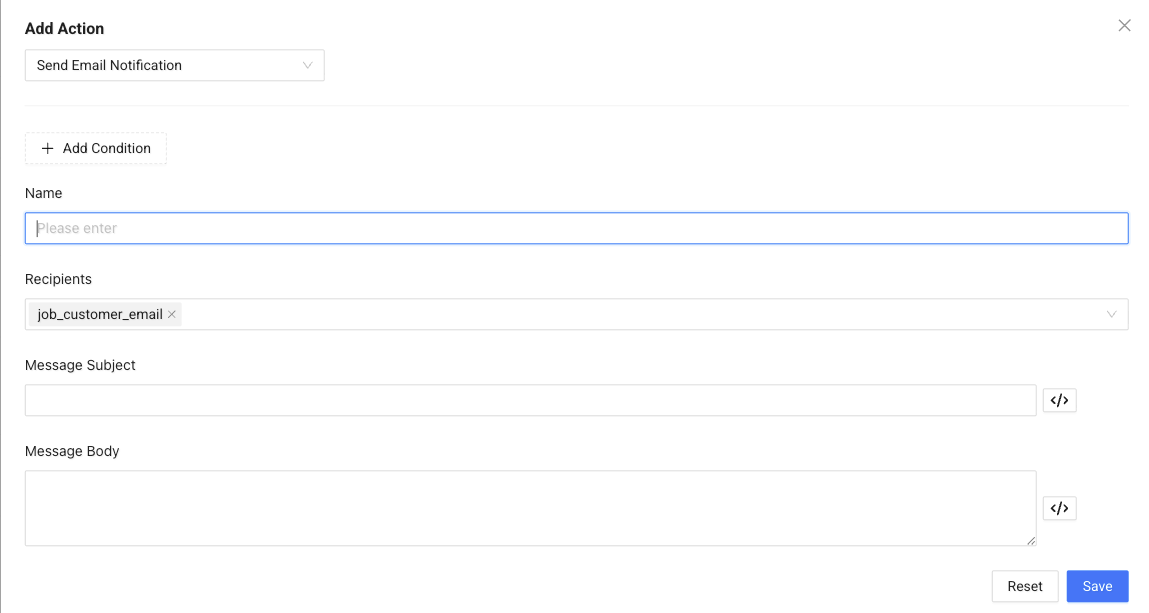
When creating an action, you define:
- Action type – Email or SMS
- Name – Internal name for this notification
- Recipients – Who should receive it (for example, customer email)
- Message Subject – The subject line (email only)
- Message Body – The content of the message
This lets you fully control what is sent and who receives it.
Conditions (Optional)
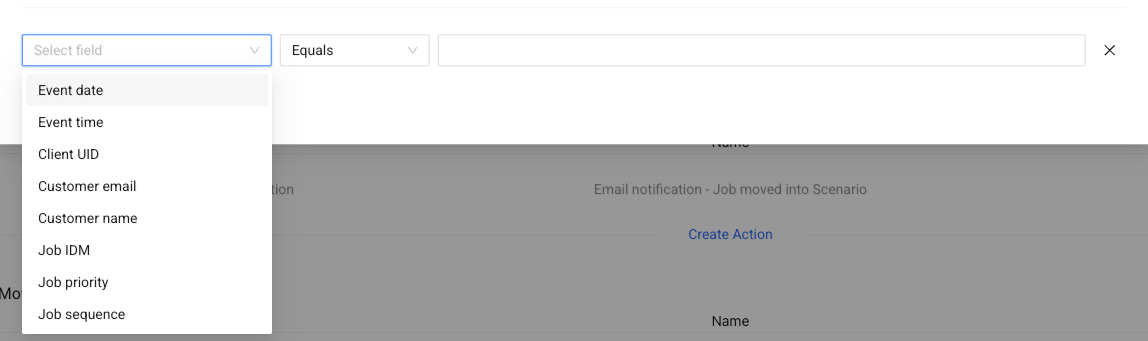
Add conditions if you only want the notification to be sent in specific cases.
For example, you can send a notification only:
- for a specific customer
- for certain job types
- when a field contains a specific value
You can choose fields like:
- Client UID
- Customer email
- Job priority
- and more
Then define how they should match (equals, contains, etc.).
How It Works
- An event happens (for example, a job is completed)
- Tarot checks your conditions (if you added any)
- The notification is sent automatically
This helps you automate communication and avoid manual updates.
Note
SMS notifications require SMS Configuration to be set up.
See SMS Configuration for more details.