Containers
For a driver using Containers to load or deliver Units in bulk.
Loading into a Container
Containers allow a Driver to consolidate items and packages while loading so only one Container barcode has to be scanned at delivery. Useful when you are delivering 30 or 40 Units to each Job and has access to barcoded boxes, pallets, totes or crates in the warehouse.
While Loading tap the box icon in the camera toolbar to switch on container mode. The icon lights orange and a Container mode enabled toast confirms it.
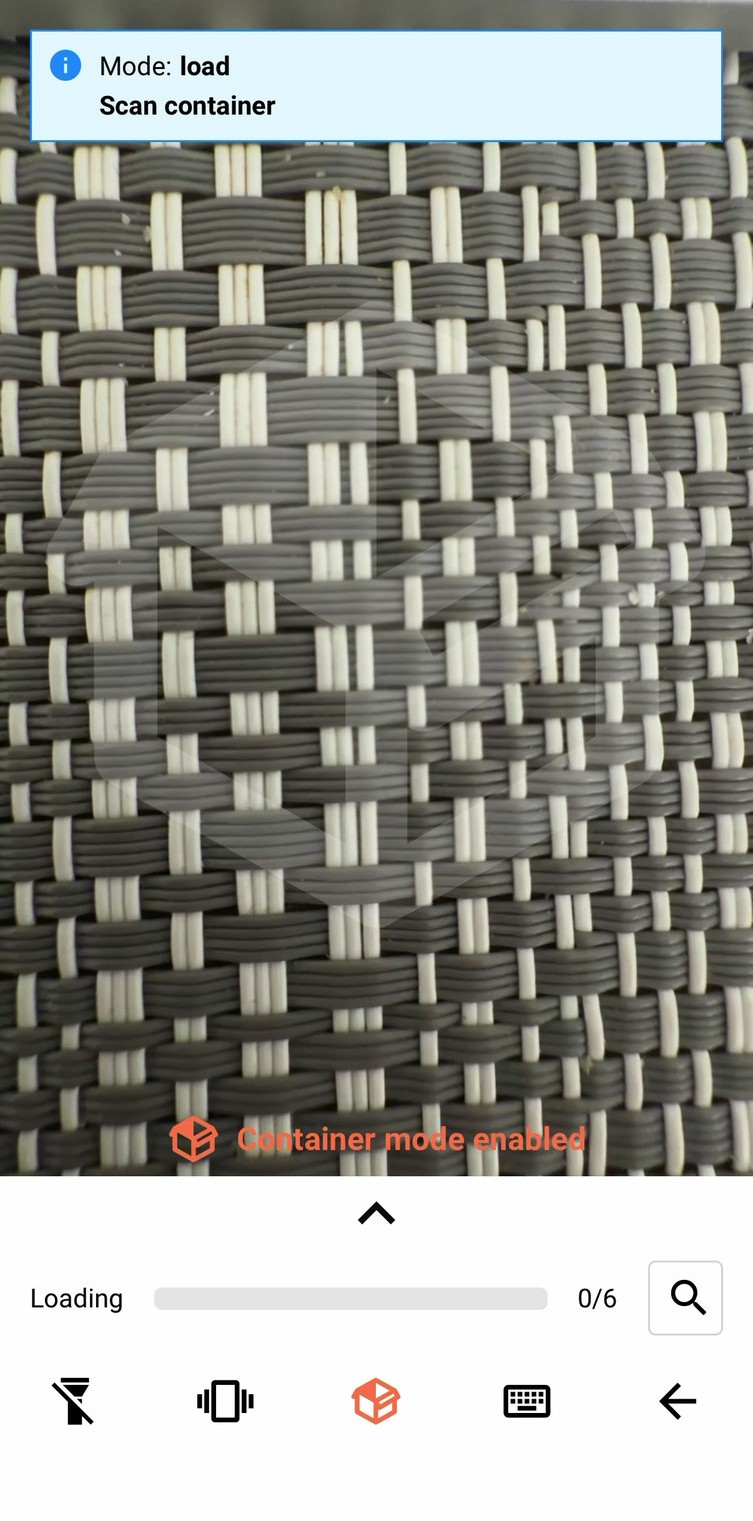
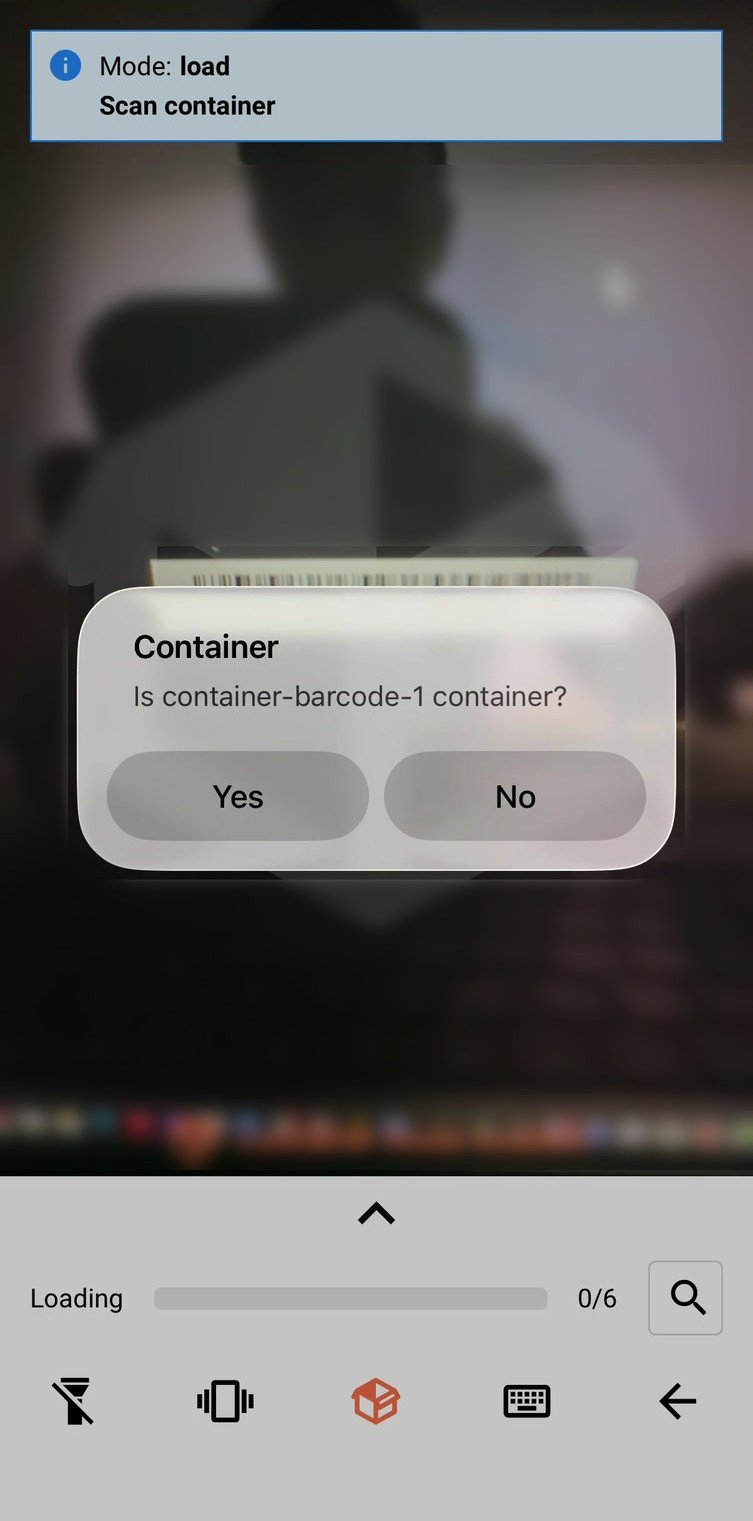
Scan the container's own barcode, and confirm the barcode scanned is correct.
From there, scan units into it as normal, each one loads with the same green flash and progress bar as any other unit, just recorded against the container too.
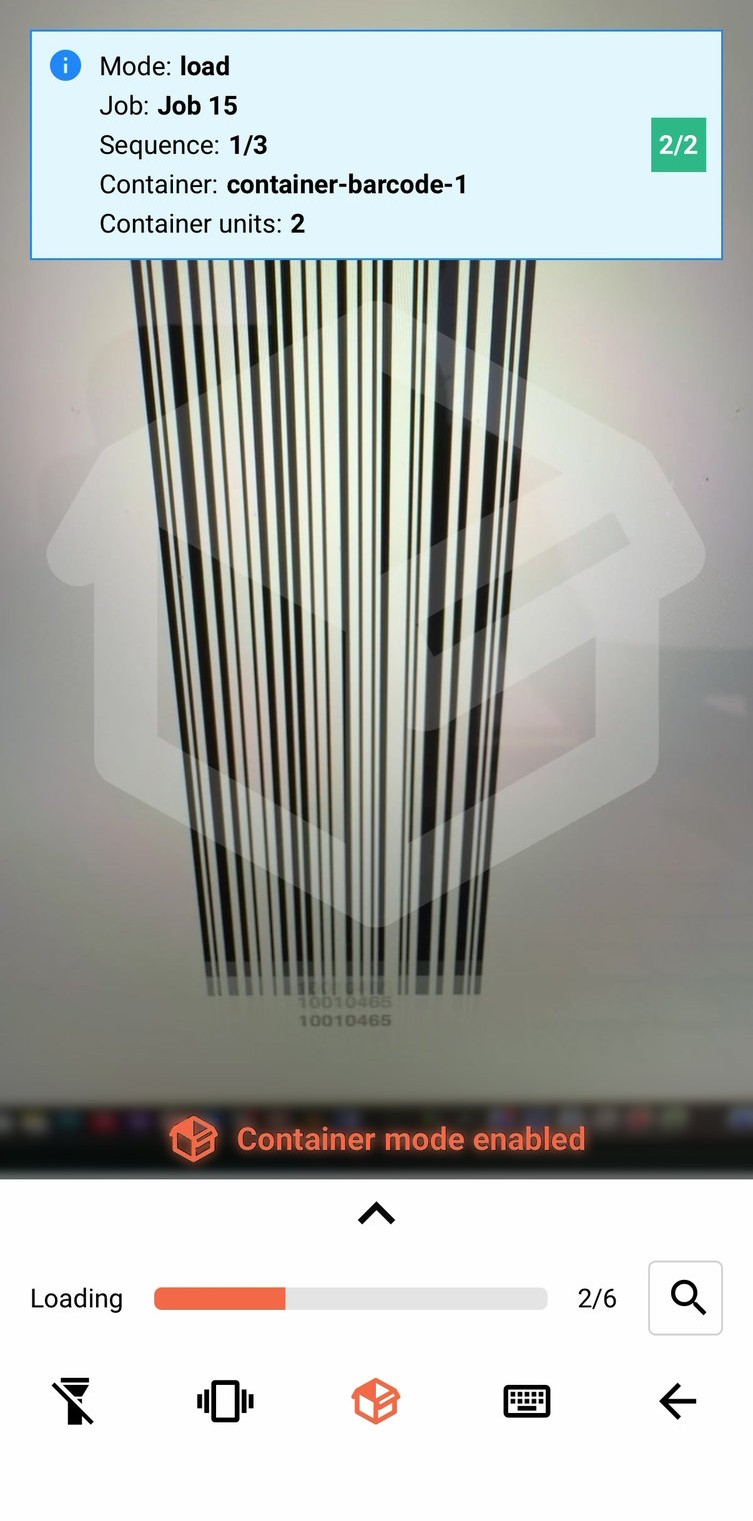
The container takes its Job from the first unit put in it. Only Units attached to the same Job can be placed in a Container. If a Unit from a different Job is scanned a warning will appear and the Unit will not be loaded until the Container is closed and the Unit rescanned.
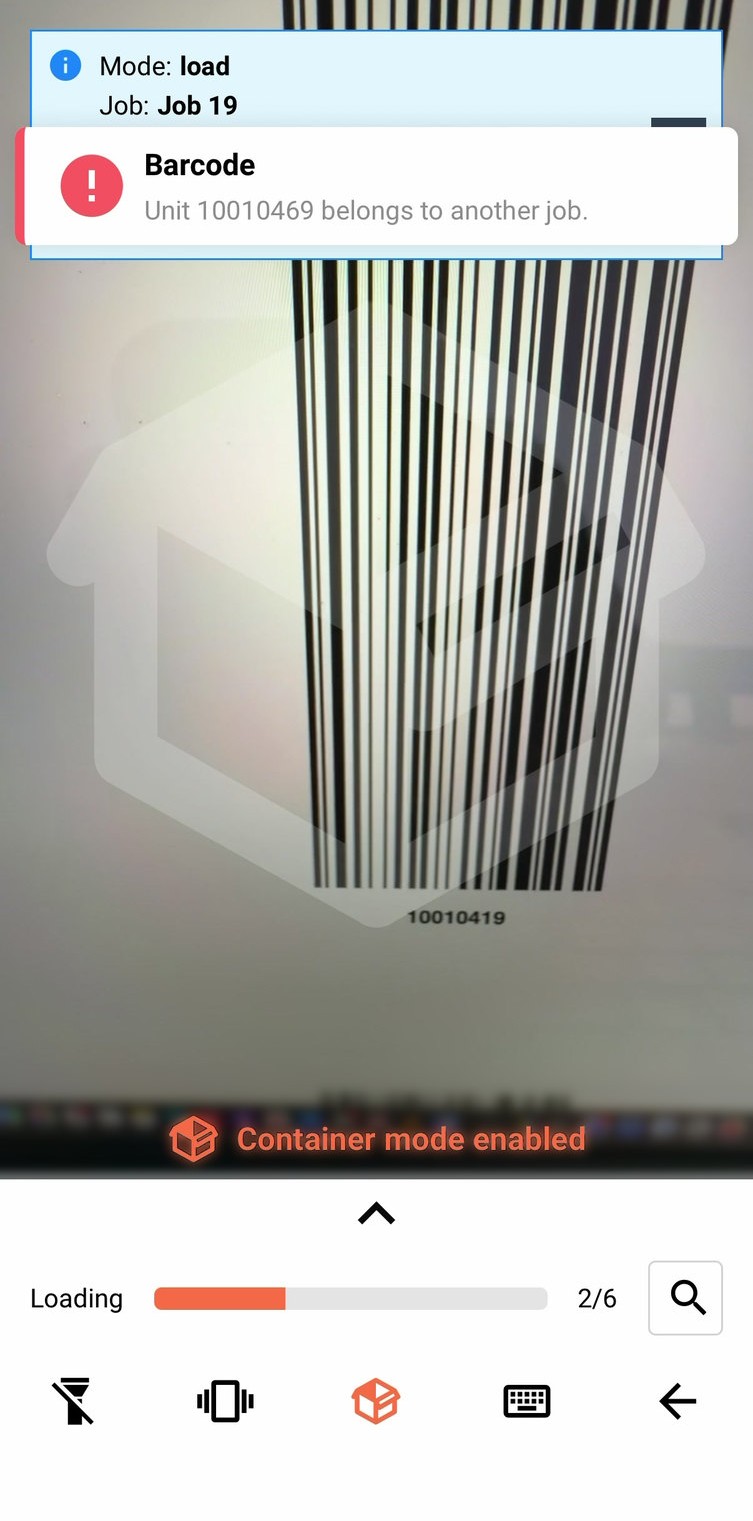
Once you have loaded all desired items into the container, tap the box icon again to close the container off.
Reopening one works the same way as starting it: switch container mode back on and scan the same barcode again, and it reopens with everything already inside, ready for more units. You can have multiple Containers to be delivered to the same Job.
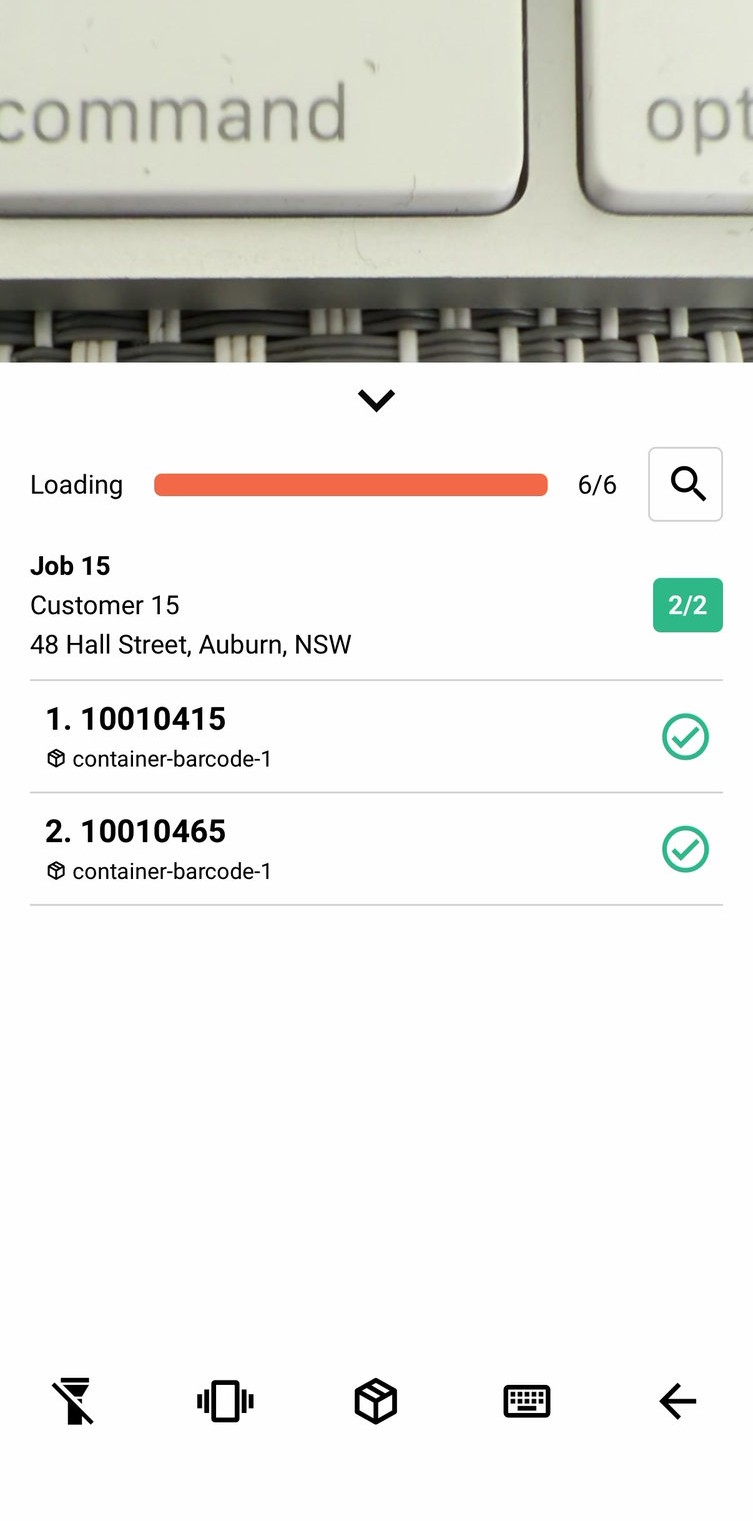
Expanded loading detail shows what went into a container. Each unit in one carries a small box icon and the container's code beneath its barcode.
Delivering a Container
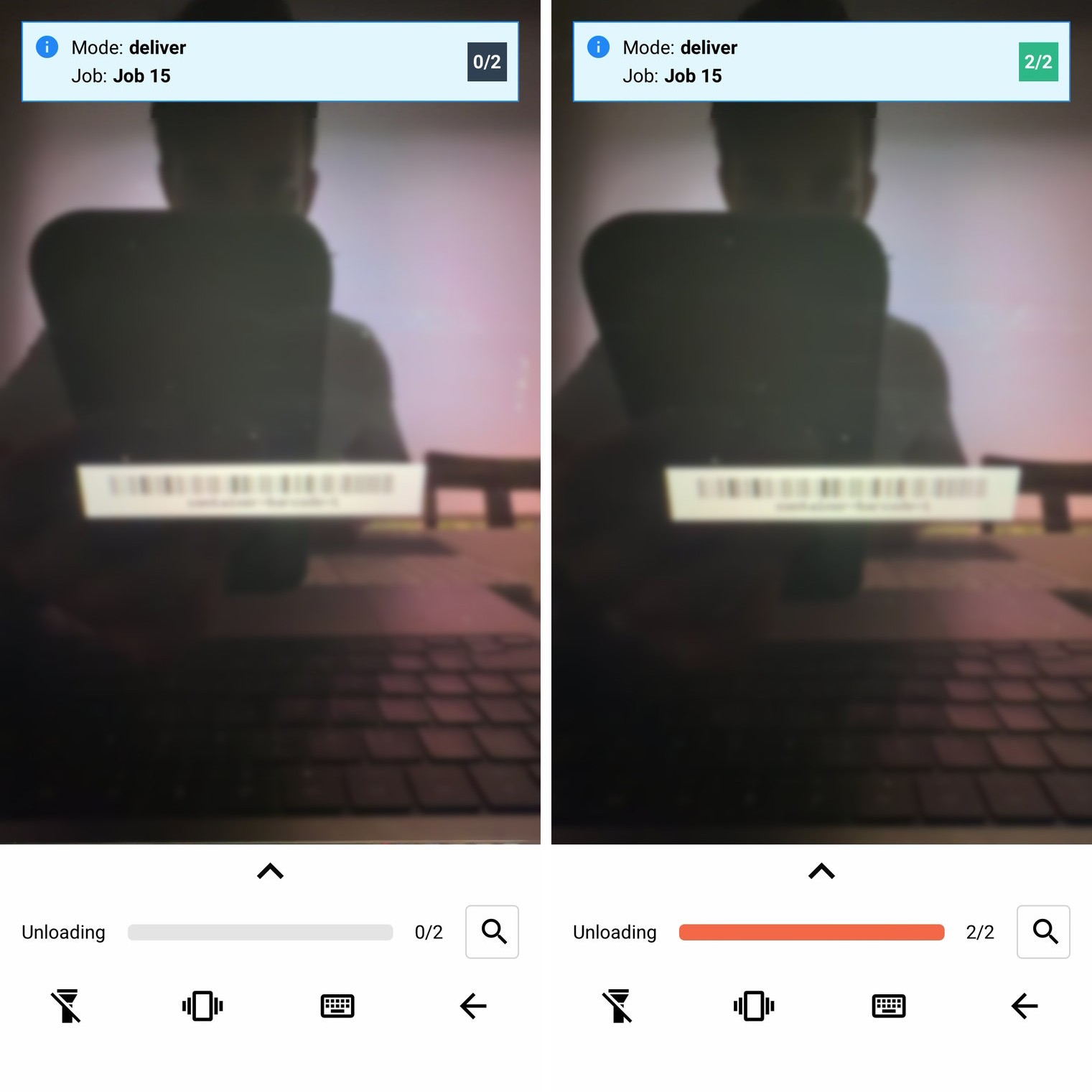
Delivering a container happens automatically while Scanning at the Customer. The scanner recognises a container barcode associated with the Job automatically and will create Deliver Proofs for all Units that were loaded into that container.